Lacuna product licensing
This page brings together, in one place, what you need to obtain, activate, renew and use the licenses of Lacuna Software products. It was compiled from each product's documentation, which remains the detailed reference: each product's section ends with links to the source articles.
If you only use a website or system that asks for Web PKI to sign documents or sign in with a digital certificate, you don't need to buy or configure any license. The license belongs to whoever develops and maintains the website. See For end users.
Summary by product
| Product and scenario | License needed? | What is used |
|---|---|---|
| Web PKI in an application on localhost (development) | No | — |
Web PKI with cloud Rest PKI (https://pki.rest) | No, even in production | — |
| Web PKI in all other cases, outside localhost | Yes | Web PKI license, set in the page's JavaScript |
| Cloud Rest PKI | No license file | Account on pki.rest and access token |
| On-premises Rest PKI | Yes | PKI SDK license (LacunaPkiLicense.txt file) |
Cloud Rest PKI Core (core.pki.rest) | No license file | Endpoint and API key, provided by support |
| On-premises Rest PKI Core | Yes | PKI SDK license (required) and Web PKI license (for signing in the browser) |
| PKI SDK | Yes | PKI SDK license (LacunaPKILicense.config file or Base64 text) |
| PKI Express | Yes | LacunaPkiLicense.config file, used to activate PKI Express on the machine |
| On-premises Signer | Yes | PKI SDK license and Web PKI license |
| Bulk Signer | Yes | PKI SDK license (Base64 text) |
| End user of a website or system | No | — |
Understanding the licenses
The products on this page use one or more of these licenses:
- PKI SDK license: the license of Lacuna's .NET library. It is used directly by applications built on the
PKI SDK, and it is also required to install Rest PKI, Rest PKI Core,
Signer and Bulk Signer on-premises. It is delivered as a file
(
LacunaPKILicense.configor, for on-premises Rest PKI,LacunaPkiLicense.txt) or as Base64 text. A PKI SDK license may be restricted to use with Rest PKI. - Web PKI license: authorizes the browser component on a website's domains. The developer sets it in the page's JavaScript code and, for on-premises Rest PKI Core and Signer, also in the server configuration.
- PKI Express license: the
LacunaPkiLicense.configfile, used to activate PKI Express on the machine where it is installed.
Cloud services use no license file: you access them with your account's credentials, such as the Rest PKI access token and the Rest PKI Core API key. These credentials don't replace the Web PKI license where one is needed (see When the Web PKI license is needed).
In practice, it is one of these situations:
- The license has expired, is about to expire, or must cover something new, such as a new domain for Web PKI. You receive a new license and replace the configured value.
- You are about to upgrade an on-premises product. A PKI SDK license only accepts SDK versions released up to a certain date. So, before upgrading Signer or Rest PKI Core, check the changelog to see whether your license covers the target version. If it doesn't, ask for an updated license before upgrading.
The step-by-step guide to updating a license applies to both cases.
How to obtain a license
| Product | How to request it |
|---|---|
| PKI SDK | Free trial license from the pki.lacunasoftware.com website |
| Web PKI | Through Contact us or by email at support@lacunasoftware.com, stating the hostnames or URLs where the component will be used. PKI SDK licenses usually come with a Web PKI license |
| PKI Express | Test license through Contact us |
| On-premises Rest PKI | Test license through Contact us |
| On-premises Rest PKI Core and Signer | Use the PKI SDK and Web PKI licenses (rows above) |
| Bulk Signer | Lacuna provides the license (Base64 text) together with the credentials to access the product |
| Cloud Rest PKI | Create an account on pki.rest and generate an access token on the Control Panel. See the pricing |
| Cloud Rest PKI Core | Ask developer support for the endpoint and the API key |
When you make the request, we recommend stating:
- the product and the environment where the license will be used (production, staging or testing);
- for Web PKI, the production and staging hostnames or URLs. Private IP ranges are already allowed for staging (see Usage on private IPs);
- if the license is meant for upgrading an on-premises product, the version you intend to install.
Step-by-step guide to updating a license
- Identify the license and where it is configured, using the table below. One product may use more than one license: Signer, for example, uses the PKI SDK license and the Web PKI license.
- If the replacement comes with a version upgrade, read the product's changelog between the current version and the target version. Look for notices such as "make sure your license supports PKI SDK versions released until YYYY-MM-DD".
- Obtain the new license through the channels in How to obtain a license.
- Replace the whole value in the same place where the old license is configured. Base64 licenses must be pasted in full, on a single line. The Web PKI JSON license must be used in full.
- Restart the application or service for products that read the license at startup (PKI SDK, Rest PKI Core, Signer and Bulk Signer). For on-premises Rest PKI, the license is replaced on the administration screen.
- Confirm that the new license was loaded, with the check given for the product.
| Product | Where the license is | How to confirm |
|---|---|---|
| Web PKI | Page JavaScript: new LacunaWebPKI(license) or the license parameter of init() | No license error from the component. In the JSON format, check expiration and the domains |
| On-premises Rest PKI | Administration > System status > SDK license loaded | The same screen shows the licensee and the expiration date |
| On-premises Rest PKI Core | Configuration file or environment variables (on Azure, PkiSuite__SdkLicense and PkiSuite__WebLicense) | The service responds again on /api/system/info (which shows only the version, not the license details); test a signature |
| PKI SDK | LacunaPKILicense.config, Web.config/App.config or PkiConfig.LoadLicense | PkiInfo.License (licensee and expiration) |
| PKI Express | Machine activation (pkie activate or pkiemgr.exe) | Commands run without the activation and license error codes (17 to 21) |
| On-premises Signer | PkiSuite section (SdkLicense and WebLicense) | Since 2.2.0, an invalid PKI SDK license stops startup: check /api/system/info. For the Web PKI license, test a signature in the browser |
| Bulk Signer | Signing__PkiSdkLicense (or Signing:PkiSdkLicense) | License fingerprint in the startup banner and on the dashboard |
Web PKI
Web PKI is the component that lets a website use the digital certificates on the user's computer. The Web PKI license belongs to the website: it covers the application's domains and is set by the developer, in the page code.
When the license is needed
The license is not needed:
- to test in an application running on localhost (any port);
- when Web PKI is used with cloud Rest PKI (
https://pki.rest), even in production.
In all other cases outside localhost, the license is needed. This includes:
- applications that use Web PKI with the PKI SDK, PKI Express or any other backend (PKI SDK licenses usually come with a Web PKI license);
- applications that use an on-premises Rest PKI instance, that is, a Rest PKI other than
https://pki.rest. In that case, also set the instance URL inrestPkiUrl; - applications that use Rest PKI Core, including in the cloud (
core.pki.rest): the exemption applies only to cloud Rest PKI (https://pki.rest).
The Web PKI license also goes into the server configuration of on-premises products: for Signer, it is listed as required in the Linux and Azure installations; for Rest PKI Core, it is needed when users sign in the browser through Web PKI.
Staging: licenses are issued allowing staging use on any private IP (10.x.x.x, 127.x.x.x, 172.16.0.0 to
172.31.255.255 and 192.168.x.x). Staging domains, such as staging.patorum.com, go in the license's
homologDomains field.
License formats
You receive the license in two equivalent formats:
// Binary license
var webPkiLicense = 'ASYAanNma...Q==';

// JSON license
var webPkiLicense = {
  "format": 1,
  "allowedDomains": [
    "www.patorum.com"
  ],
  "homologDomains": [
    "staging.patorum.com",
    "ip4:10.0.0.0/8",
    "ip4:127.0.0.0/8",
    "ip4:172.16.0.0/12",
    "ip4:192.168.0.0/16"
  ],
  "productLevel": "Standard",
  "expiration": null,
  "signature": "LzdT1cgp...w=="
};
- The binary format hides the license details. They are not encrypted, only Base64-encoded.
- The JSON format keeps the details readable, which makes it easier to diagnose problems such as an expired license.
- In the server configuration of Rest PKI Core and Signer, use the binary license.
The signature field of the JSON license does not work as a license on its own. Use the whole binary license or the
whole JSON license: any attempt to use only part of the license makes the component reject it.
How to configure it
Pass the license to the constructor of the LacunaWebPKI class:
var pki = new LacunaWebPKI('ASYAanNma...Q==');  // or the whole JSON object
pki.init({
    ready: onWebPkiReady
});
The license can also be set in the license parameter of the init() method, if it was not passed to the
constructor. With a Rest PKI other than https://pki.rest, also set the instance URL:
var pki = new LacunaWebPKI('ASYAanNma...Q==');
pki.init({
    restPkiUrl: 'https://YourRestPKI.com/',
    ready: onWebPkiReady
});
How to update the license
- Request the new license by email at support@lacunasoftware.com or through Contact us (because it is expiring or to add a domain, for example), stating the production and staging hostnames or URLs.
- Replace the old license with the new one in the same place where it is set: in the
new LacunaWebPKI(...)constructor, in thelicenseparameter ofinit()or, for the ICPBravoAccess replacement, inwindow.lacunaWebPkiLicense. Replace the whole license. - Publish the page and test it on the staging and production domains.
- If the Web PKI license is also configured in an on-premises product, replace it there too: Rest PKI Core and Signer.
Don't confuse the license with the component version. Web PKI is updated automatically on users' computers, and the
JavaScript library (lacuna-web-pki-{version}.js) must be updated by the developer. See
Web PKI updates.
License errors
When there is a problem with the license, the component returns one of these error codes
(LacunaWebPKI.ErrorCodes):
| Code | Meaning |
|---|---|
license_not_set | A license is required and was not set |
license_invalid | The license provided is not valid |
license_restricted | The license does not allow the requested command |
license_expired | The license has expired |
license_domain_not_allowed | The license does not allow the domain in use |
Source articles: Web PKI licensing · Get started · Specifying the Rest PKI URL · Updates
Rest PKI
Each has its own documentation, its own cloud (pki.rest and core.pki.rest) and its own access method. This
section covers Rest PKI. Rest PKI Core has its own section.
Cloud Rest PKI
Cloud Rest PKI uses no license file. Access is granted with an access token from your account:
- Sign in to the Rest PKI website (pki.rest).
- On the Control Panel, click Generate new access token and copy the generated value.
- Configure the token in your application (in the sample projects, in the configuration file, such as
web.config). In direct HTTP calls, such as timestamp requests, send it in theAuthorization: Bearer <access token>header.
A 401 Unauthorized response means that the token provided is not valid. With cloud Rest PKI, Web PKI needs no license, even in production.
On-premises Rest PKI
An on-premises Rest PKI instance, on Windows Server or Azure App Service, requires a Lacuna PKI SDK license, requested during setup. Since version 1.5.0, Rest PKI also accepts PKI SDK licenses restricted to use with Rest PKI. To install it, you need:
- the Rest PKI binaries package;
- the binary PKI SDK license (
LacunaPkiLicense.txtfile). If you don't have one yet, request a test license.
On Windows Server, setup follows chapter 2 of the setup manual (in Portuguese). On Azure App Service, once you have the package and the license, contact us to get the setup instructions.
If your application uses Web PKI with the on-premises instance, also configure the Web PKI license and the instance URL (see How to configure Web PKI).
Starting with version 1.14.0, the Rest PKI dashboard shows a warning when the PKI SDK license is close to expiring. Version 1.12.0 fixed an error that occurred when changing the PKI SDK license; on older instances, consider upgrading before changing the license.
How to change the license
- Sign in as administrator on your Rest PKI instance. If you don't know the password, see Recover administrator password.
- On the top menu, click Administration > System status.
- On the SDK license loaded item, click the Change button.
- In the
LacunaPkiLicense.txtfile, locate the binary PKI SDK license, under the Binary license content (Base64-encoded) section:Binary license content (Base64-encoded)---------------------------------------AxAA........................................iw== - Copy and paste the entire line and click the Configure license button.
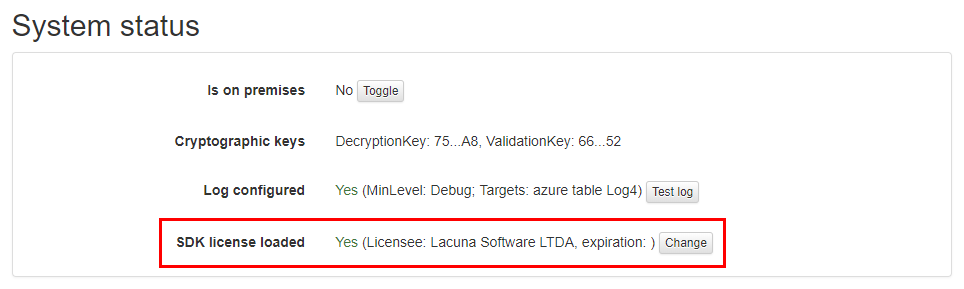
The same screen shows the licensee and the expiration date of the loaded license.
Source articles: Change license · Rest PKI on-premises · Setup on Windows Server · Setup on Azure App Service · Requesting timestamps
Rest PKI Core
Rest PKI Core can be used in the cloud (SaaS), at core.pki.rest, or on your own instance (on-premises).
Cloud Rest PKI Core
On SaaS, the application uses no license file. It needs two parameters, which you request from developer support:
- the API endpoint;
- the API key.
In ASP.NET Core, both go in the RestPki section of appsettings.json (keys Endpoint and ApiKey). When you call
the API directly, the API key goes in the X-Api-Key header (on the timestamp endpoints, use
Authorization: ApiKey YOUR_API_KEY; see Requesting timestamps).
A 401 response means a missing or invalid key, and a 403 means the application is not allowed to perform the
operation.
If your application uses Web PKI with Rest PKI Core, the Web PKI license is needed: the exemption applies only to
cloud Rest PKI (https://pki.rest).
On-premises instance licenses
An on-premises instance needs two licenses:
- the PKI SDK license, in Base64;
- the Web PKI license, in binary (Base64) format.
| Platform | Where the licenses are configured |
|---|---|
| Windows Server (in Portuguese) | appsettings.ini file in the C:\Program Data\Lacuna Software\Rest PKI Core folder (not the copy in config-templates) |
| Linux (Ubuntu) | /etc/restpkicore/appsettings.conf file |
| Docker | Environment variables (sample file restpkicore.env) |
| Azure App Services | App Service Configuration: PkiSuite__SdkLicense and PkiSuite__WebLicense |
On Azure, PkiSuite__SdkLicense is required, and PkiSuite__WebLicense is only required if users will sign
documents with certificates on their computers (signing in the browser through Web PKI). On the other platforms, both
licenses are listed as setup prerequisites. For Rocky Linux, see
Setup on Rocky Linux.
In the configuration files (Windows, Linux and Docker), fill in the licenses following the instructions in the
template file itself. For environment variables, the name is the section and the setting separated by __ (two
underscores): the SdkLicense setting of the PkiSuite section, for example, becomes PkiSuite__SdkLicense.
How to change the license
The Rest PKI Core documentation has no specific article on changing the license. The steps below follow each platform's configuration and restart procedures.
- Linux: edit
/etc/restpkicore/appsettings.conf, replace the license and restart the service withsystemctl restart restpkicore. Follow the logs withjournalctl -u restpkicore -f. - Windows Server: edit
appsettings.ini, replace the license and restart the site in IIS (Stop and Start). - Docker: change the license in the environment variables file (for example,
restpkicore.env). Because the variables are read when the container is created, remove the current container (docker rm -f restpkicore) and create it again with the samedocker run --name restpkicore --env-file restpkicore.env ...command used for setup. Check the logs withdocker logs -f restpkicore. - Azure App Services: in Configuration, change
PkiSuite__SdkLicenseand/orPkiSuite__WebLicenseand click Save.
After the change, check that the instance responds on https://your-restpki-core-address/api/system/info.
Before upgrading
Some versions require the PKI SDK license to support versions released up to a certain date:
| Rest PKI Core version | The PKI SDK license must support versions released until |
|---|---|
| 2.0.0 RC 8 | 2023-06-27 |
| 2.0.0 RC 7 | 2022-10-19 |
Before upgrading, read the changelog between your version and the target version.
The installed version is shown on /api/system/info (see
Checking the installed version).
Source articles: Rest PKI Core · Getting started with integration · On-premises environments · Setup on Azure App Services · Changelog
PKI SDK
Lacuna PKI SDK is a .NET library, distributed through NuGet (package Lacuna.Pki). To use it,
the application must load the license at startup.
How to obtain the license
If you don't have a license yet, get in touch through the pki.lacunasoftware.com website for a free trial license. The license can be used in two formats:
LacunaPKILicense.configfile;- Base64 text.
If your application signs in the browser, it also uses Web PKI, which needs its own license outside localhost. PKI SDK licenses usually come with a Web PKI license.
How to load the license
There are three ways. The recommended one depends on the type of application:
| Method | Recommended for |
|---|---|
LacunaPKILicense.config file in the DLL directory | Web applications |
Key in Web.config or App.config | — |
Programmatically, with PkiConfig.LoadLicense | Desktop applications |
1. File in the DLL directory. The SDK automatically looks for the LacunaPKILicense.config file next to
Lacuna.Pki.dll. A convenient way is to include the file in the project with Build Action = Content and
Copy to Output Directory = Copy Always.
2. Web.config or App.config. In the appSettings section, set the file path or the Base64 license:
<appSettings>
  <!-- Path of the LacunaPKILicense.config file -->
  <add key="LacunaPKI.LicensePath" value="[path of the LacunaPKILicense.config file]"/>

  <!-- or the Base64 license -->
  <add key="LacunaPKI.BinaryLicense" value="[Base64 license]"/>
</appSettings>
3. Programmatically. In the startup code of the website or application, load the decoded license:
byte[] binLicense = Convert.FromBase64String("[Base64 license]");
PkiConfig.LoadLicense(binLicense);
This method embeds the license in the source code, which makes it harder to leak to third parties. There is also
PkiConfig.LoadLicense(string), which takes the path of the .config file, but it is not recommended for desktop
applications.
How to update the license
The PKI SDK licensing page does not describe how to change the license. Because the license is loaded at startup, the procedure is to replace it where it was configured and restart the application.
- Replace the license in the same place where it was configured: the
LacunaPKILicense.configfile, theLacunaPKI.LicensePathorLacunaPKI.BinaryLicensekey, or the value passed toPkiConfig.LoadLicense. - If the license is included in the project or embedded in the code, rebuild and publish the application.
- Restart the application or website.
- To check the loaded license, use the
PkiInfo.Licenseproperty (classPkiInfo), which gives the licensee (Licensee) and the expiration date (Expiration).
In on-premises products that use the PKI SDK license, the license is replaced in each product's configuration: see Rest PKI, Rest PKI Core, Signer and Bulk Signer.
License and SDK versions
A PKI SDK license may have an expiration date (check PkiInfo.License.Expiration), and it only accepts SDK versions
released up to a certain date. That is why the products that use the PKI SDK state, in their changelogs, what coverage
the license needs before an upgrade (see Signer and Rest PKI Core).
Source articles: PKI SDK licensing · Accessing NuGet packages · Signing in the browser
PKI Express
PKI Express is installed on Windows or Linux and requires a license: the
LacunaPkiLicense.config file, used to activate PKI Express on the machine.
How to obtain the license
Contact us for a test license.
Activation on Windows
- Install PKI Express with the installer or, without administrator permissions, with one of the zip packages (see Setup on Windows).
- Open the installation folder and run the PKI Express Configuration Manager (
pkiemgr.exefile). There is no Start menu shortcut: you must browse to the folder. - Follow the app's instructions to activate PKI Express. On Windows, both network and manual activation are done through this app.
Activation on Linux
After installing the package and configuring the logs folder (see Ubuntu or Mint, Red Hat Enterprise Linux or CentOS, Oracle Linux or Fedora), activate PKI Express with the license file:
sudo pkie activate LacunaPkiLicense.config
If automatic activation fails, use manual activation.
Manual activation (Linux)
- Generate the activation request:
A file namedpkie activate LacunaPkiLicense.config --request
pkie-activation-request.pemis saved in the current folder. - Send this file through the Support Center.
- You will receive back the
pkie-activation.pemactivation file. Copy it to the current folder and run:Or, if you prefer, give the file path:sudo pkie activatesudo pkie activate --file /path/to/pkie-activation.pem
Changing the license and upgrading
The PKI Express documentation has no specific article on changing the license. To apply a new license, activate again
with the new LacunaPkiLicense.config file: on Linux, with sudo pkie activate LacunaPkiLicense.config (or through
manual activation); on Windows, through pkiemgr.exe. Manual activation with a new license was
fixed in version 1.6.2; use that version or later.
Upgrading the PKI Express version is a different procedure:
- Windows: download the new version and run the installer (see Update).
- Linux: download the new package, delete the contents of the target folder and extract the new package into it (see Update on Ubuntu or Mint, RHEL or CentOS, Oracle Linux or Fedora). If you are upgrading from a 1.0.x version, also configure the logs folder and activate again.
Return codes
| Code | Name | Meaning |
|---|---|---|
| 17 | NotActivated | PKI Express is not activated |
| 18 | ActivationError | PKI Express activation failed |
| 19 | BadLicense | Invalid Base64 (of the activation license) |
| 20 | LicenseNeeded | No license file was provided |
| 21 | InvalidLicense | Invalid license |
Source articles: PKI Express · Setup · Manual activation · Return codes
Signer
An on-premises Signer instance needs two licenses:
- the PKI SDK license, in Base64;
- the Web PKI license, in binary (Base64) format.
Where the licenses are configured
| Platform | Where to configure them |
|---|---|
| Linux (Ubuntu) | /etc/lacuna-signer/appsettings.linux.json file, PkiSuite section: SdkLicense and WebLicense |
| Azure App Services | App Service Configuration: PKiSuite__SdkLicense and PKiSuite__WebLicense |
| Windows Server | appsettings.iis.json file, PkiSuite section: SdkLicense and WebLicense |
| Docker | PkiSuite__SdkLicense and PkiSuite__WebLicense environment variables |
On the Linux and Azure setup pages, both licenses are required. In the Windows Server and Docker articles, only
SdkLicense is listed as required, and WebLicense appears as conditional. Either way, the Web PKI license is needed
for embedded signature. Starting with version 2.2.0, the PKI SDK license is validated at startup:
if it is not valid, startup is aborted.
How to change the license
The Signer documentation has no specific article on changing the license. The steps below follow each platform's setup and update procedures.
- Linux: edit
/etc/lacuna-signer/appsettings.linux.json, replaceSdkLicenseand/orWebLicensein thePkiSuitesection and restart the service withsystemctl restart lacuna-signer. Check it withsystemctl status lacuna-signerand follow the logs withjournalctl -u lacuna-signer -f. - Azure App Services: in Configuration, change
PKiSuite__SdkLicenseand/orPKiSuite__WebLicenseand click Save. - Windows Server: stop the site in IIS, change the
PkiSuitesection ofappsettings.iis.jsonand start the site again. - Docker: change the
PkiSuite__SdkLicenseand/orPkiSuite__WebLicensevariables and recreate the container.
After the change, check that the instance responds on /api/system/info (on Linux, for example,
curl http://localhost:5001/api/system/info).
Before upgrading Signer
Some versions require the PKI SDK license to support SDK versions released up to a certain date. Read the changelog between the current version and the target version:
| Signer version | The license must support PKI SDK versions released |
|---|---|
| 2.2.0 | until 2025-08-01 |
| 2.0.0 | until 2025-05-20 |
| 1.72.0 | until 2024-07-03 |
| 1.64.0 | until 2023-09-27 |
| 1.61.0 | until 2023-08-01 |
| 1.59.0 | until 2023-06-28 |
| 1.58.0 | until 2023-05-25 |
| 1.43.0 | after 2022-04-29 |
If your license doesn't cover the required date, get an updated PKI SDK license before upgrading.
Embedded signature
To use embedded signature (the LacunaSignerWidget component) in another
application, Signer must be configured with a Web PKI license that includes the domain where the component will be
loaded. To add a new domain, get a new Web PKI license and replace it as described in
How to change the license.
Source articles: Setup on Ubuntu Server · Setup on Azure App Services · Update on Linux · Changelog
Bulk Signer
Bulk Signer uses a single license: the Lacuna PKI SDK license, a Base64 text provided by Lacuna Software. It is required: without it, the service does not start.
How to obtain it
Lacuna delivers three items, which are not interchangeable:
- the registry credentials (user name and access token), to pull the container image;
- a unique identifier, used in the binaries download URLs;
- the PKI SDK license, which unlocks the running service.
Because the license is just text, and not a download, it also works on air-gapped servers.
Where to configure it
The preferred way is the Signing__PkiSdkLicense environment variable. You can also use the Signing:PkiSdkLicense
key in appsettings.Production.json, as long as the file is kept out of version control and its access is restricted
to the service account. The variable is preferred because it keeps the license out of the file tree, and it takes
precedence at startup.
| Target | Where to set Signing__PkiSdkLicense | How to apply |
|---|---|---|
| Linux (systemd) | /etc/bulksigner/bulksigner.env file (mode 0640, owned by bulksigner) | sudo systemctl restart bulksigner |
| Windows (service) | Machine-scope environment variable | Restart-Service LacunaBulkSigner |
| Docker / Compose | deploy/docker/.env file | docker compose up -d |
| Azure App Service | App settings, as a Key Vault reference | See Azure App Service |
On Windows, set the variable in an elevated PowerShell:
[Environment]::SetEnvironmentVariable("Signing__PkiSdkLicense", "<base64-license>", "Machine")
Restart-Service LacunaBulkSigner
In version 1.0.x, the key was named Signing:License (Signing__License). It was renamed in 1.1.0 and the old name
is no longer read: an upgraded installation that still uses the old name fails at startup with
Signing:PkiSdkLicense is required. Rename the key as part of the upgrade.
How to change the license
- Note the fingerprint of the current license: the
pki licenseline of the startup banner, or the System page (/system) of the dashboard, License fingerprint field. - Replace the value of
Signing__PkiSdkLicensein the place given for your target (table above). If you useSigning:PkiSdkLicenseinappsettings.Production.json, make sure no old environment variable is set, because it takes precedence. - Restart the service.
- Check that the license fingerprint changed and that the
/api/readyendpoint does not report a failure in thelicensecheck.
Troubleshooting
Signing:PkiSdkLicense is required: neither the environment variable nor the configuration has a value. Set the variable on the target and restart the service./api/readyreturns 503 with a failure in thelicensecheck: the license was not loaded. If the fingerprint does not appear in the banner, the license was rejected at startup.
Source articles: Installation · Configuration · Security · Troubleshooting
For end users
This section is for people who use a website or system that asks for Web PKI, Lacuna's browser extension, to sign documents or sign in with a digital certificate.
Do I need to buy or configure a license?
No. When Web PKI requires a license, it belongs to the website: it covers the website's domains and is configured by whoever develops it, in the page code (websites that use cloud Rest PKI don't even need one). People who only install the extension to use the website don't buy or configure any license.
If the website shows a Web PKI license error (for example, an expired license or a domain that is not allowed), the problem lies in the website's configuration. Report it to the company responsible for the website.
Digital certificate: who issues it?
Web PKI does not issue digital certificates. It lets the website use a certificate you already have, either an A1 certificate, installed on the computer, or an A3 certificate, on a cryptographic device such as a token or smart card.
ICP-Brasil certificates are purchased from an accredited Certification Authority (CA), listed on the official ITI list (in Portuguese). Questions about buying, validity or renewal of the certificate should be taken to the CA that issued it.
To check, on Windows, whether there is a certificate with a private key on the computer:
- Start > Run... > certmgr.msc
- In the Personal folder, double-click the certificate.
- The message "You have a private key that corresponds to this certificate." should appear.
Installing Web PKI
- If the component is not installed, is out of date or the browser is not supported, the website usually takes you to the installation page and, at the end, you are automatically sent back to the website (the website may show its own message first).
- Web PKI is only installed from get.webpkiplugin.com: the extension comes from the browser's official store, and the native app is downloaded from that same domain.
- Once installed, Web PKI is updated automatically.
- See the supported browsers.
Where to get help
- License errors or questions about the website's service: talk to the company responsible for the website. Requests about your personal data should also be made to it, as it is the data controller.
- Problems installing or using Web PKI: visit Lacuna's Support Center.
- When asking for support, it helps to turn on verbose logging: click the extension icon and go to Settings > Advanced > Verbose logging (see Logs).
Contacts
| Channel | What for |
|---|---|
| Contact us | Requesting licenses, test licenses and sales information |
| support@lacunasoftware.com | Developer support, Web PKI license requests and the parameters for cloud Rest PKI Core |
| Support Center | End users and PKI Express manual activation |
| pki.lacunasoftware.com | Free PKI SDK trial license |
| +55 61 3030-5700 | Phone. Address: EQN 102/103, Ed. Avenida 102, 2nd floor, Asa Norte, Brasília-DF, Brazil |