Lacuna Signer - Anchor texts
An anchor text is a piece of text written in the PDF between double square brackets, such as [[buyer]].
Signer uses it to position a participant's signature or initials over that point of the document on
its own, without anyone clicking the page.
Available from version 3.3.0 on, when the VisualRepresentation:AnchoredMarksEnabled setting is enabled in the
instance.
Preparing the PDF
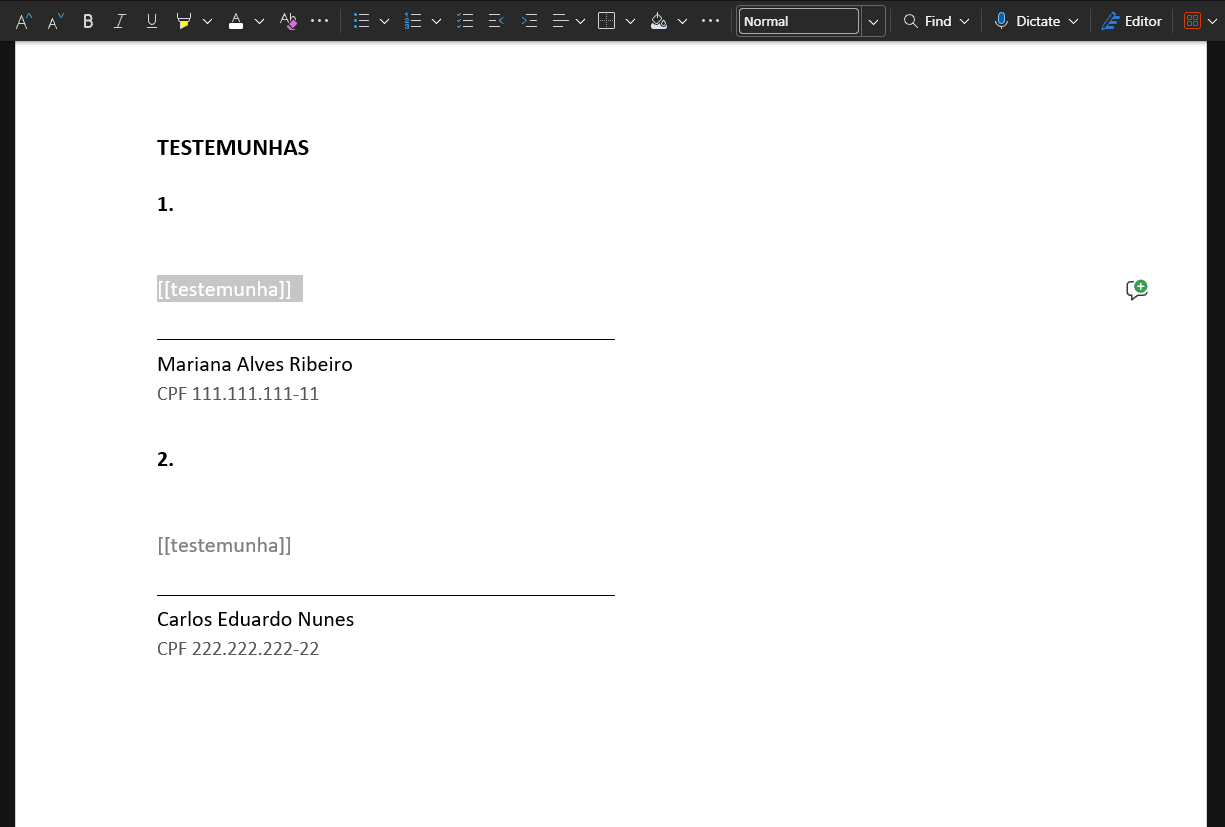
In the document, write the participant's name between double square brackets where the signature should appear:
[[buyer]], [[witness 1]], [[director initials]]. The name is free; it just cannot contain [ or ].
- Case and spaces do not matter.
[[Buyer]],[[buyer]]and[[ BUYER ]]are the same anchor. - The mark is centered on the anchor and rests on its baseline, like on a signature line, and is adjusted so that it does not fall outside the page. Its size is the default signature or initials size configured in the installation.
- Write the anchor where the signature should appear, not on the line above or below it.
- The anchor text remains in the signed document. It is neither erased nor covered.
- To keep the anchor from showing in the document, write it in white text. Signer reads the PDF's text layer; the color makes no difference.
- A scanned (image) PDF does not work. Without a text layer there is nothing to look for; generate the PDF from the text editor or run OCR on it first.
The same anchor can repeat in the document, on several pages or on several lines of the same page. How many marks that creates depends on the signature type, as How many marks each anchor creates explains.
Uploading the document
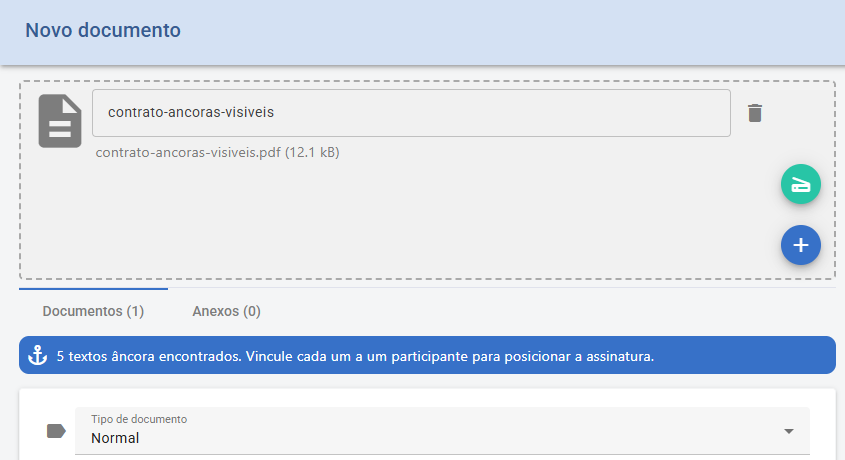
Upload the PDF in New document. If there are anchors, Signer tells you how many it found.
Linking participants to anchors
Every new participant is already linked to the next free anchor, and the mark appears right away, with the anchor's name next to the position.
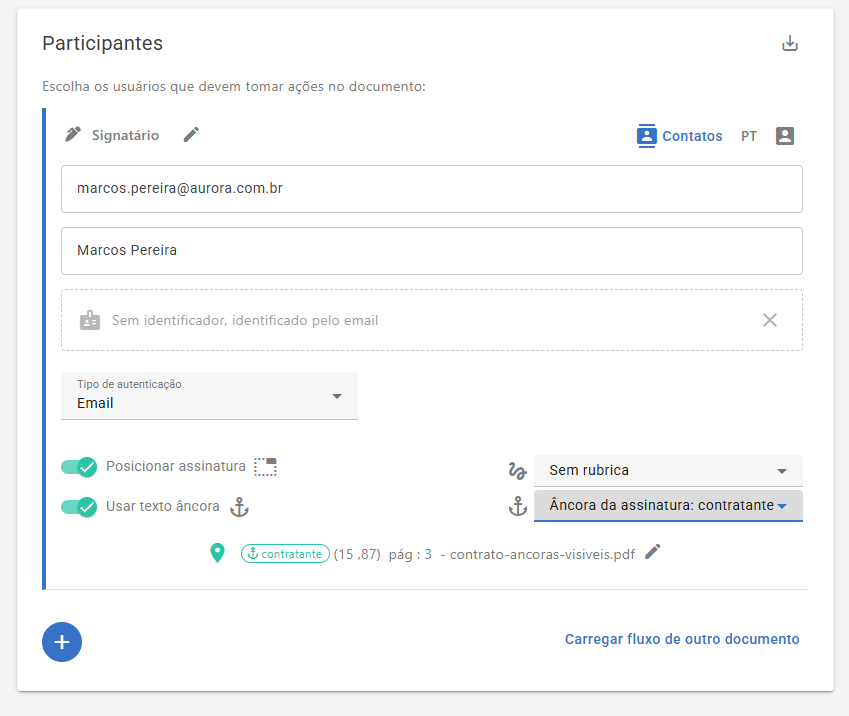
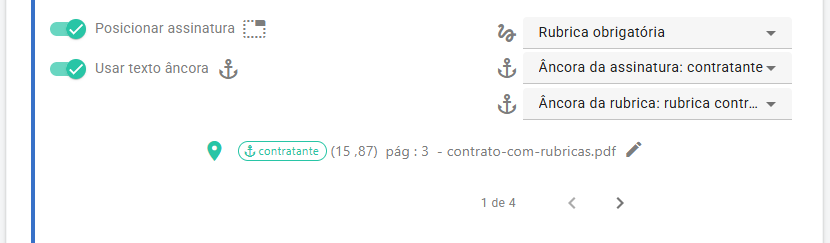
To adjust the link, use the controls on the participant card. The Use anchor text toggle turns automatic positioning on and off; below it are the Signature anchor and Initials anchor selectors (the latter only when the participant has initials).
These rules apply:
| Rule | How it works |
|---|---|
| One anchor, one mark | Each anchor serves a single mark of a single participant. An anchor already in use does not appear in the other participants' lists. |
| Automatic link | When the PDF is uploaded, each ordinary participant gets the next free anchor: a signer through the signature, an approver through the initials, which in that case become required. |
| Signature rules | They are not linked on their own: someone has to choose the anchor, either on the card or on the pre-positioning screen. |
| Anchor order | Reading order: first file, first page, top to bottom and left to right. That order decides which anchor is offered first. |
| Signature and initials | They are separate marks, each with its own selector and its own anchor. An approver only has initials. |
| Envelope | Pages are counted end to end, across the files. Until Signer knows the total number of pages of every file, nothing is positioned. |
Checking on the pre-positioning screen
Open the screen through the pencil next to the mark or through the Choose position button. There, each anchor is outlined on the page with its name, and you choose the anchor of each mark of the selected participant.
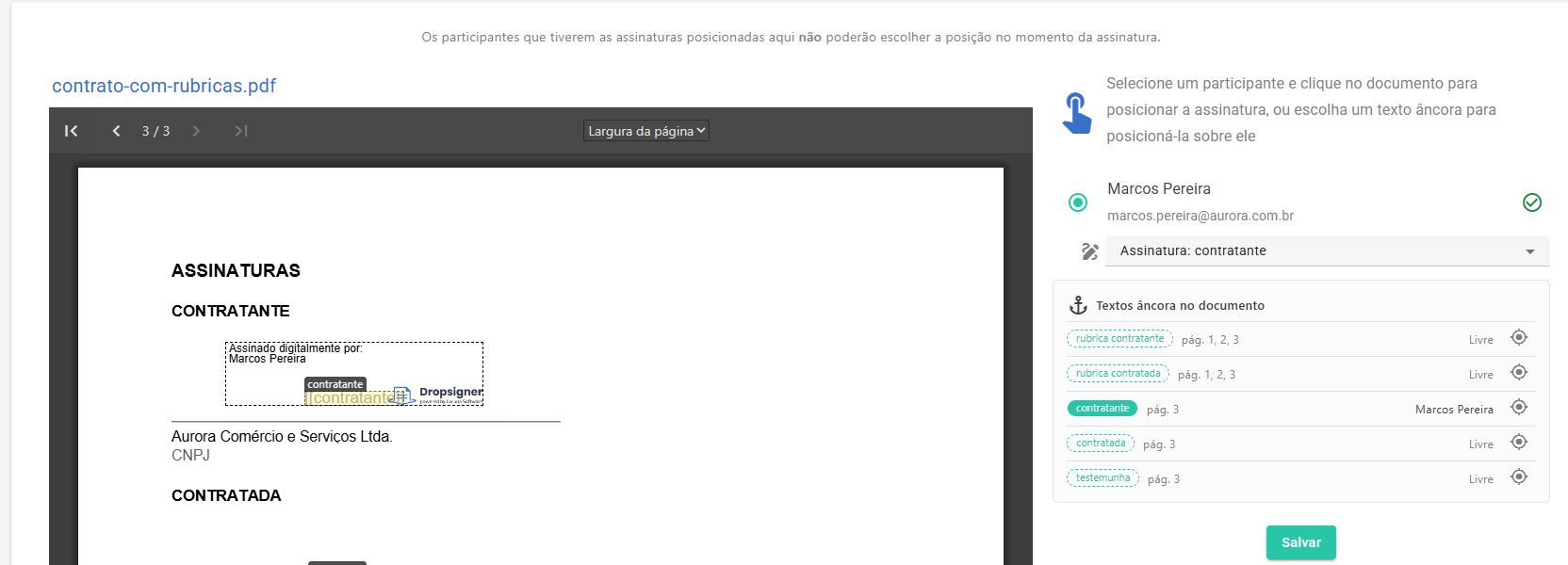
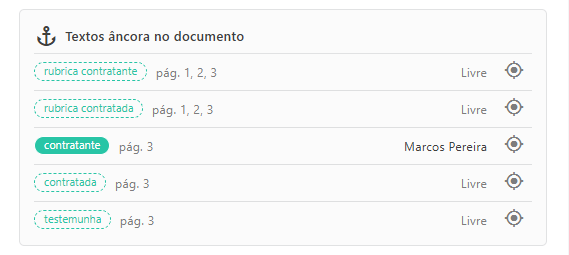
The Anchor texts in the document panel lists every anchor in the document, which pages they appear on, who is linked to each one, and takes you to the anchor on the page.
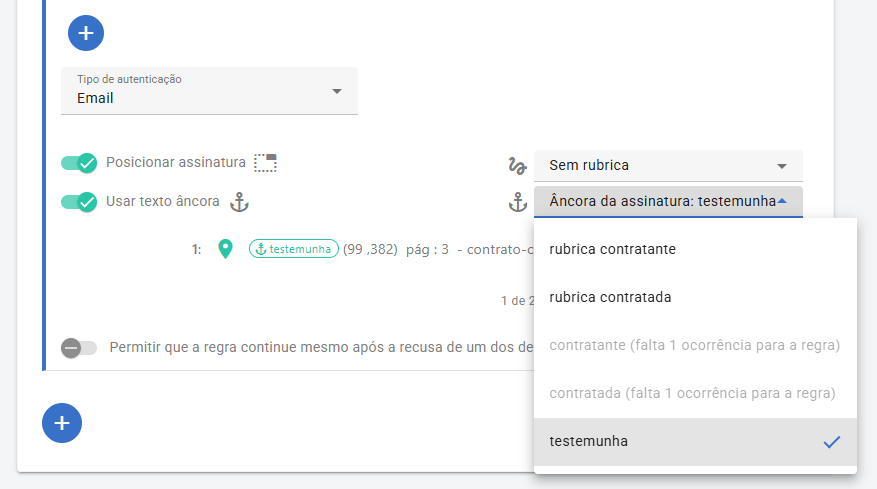
The selectors only appear on the selected participant, one set at a time.
How many marks each anchor creates
A repeated anchor does not always become several signatures. The signature type is what decides.
| Mark | Signature type | Result |
|---|---|---|
| Signature | Simple (electronic) | One mark on each page where the anchor appears. Repeated twice on the same page, the topmost one wins. |
| Signature | Advanced or qualified | One mark in the whole document, on the first occurrence; the others are ignored. |
| Initials | Any | One mark on each page where the anchor appears. |
In a signature rule the limit is always one mark per required signer, even for simple signatures.
N-of-M signature rules
A rule that requires several signatures can use anchors in two ways.
One anchor for the whole rule, chosen on the participant card. The anchor has to repeat at least as many times as
the number of required signers, and the occurrences fill the slots in reading order: the first goes to the 1st signer,
the second to the 2nd, and so on. This is the case of a block of witnesses, with [[witness]] repeated line by line.
An anchor that appears fewer times than the rule requires is disabled in the list, with a notice of how many occurrences are missing.
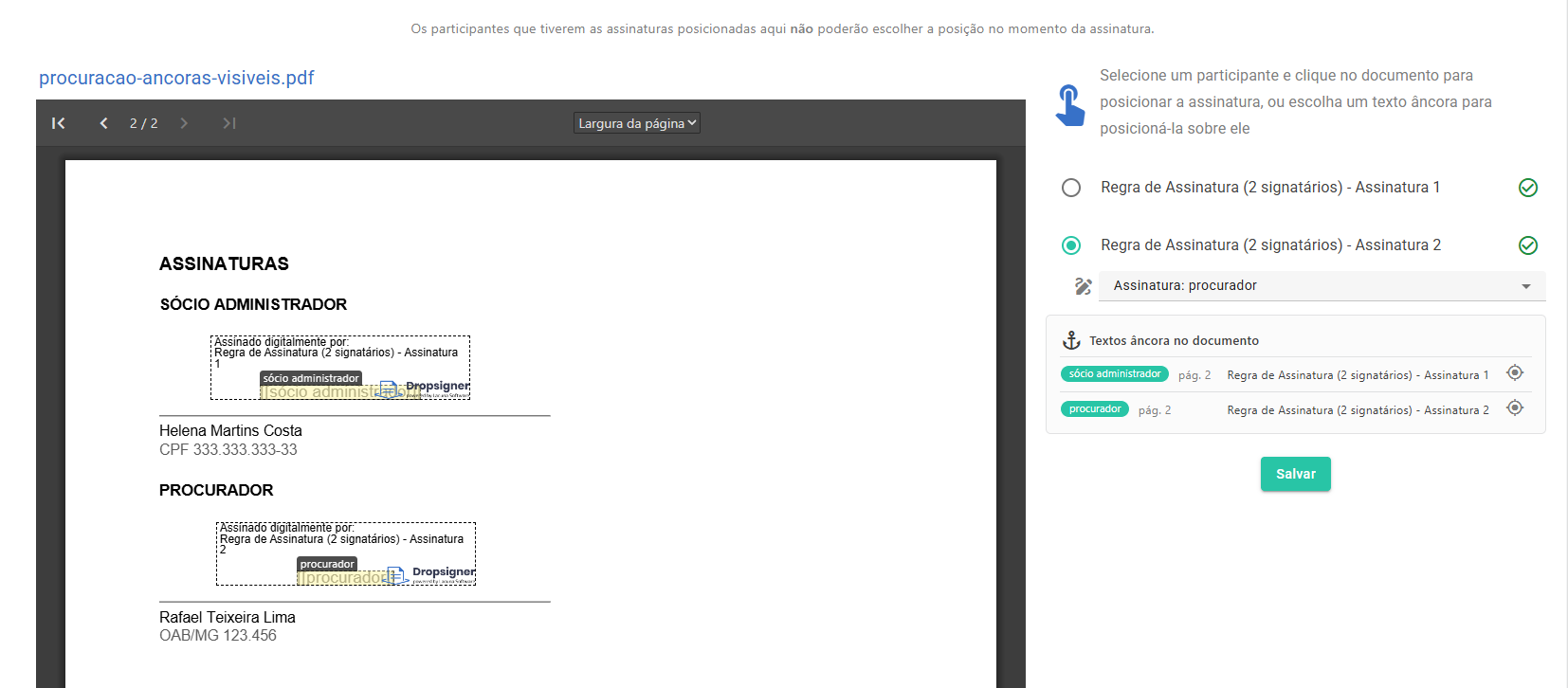
One anchor per signer, chosen on the pre-positioning screen. Select the signer in the list on the right (the rule
has one row per required signature) and choose their anchor; repeat for the next one. Each signer gets one mark, on
the first occurrence of their anchor. This serves different roles within the same rule, such as
[[managing partner]] and [[attorney-in-fact]].
When the link is undone
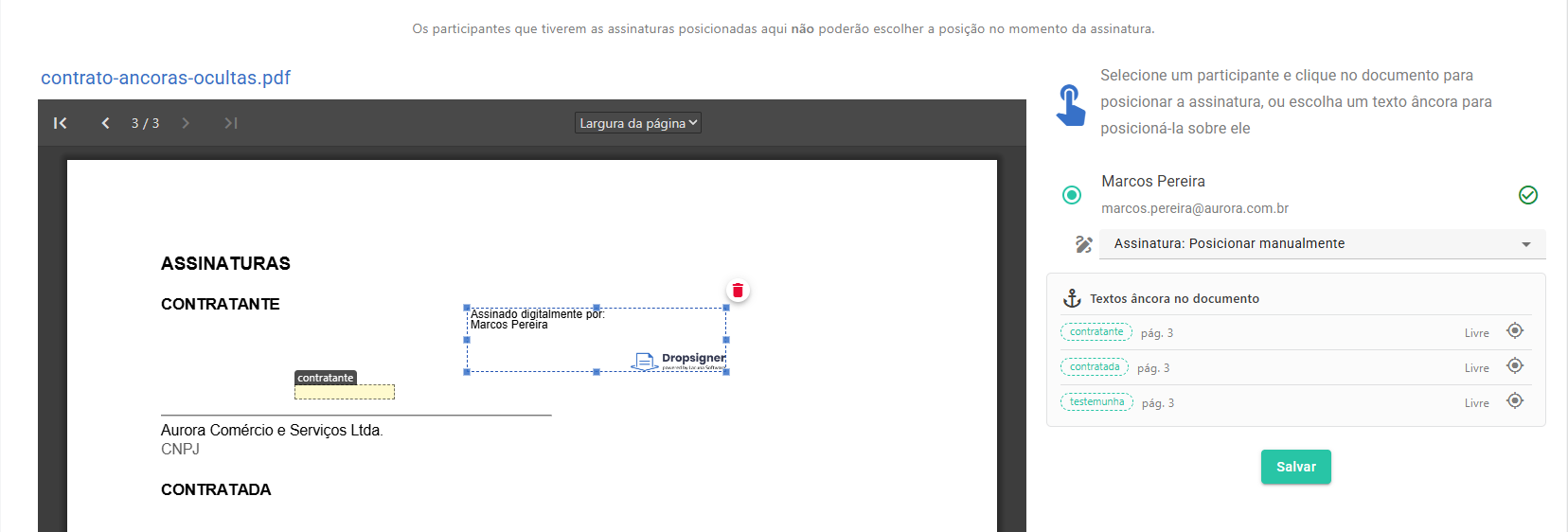
- Positioning, dragging, resizing or deleting the mark by hand undoes the anchor of that mark, and only of that one: the participant's other mark stays anchored. The selector starts showing Position manually.
- Turning the Use anchor text toggle off releases the participant's anchors, deletes the marks they had positioned and brings back the Choose position button. The released anchors become available to the others again.
- Replacing the document with one without anchor texts undoes everything the anchors had positioned and turns off positioning for whoever was only anchored; marks made by hand remain.
- Removing a file takes away the marks of that file; the participants stay linked to the anchors of the remaining files.
- Changing the participant's type (a signer becomes an approver, for example) releases the anchor of the mark they no longer have.
In the signed document
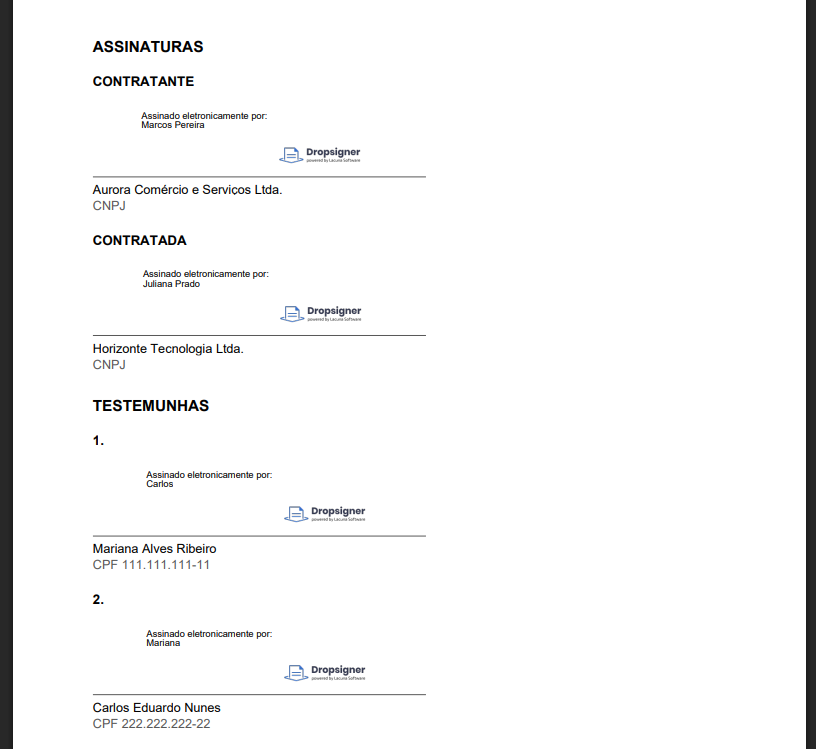
Marks positioned by an anchor count as any other pre-positioned mark: whoever signs no longer chooses the position, and the signature comes out exactly over the anchor.
Using anchors through the API
Whoever creates documents through an integration sends the anchors in AnchoredMarks, inside each flow action,
instead of positioning marks by coordinates.
| Field | What it does |
|---|---|
AnchorText | The text to look for, for example [[buyer]]. Spaces are ignored in the comparison. |
Type | Signature or initials. A type the action does not accept is refused (an approver only takes initials). |
OffsetX / OffsetY | Offset in points from the top left corner of the anchor. Positive goes right and down. |
Width / Height | Size of the mark in points. Zero uses the default of the type. |
CaseSensitive | Tells uppercase from lowercase. Default: no. |
IgnoreIfNotPresent | Default true: a missing anchor is ignored. With false, creation fails with DocumentMarkAnchorNotFound. |
Other points about the integration:
- The creation response carries
MissingAnchors, with the texts that were looked for and not found, useful to warn the end user. - Anchors also work when editing the flow of an existing document (
POST documents/{id}/flow): the actions sent inAddedFlowActionsacceptAnchoredMarks, and the response carriesMissingAnchorswith the texts that were not found, or null when all of them were found. GET uploads/{id}/pdf-infolists the anchors of the uploaded file, with page and coordinates, in the same reading order as the interface. With?anchors=falseSigner does not read the text layer:Anchorscomes back empty andPageCountcomes back zero, for callers that only need the other information about the file.- Two flow actions cannot compete for the same anchor, nor can the same action use it in two marks: creation is refused.
- Just like the interface, the API accepts several anchors in one rule: they fill the slots in the order they come in the list, respecting the limit of one mark per required signer. The only difference is how each signer is chosen: here by the order of the list, in the interface by the signer's row on the pre-positioning screen.
- With the feature disabled in the installation, creating with
AnchoredMarksrespondsAnchoredMarksDisabled.
Common problems
| Symptom | What to check |
|---|---|
| No anchor found | The PDF is scanned (no text layer); the brackets are doubled; the anchor was not broken into two lines by the editor; the feature is enabled in the installation. |
| The anchor shows up printed in the document | That is expected: the text is not erased. Write it in white in the source document. |
| Anchor disabled in the list, with "N occurrences missing" | The rule requires more signatures than the anchor has occurrences. Repeat the anchor in the document, lower the number of signers or give one anchor to each of them. |
| An anchor disappears from a participant's list | Another participant is already using it. Release it there first. |
| Only one signature in a document with the anchor on several pages | Advanced or qualified signature type: one mark per document. |
| The mark came out misplaced | The anchor is on a different line from where the signature should appear; move the text in the source document. Through the API, adjust OffsetX and OffsetY. |
| The selector changed to Position manually on its own | The mark was dragged, resized or repositioned, and that undoes the anchor. Choose the anchor again to bring it back. |
| Nothing is positioned in an envelope | Some file has not had its pages counted yet; wait for the processing to finish. |