System administration - Lacuna Signer
The system administrator, or instance administrator, manages a whole Signer instance: every user, every organization and the general settings. This section is for whoever runs an on-premises instance. If you use Signer in the cloud (SaaS), Lacuna administers the instance; for anything only the system administrator can do, ask Lacuna support.
Don't confuse this role with the administrator of an organization, who manages only their own organization. See Managing an organization.
Who is a system administrator
A user is a system administrator when they have the Administrator role in the special Sys Admin organization. Sys Admin is not a regular organization: it holds no documents and appears only on the administration screens, to grant roles that apply to the whole instance.
- The first user who signs up on a new instance becomes a system administrator automatically.
- An instance can have several system administrators. To add or remove one, see Adding users.
- The system administrator's permissions apply in every organization and personal account, even those they are not a member of. They can view, cancel, refuse, pause, move and delete any document.
Sys Admin has other roles, which grant partial powers and do not open the Admin area:
| Role | What it is for |
|---|---|
| Billing administrator | View the instance's billing, invoices and receipts |
| DSR administrator | Create and view data subject requests (DSR) |
| Monitor | View users, applications, events and the documents report, without changing anything. It is the role of the consumption monitoring keys |
| Documents creator | Create documents, when the instance doesn't grant that permission to everyone |
| Organizations Creator | Create organizations, when the instance doesn't grant that permission to everyone. See Access control |
Entering the Admin area
Open the user menu, at the top right, and click Admin. The item only appears for users with the Administrator role in Sys Admin.
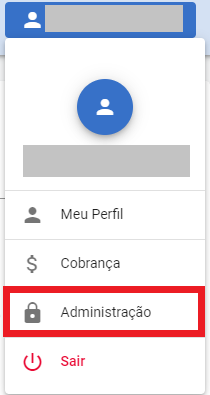
In the Admin area, the side menu turns dark. To go back to using Signer normally, open the user menu and click Exit the admin area.
What is in the Admin area
Some items only appear when the matching feature is enabled on the instance.
| Menu item | What you do there |
|---|---|
| General | Tabs Settings (view the instance settings and adjust the signature's visual representation), Terms of Use (publish versions and require acceptance), Reports (reports of the instance's documents, organizations and users), Providers (e-mail and SMS providers) and Blocked e-mails |
| Users | Lists every user of the instance and the pending invites. Adds system administrators, edits a user's access in any organization and locks or unlocks users |
| Organizations | Lists organizations and personal accounts. Creates, edits and deletes organizations, manages their users and opens their documents and folders. See Browsing the documents |
| Recovery | Recovers deleted, canceled or expired documents of any organization. From version 3.3.1. See Recovery screen |
| Billing | Plans, each organization's plan and block, invoices, payment-provider integration and reports. Appears if billing is enabled. See Payments |
| Certificates | Lists the certificates used on the instance |
| Advanced Signature | Manages the security contexts. Appears if signature types are enabled |
| Applications | Creates applications and API keys. A Sys Admin application generates the key for the Administration APIs |
| Events | Instance-wide log of invites, applications and account locks |
| Hangfire | Opens the background-jobs dashboard in a new tab |
| Servers | Lists the instance's servers |