Pausing and resuming documents
Pausing a document suspends the signing flow until someone resumes it. Use it when you need to hold a document that was already sent, for example to review its content or wait for a decision.
What happens to a paused document
- Nobody signs, approves or refuses the document, and its flow cannot be edited.
- The document's information, such as the name and the expiration date, can still be changed.
- The document can still be resumed or canceled.
- Signer notifies the participants when the document is paused and when it is resumed, and sends no reminders while it is paused. See Notifications.
- From version 3.3.1, the document leaves the Pending tab and shows in the Paused tab of the Documents list.
Only pending documents can be paused. Who can pause and resume depends on the access profile: whoever created the document, and the organization's Manager and Administrator profiles.
Pausing a document
- Open the document and click the more options button (⋮).
- Click Pause document.
- If you want, enter the reason for the pause. It shows on the document page.
- Click Pause.
Finding paused documents
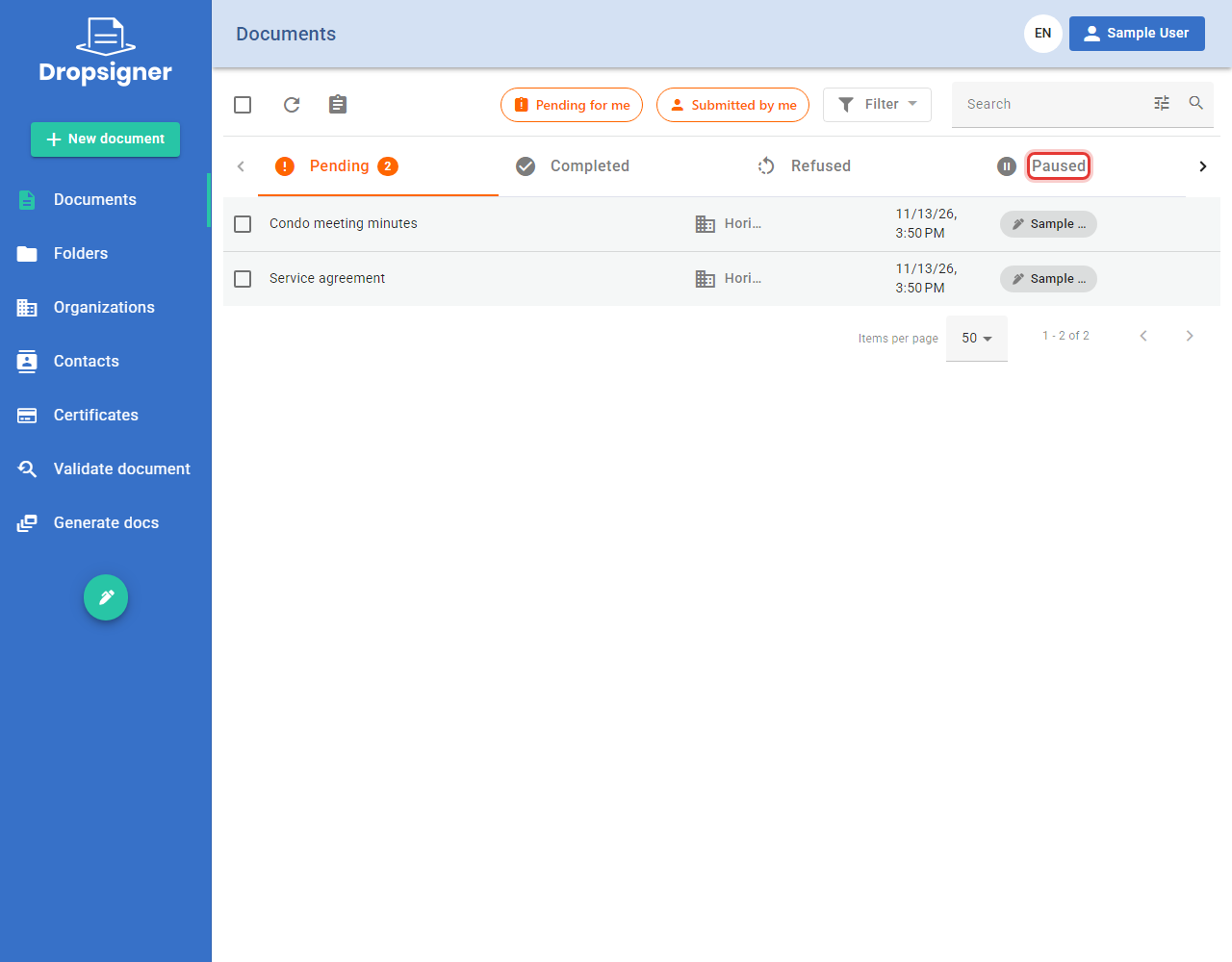
From version 3.3.1, paused documents have a tab of their own. In the side menu, click Documents and then the Paused tab.
Editing a paused document
From version 3.3.1, you can fix a paused document's information before resuming it.
-
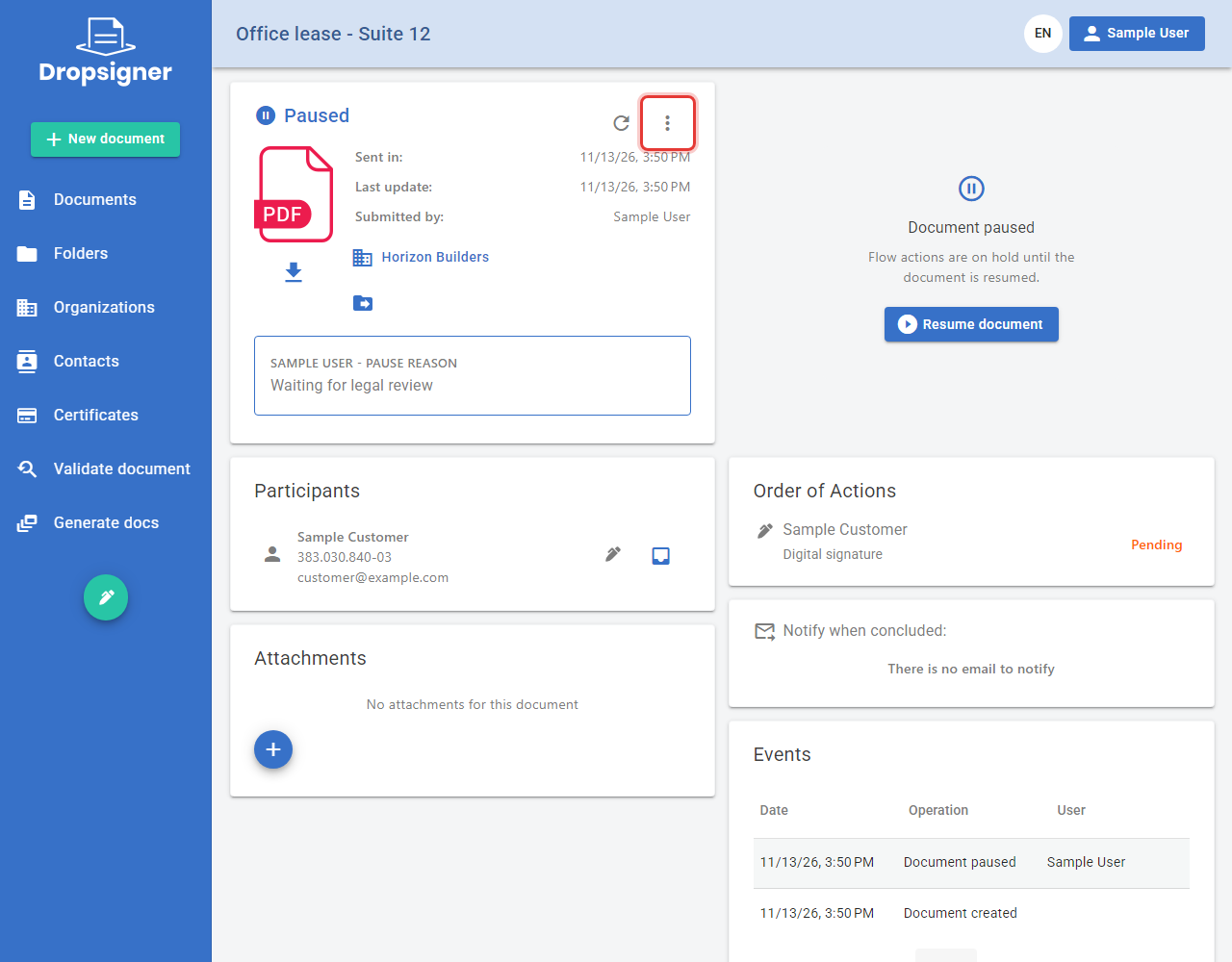
Open the paused document and click the more options button (⋮).
-
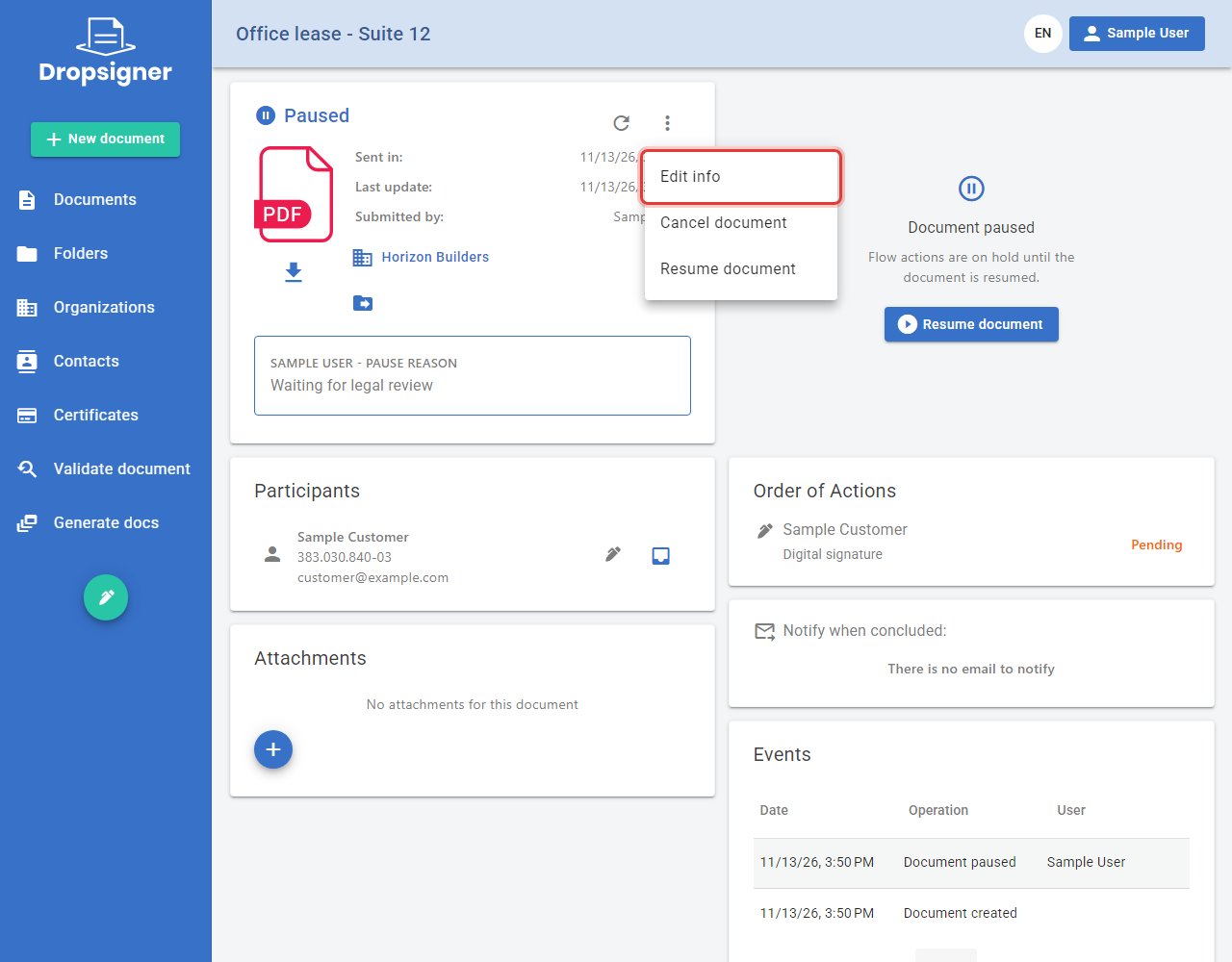
Click Edit info.
-
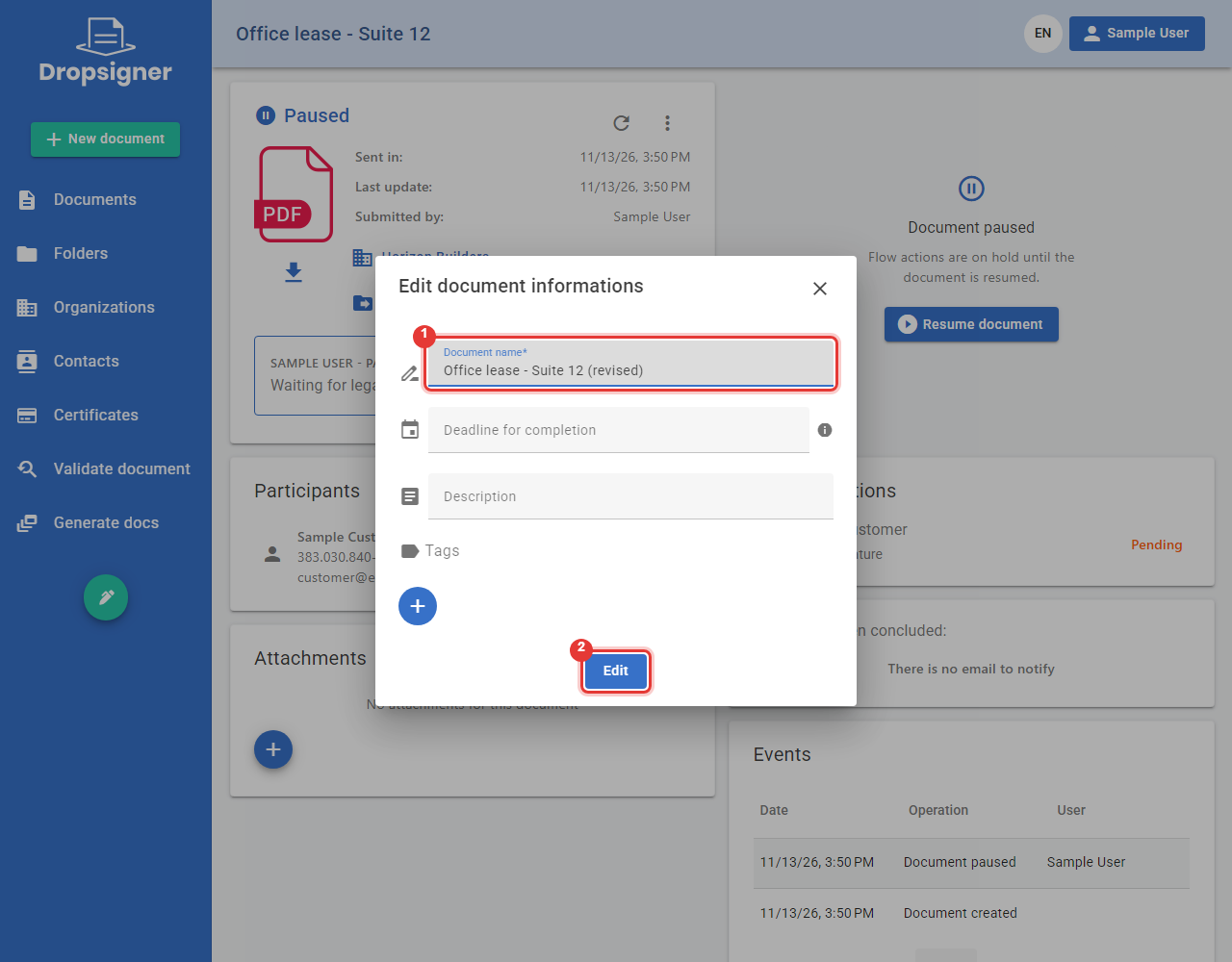
Change what you need, such as the Document name, the deadline, the description or the tags, and click Edit.
Resuming a document
-
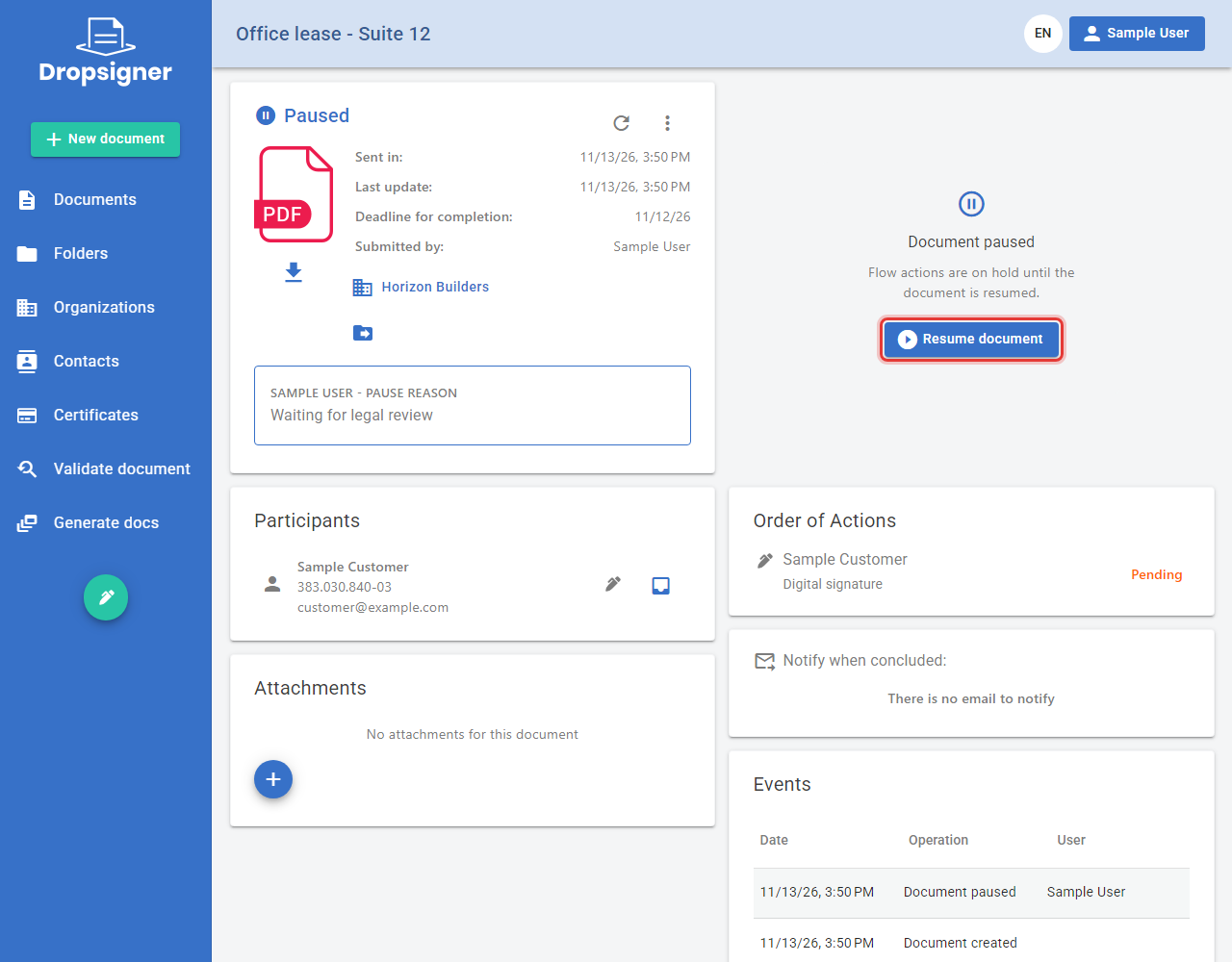
On the paused document's page, click Resume document. In the Paused tab, the Resume button on the document's row does the same.
-
If the expiration date has not passed, confirm with Resume. The flow continues from where it stopped.
-
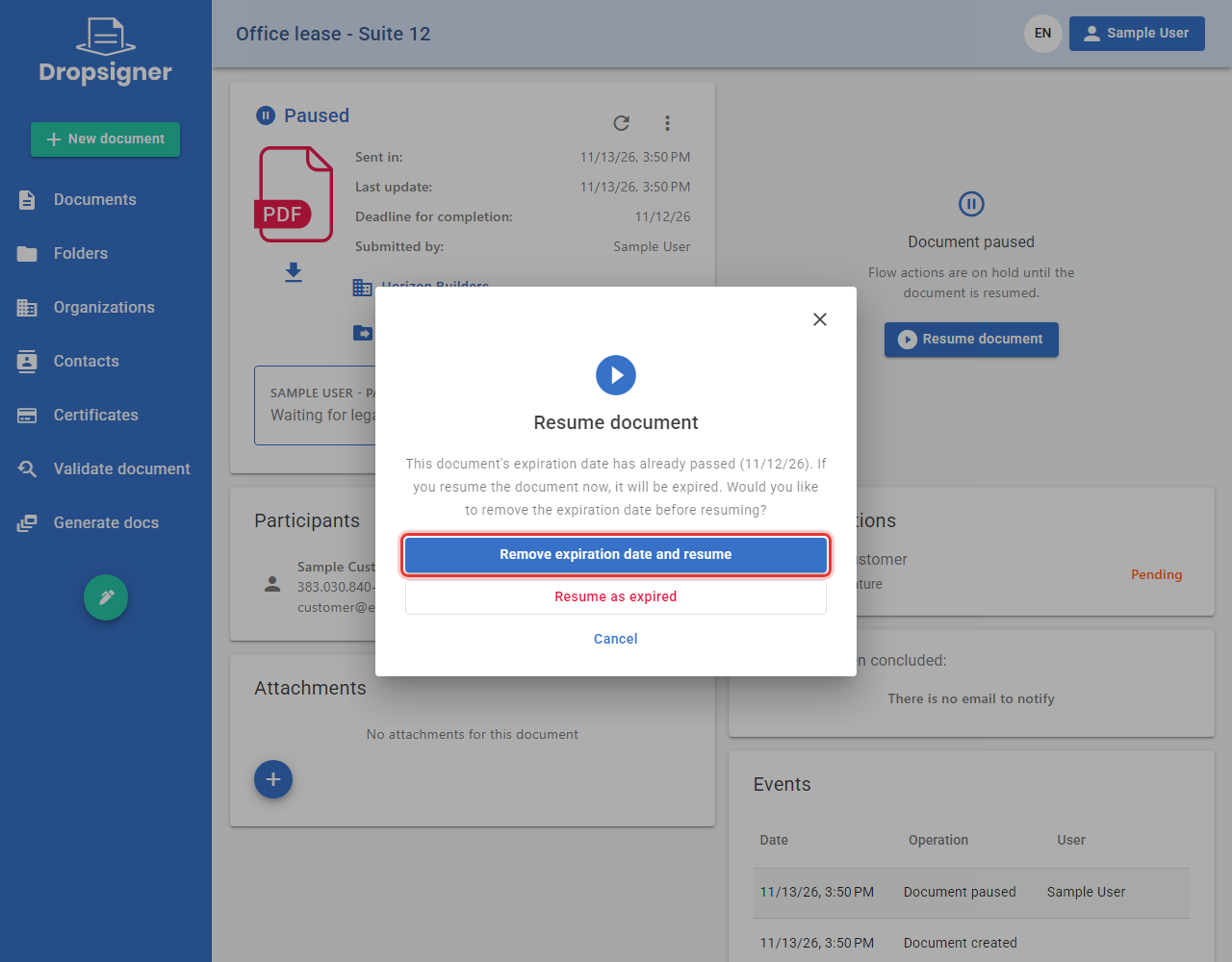
If the expiration date has already passed, Signer warns you and asks what to do:
- Remove expiration date and resume: the document returns to the flow, without an expiration date;
- Resume as expired: the document expires right away;
- Cancel: the document stays paused.
Resuming several documents at once
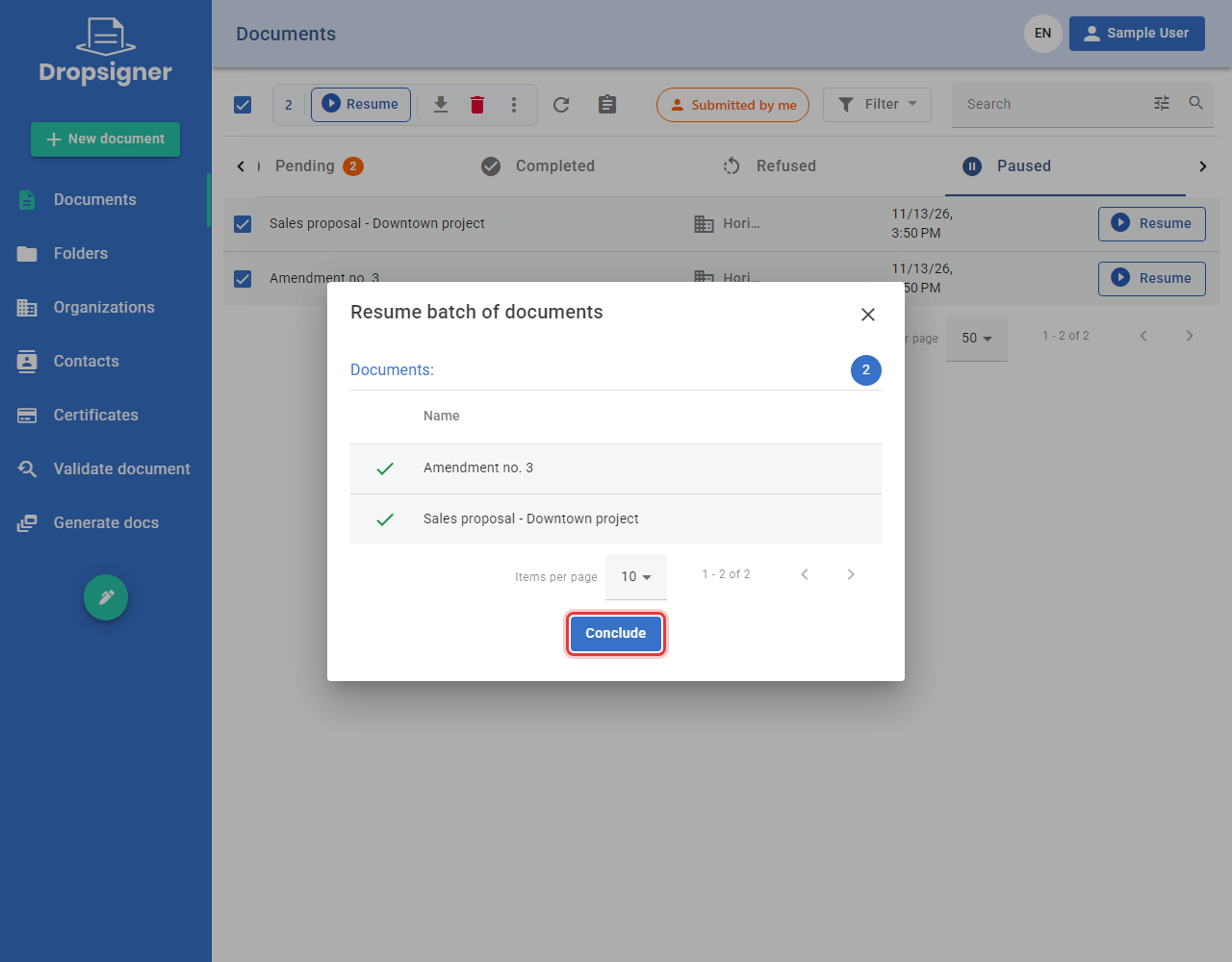
From version 3.3.1, you resume several paused documents at once.
-
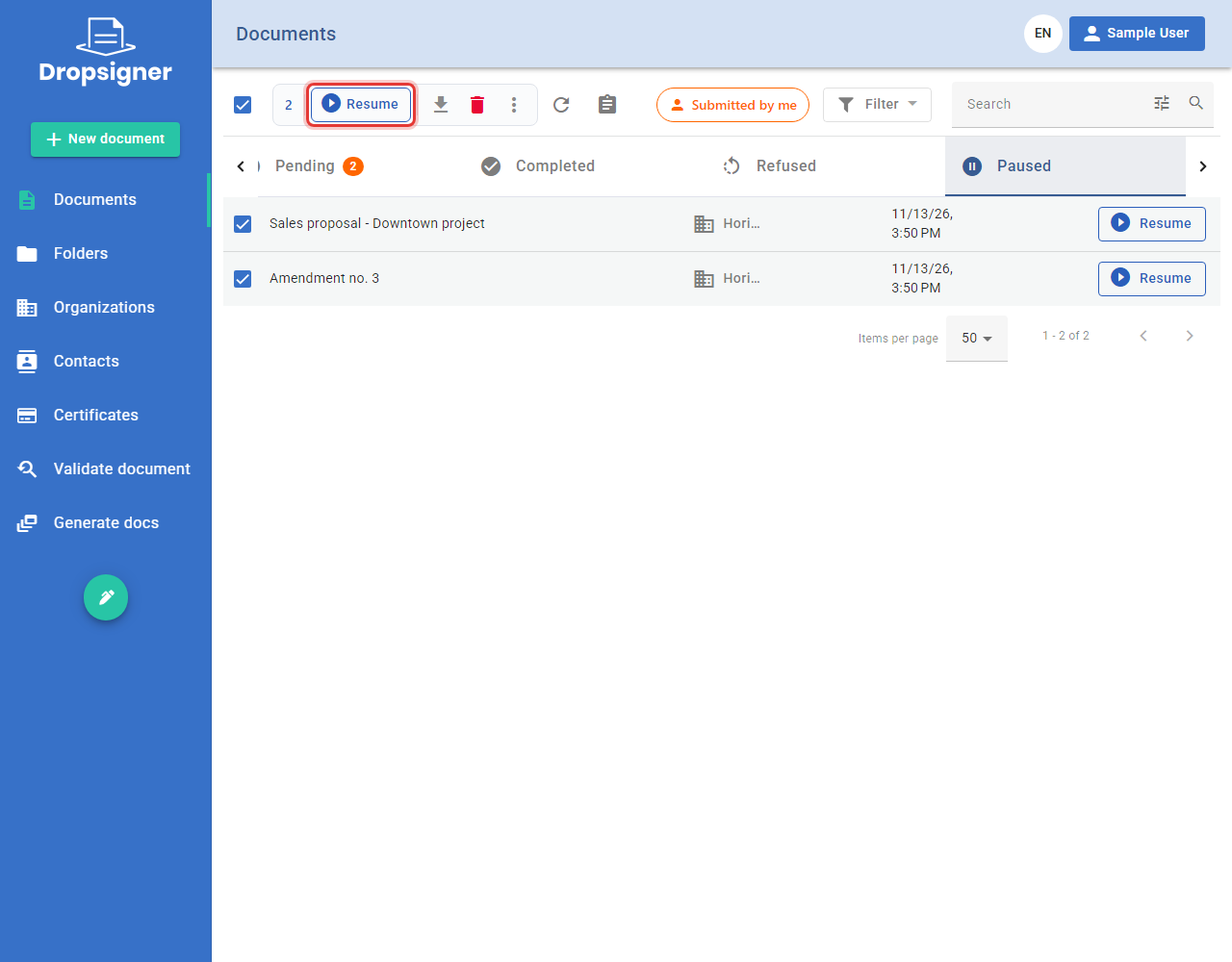
In the Paused tab, check the documents and click Resume at the top of the list.
-
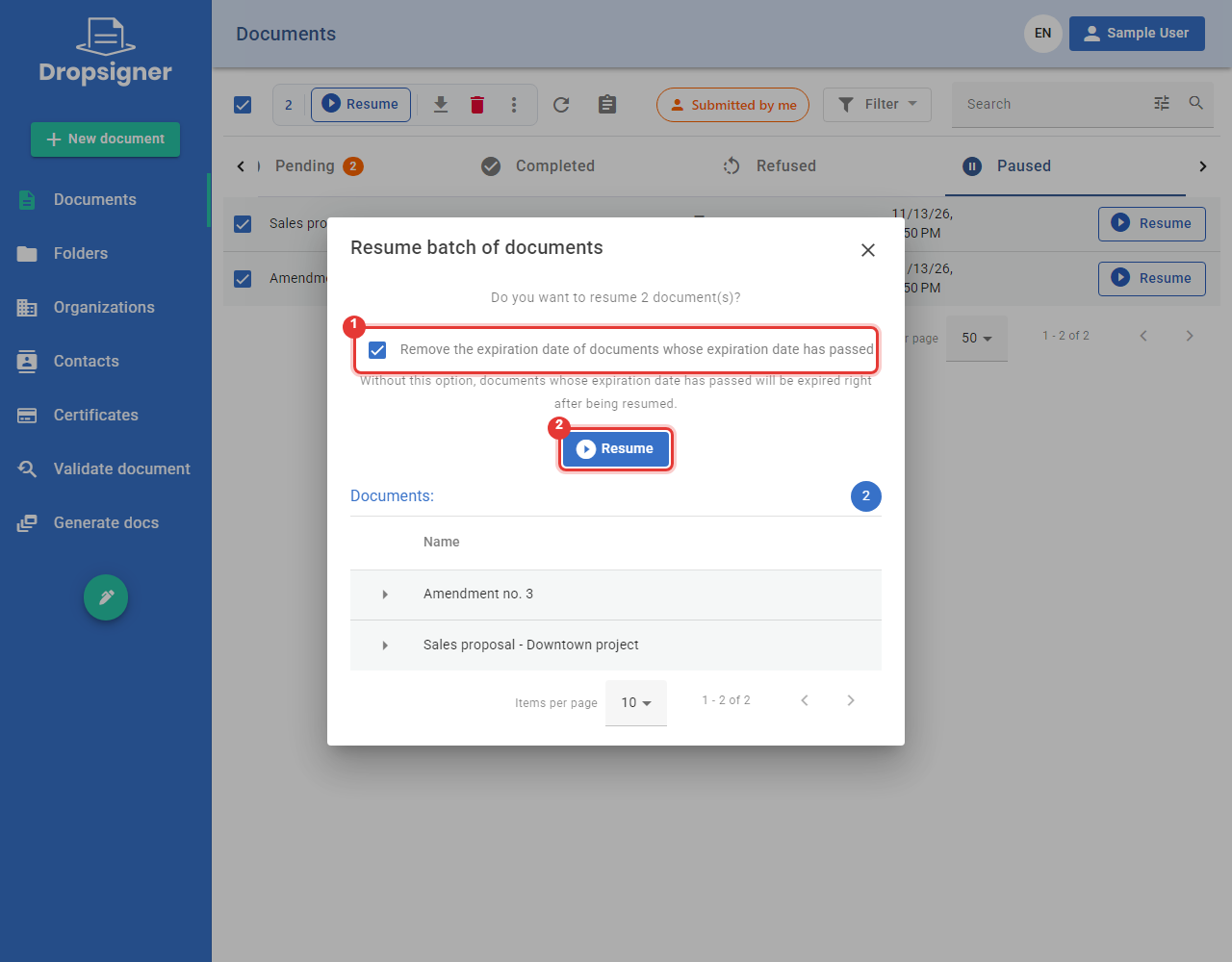
If a document passed its expiration date while it was paused, check Remove the expiration date of documents whose expiration date has passed. Without this option, those documents expire right after being resumed. Click Resume.
-
Each resumed document gets a green check and goes back to Pending. Click Conclude.
Document pausing is on by default. The General:EnableDocumentPause setting turns it off: the Pause document
option and the Paused tab no longer show.