Lacuna Signer - Document generation
To generate PDF documents from a template in Signer, follow the steps below.
Creating the PDF template
Before generating documents in Signer, you need a PDF template. A template is a PDF document with editable form fields filled with text, including placeholders that mark where each generated document's own text goes. This example uses PhantomPDF to create the PDF form, but you can use any software you prefer that has this feature.
Adding form fields to the PDF
Open an existing PDF in PhantomPDF, go to the Form section and select the Text Field option.
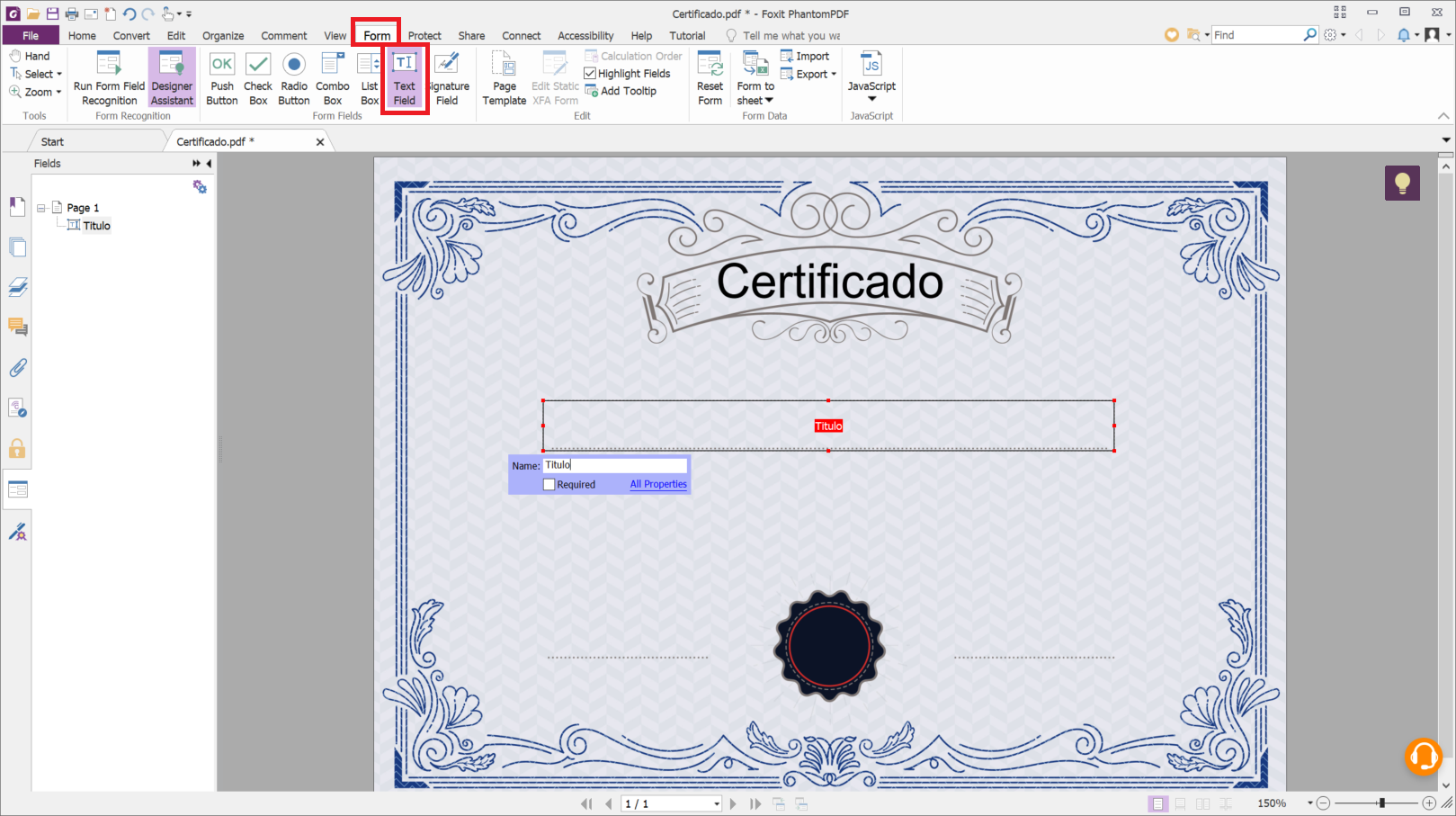
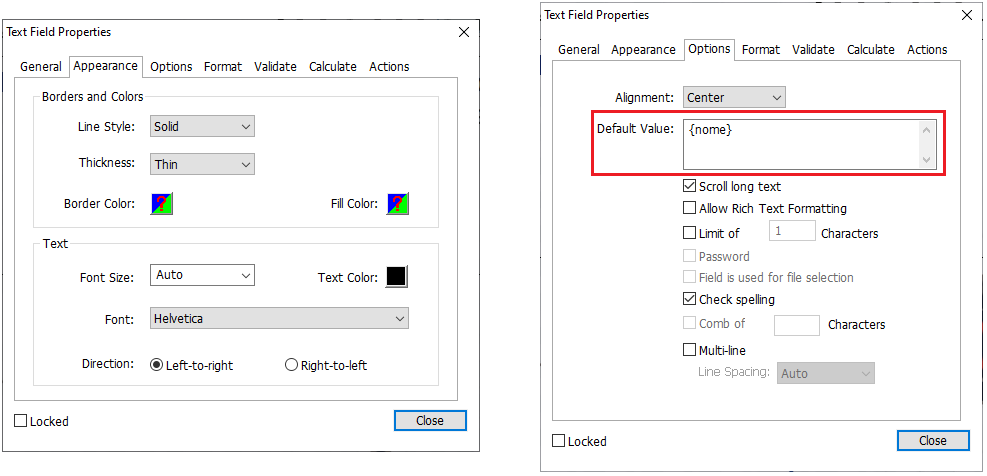
Double-click the form field to choose appearance and formatting options, such as font size and style. You can also fill
the field with default text. In that field, type the text that should appear in the generated documents, using { and
} around the part of the text to be replaced by the data given when generating the documents.
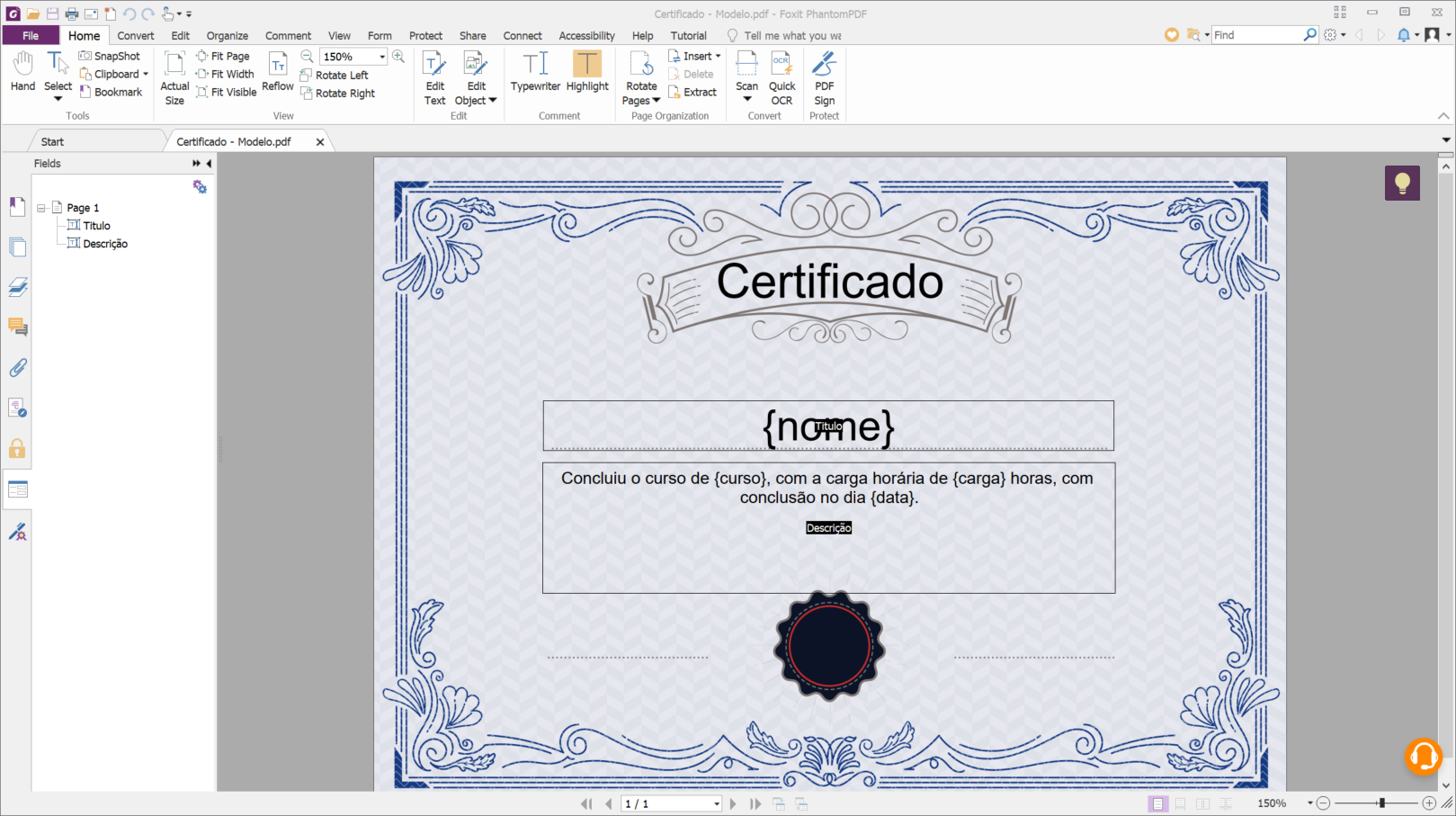
Repeat this for every field you want to create and save the file.
Generating documents in Signer
In the Signer sidebar, select Generate documents.
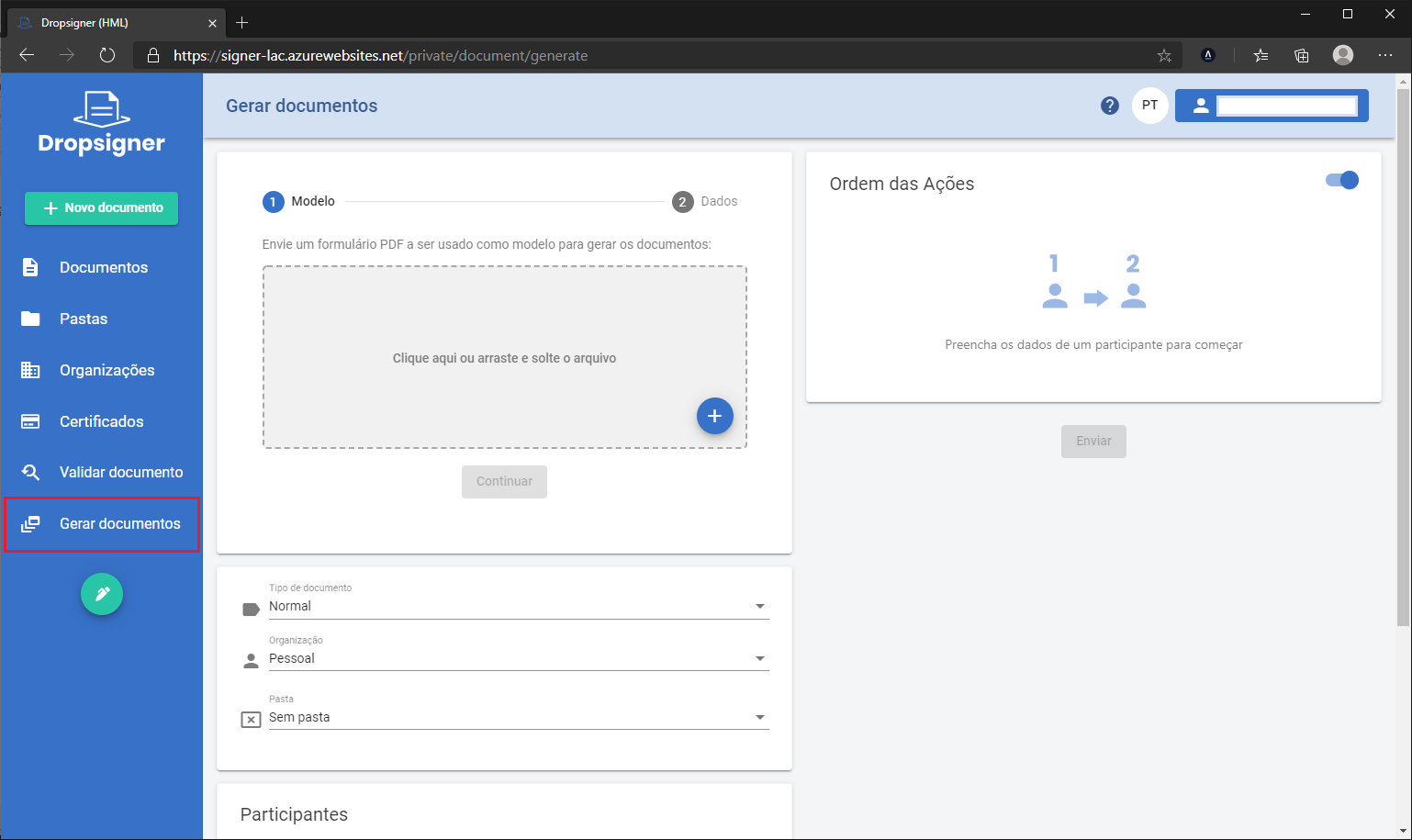
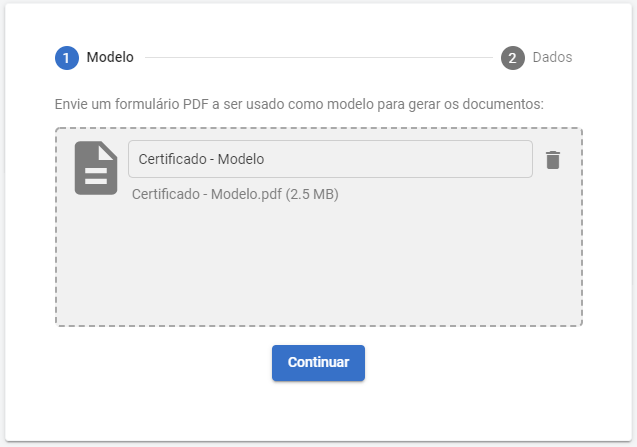
Upload the PDF template created earlier and click Continue.
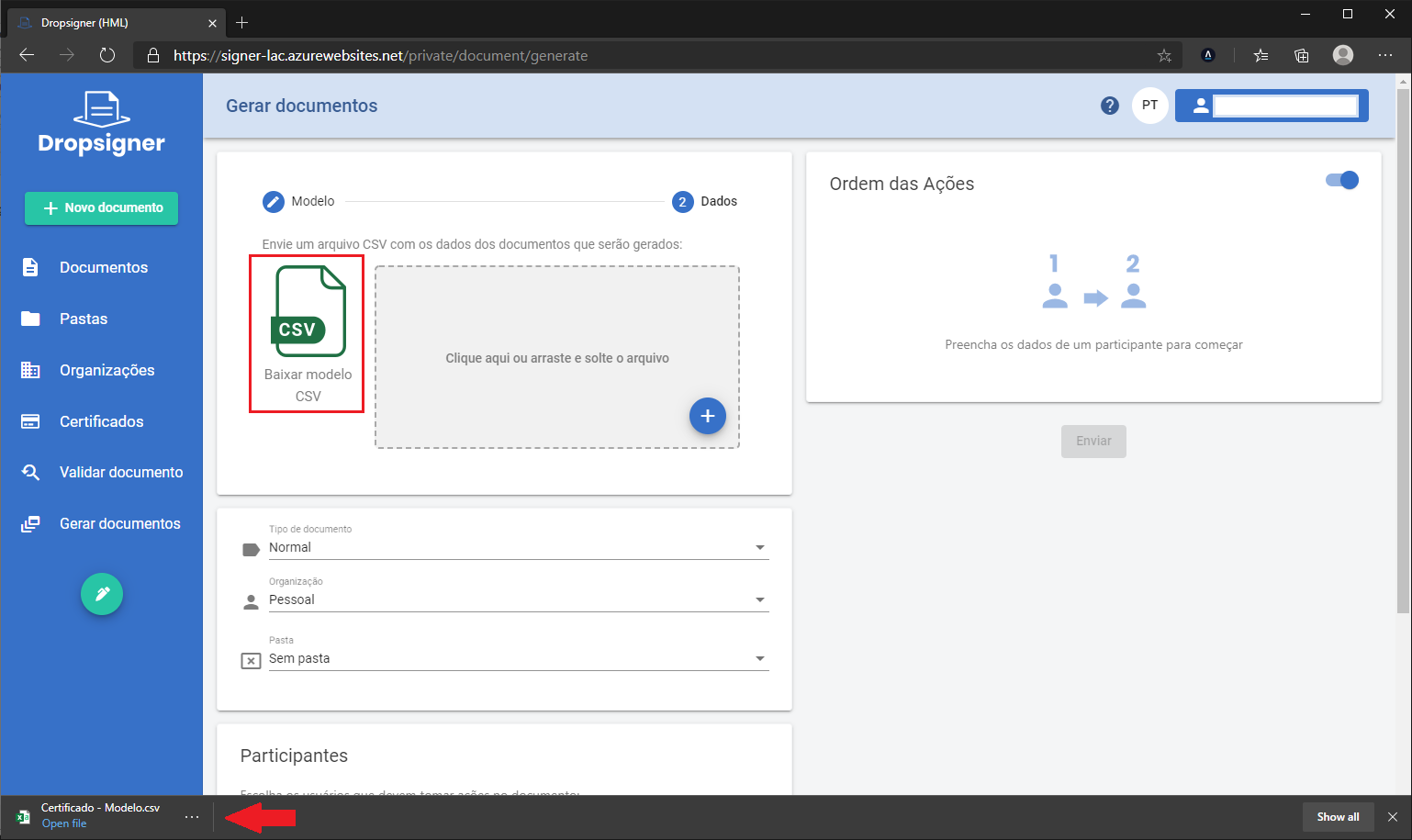
Click Download CSV template and open the downloaded file in Excel or a plain text editor.
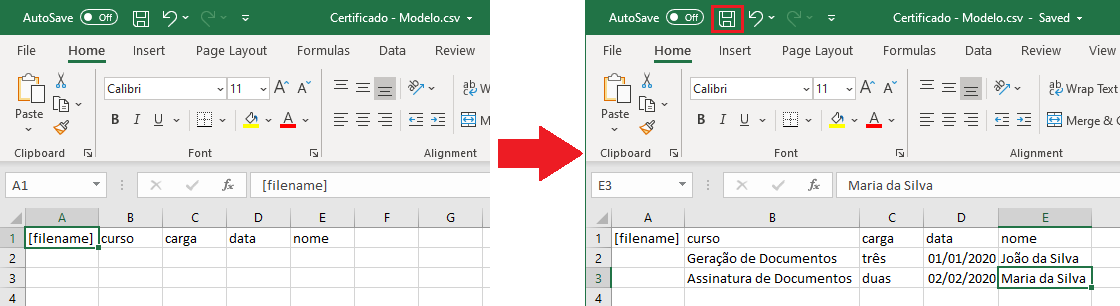
Each line of the CSV file represents a document to be generated. The [filename] column sets the name of the generated document. If it is left blank, the document name is generated automatically. Each of the other columns was generated automatically from the identifiers between braces in the form fields of the uploaded template. The value of each column replaces the matching identifier in the template.
Fill in the CSV file and save your changes.
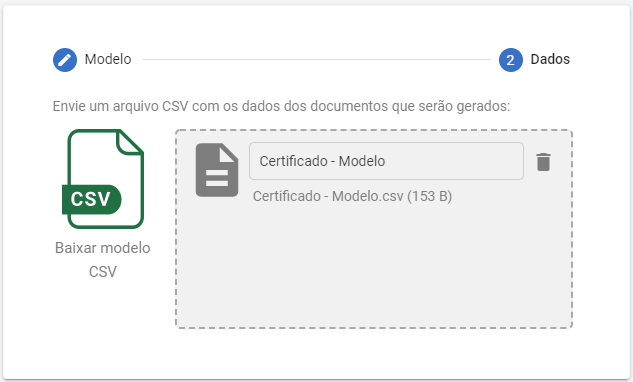
Upload the filled-in CSV file.
Fill in the other options the same way as when sending documents. You can set where each signer's signature goes on the template.
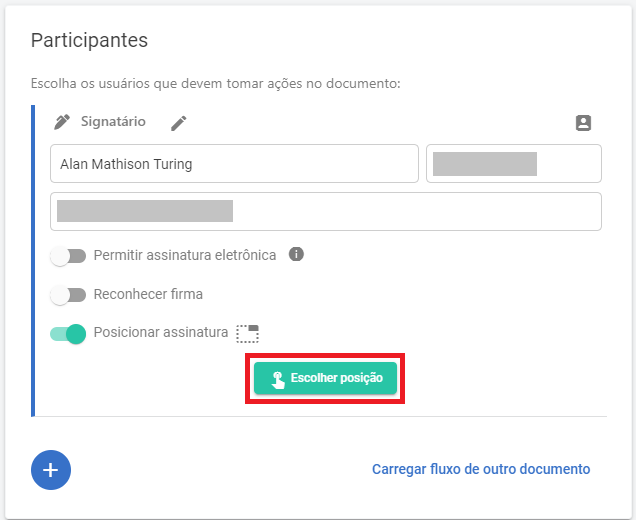
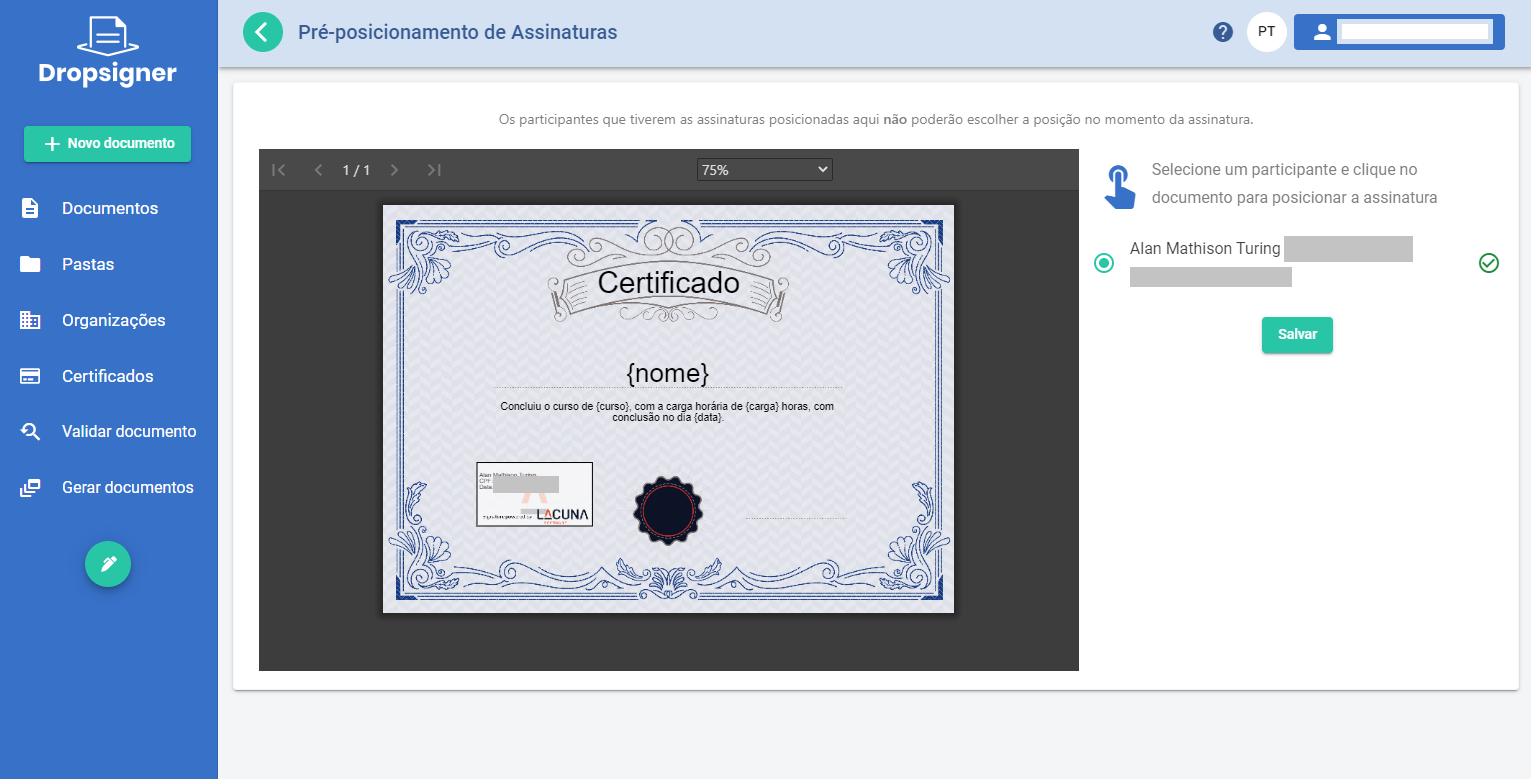
We recommend positioning the signatures when generating the documents. Otherwise, the signatures may end up in different positions in each generated document.
Once the options and the document flow are set as you want, click Send. The documents are generated and the participants are notified.
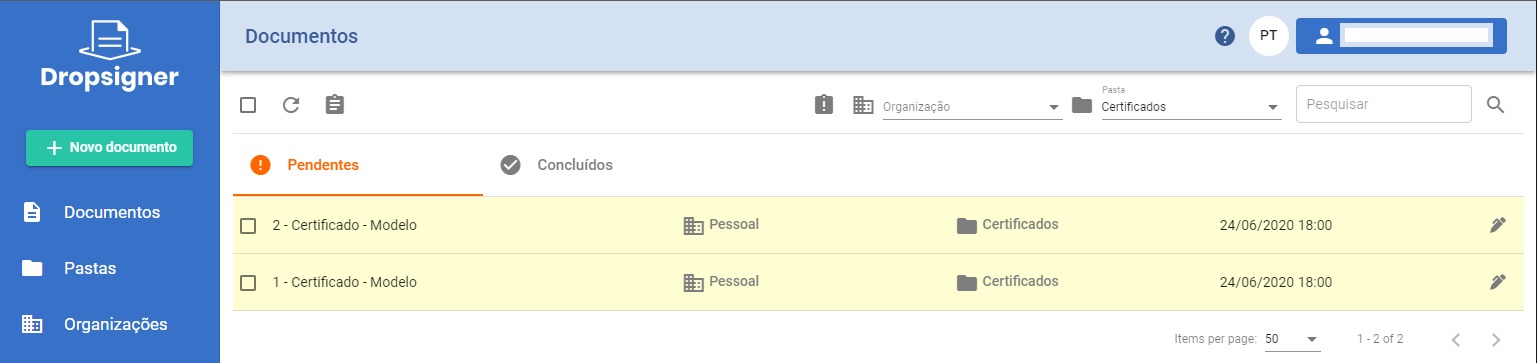
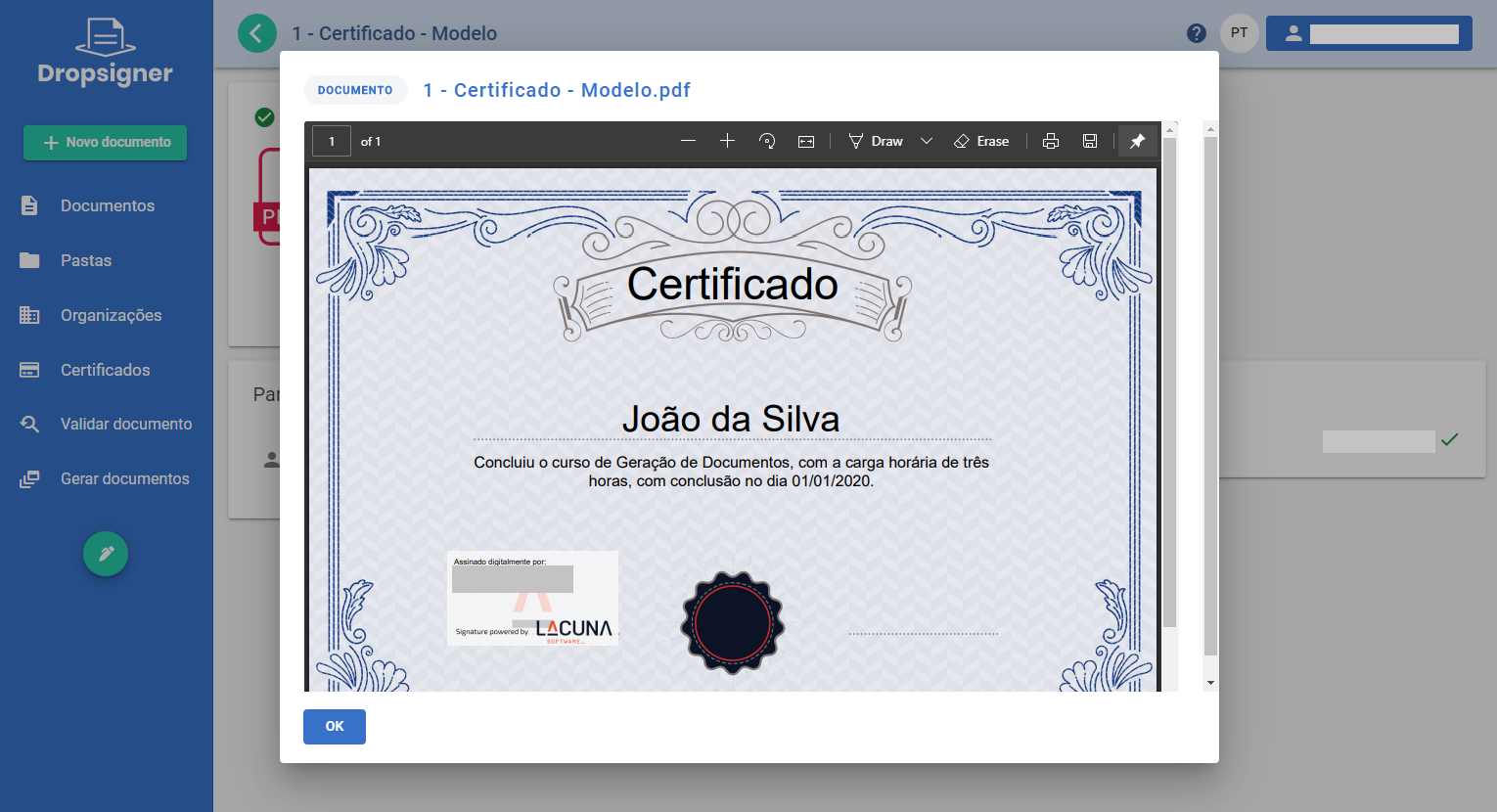
Once signed, the generated documents are available for download.
Generating documents with a flow per document
Starting with version 1.29.0, you can generate documents with a specific flow for each generated document. To do so, add new columns to the CSV file you upload to Signer.
The sections below describe the kinds of flow information you can add.
Signers
To set one or more signers, use the columns below with the prefix Signer_x., where x is the signer number:
- Name: the signer's name.
- Identifier: the signer's CPF.
- Email: the signer's email.
- Phone (optional): the signer's mobile phone.
- Step (optional): the step of the flow in which this action takes place.
- Title (optional): the signer's title.
- AllowElectronicSignature (optional): set to
trueto let the signer sign electronically. Otherwise, set tofalseor leave blank. - ElectronicType (optional): the authentication type of the electronic signature. Use it together with
AllowElectronicSignature. The possible values areSMS,AuthenticatorAppandSelfie. - Signature (optional): sets the position of the signature image, in the format
TOP_LEFT_X|TOP_LEFT_Y,TOP_LEFT_X|TOP_LEFT_Y|PAGE_NUMBER,TOP_LEFT_X|TOP_LEFT_Y|WIDTH|HEIGHTorTOP_LEFT_X|TOP_LEFT_Y|WIDTH|HEIGHT|PAGE_NUMBER. Example:100.5|85|2.
Digital signature example:
Info1,Info2,Signer_1.Name,Signer_1.Identifier,Signer_1.Email
Value1,Value2,Alice Venture,111.111.111-11,alice@email.com
Value3,Value4,Bob Venture,222.222.222-22,bob@email.com
Electronic signature example:
Info1,Info2,Signer_1.Name,Signer_1.Identifier,Signer_1.Email,Signer_1.AllowElectronicSignature
Value1,Value2,Alice Venture,111.111.111-11,alice@email.com,true
Value3,Value4,Bob Venture,222.222.222-22,bob@email.com,true
Approvers
To set one or more approvers, use the columns below with the prefix Approver_x., where x is the approver number:
- Name: the approver's name.
- Identifier: the approver's CPF.
- Email: the approver's email.
- Step (optional): the step of the flow in which this action takes place.
Example:
Info1,Info2,Approver_1.Name,Approver_1.Identifier,Approver_1.Email
Value1,Value2,Alice Venture,111.111.111-11,alice@email.com
Value3,Value4,Bob Venture,222.222.222-22,bob@email.com
Observers
To set one or more observers, use the columns below with the prefix Observer_x., where x is the observer number:
- Name: the observer's name.
- Identifier: the observer's CPF.
- Email: the observer's email.
Example:
Info1,Info2,Observer_1.Name,Observer_1.Identifier,Observer_1.Email
Value1,Value2,Alice Venture,111.111.111-11,alice@email.com
Value3,Value4,Bob Venture,222.222.222-22,bob@email.com
Notified emails
To send the document to a list of email addresses once the flow is complete, add the NotifiedEmails column, separating
the addresses with the | character.
Example:
Info1,Info2,NotifiedEmails
Value1,Value2,alice@email.com
Value3,Value4,alice@email.com|bob@email.com
Unlike the other options, this column can only be added once.
Combined flows
You can also set flow participants shared by all documents, by entering them in the participants field of the generation page:
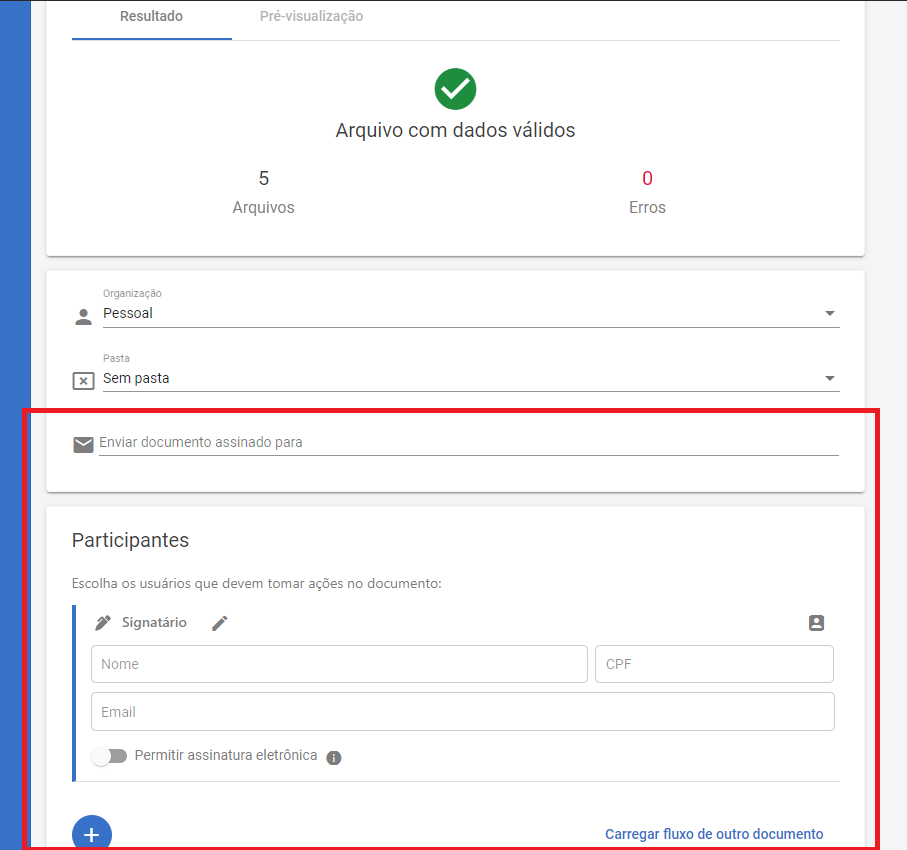
These participants are combined with the participants of each document. However, the actions of the shared participants cannot be set to take place after the actions of each document's own participants.