Finding your documents
The Documents list gathers the documents you sent, the ones waiting for an action from you, and the ones you can see in your organizations. This page shows how to find a document in it.
To open the list, click Documents in the left menu.
Tabs
The list splits the documents by status, in tabs: Pending, Completed, Refused and Canceled/Expired. The Pending tab shows how many documents it has.
Searching by name
Type part of the document's name in the Search field, at the top of the list, and press Enter.
Shortcuts
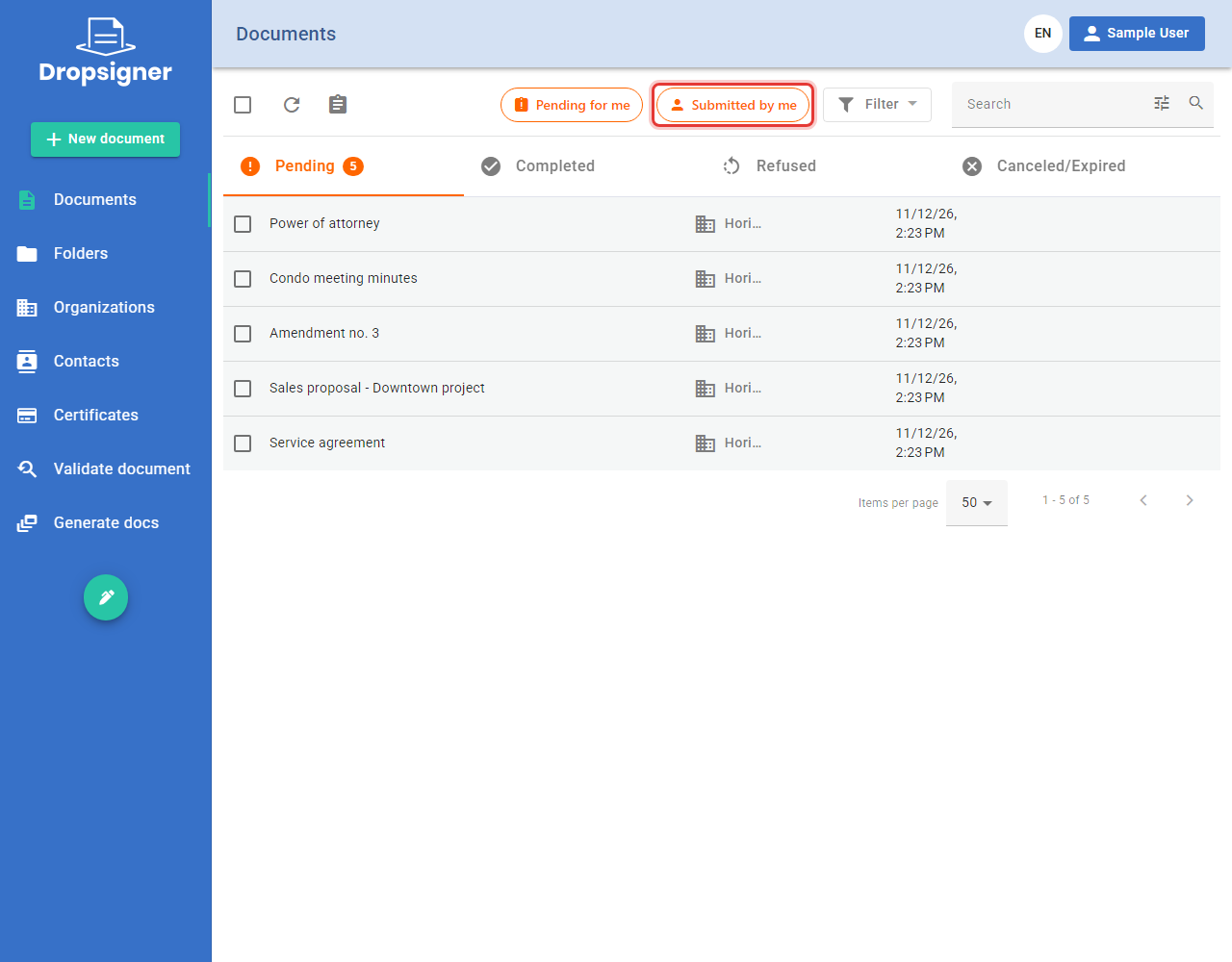
Above the tabs there are two buttons that filter the list with one click:
- Pending for me: only the documents waiting for your signature or approval.
- Submitted by me: only the documents you sent. Available from version 3.3.0.
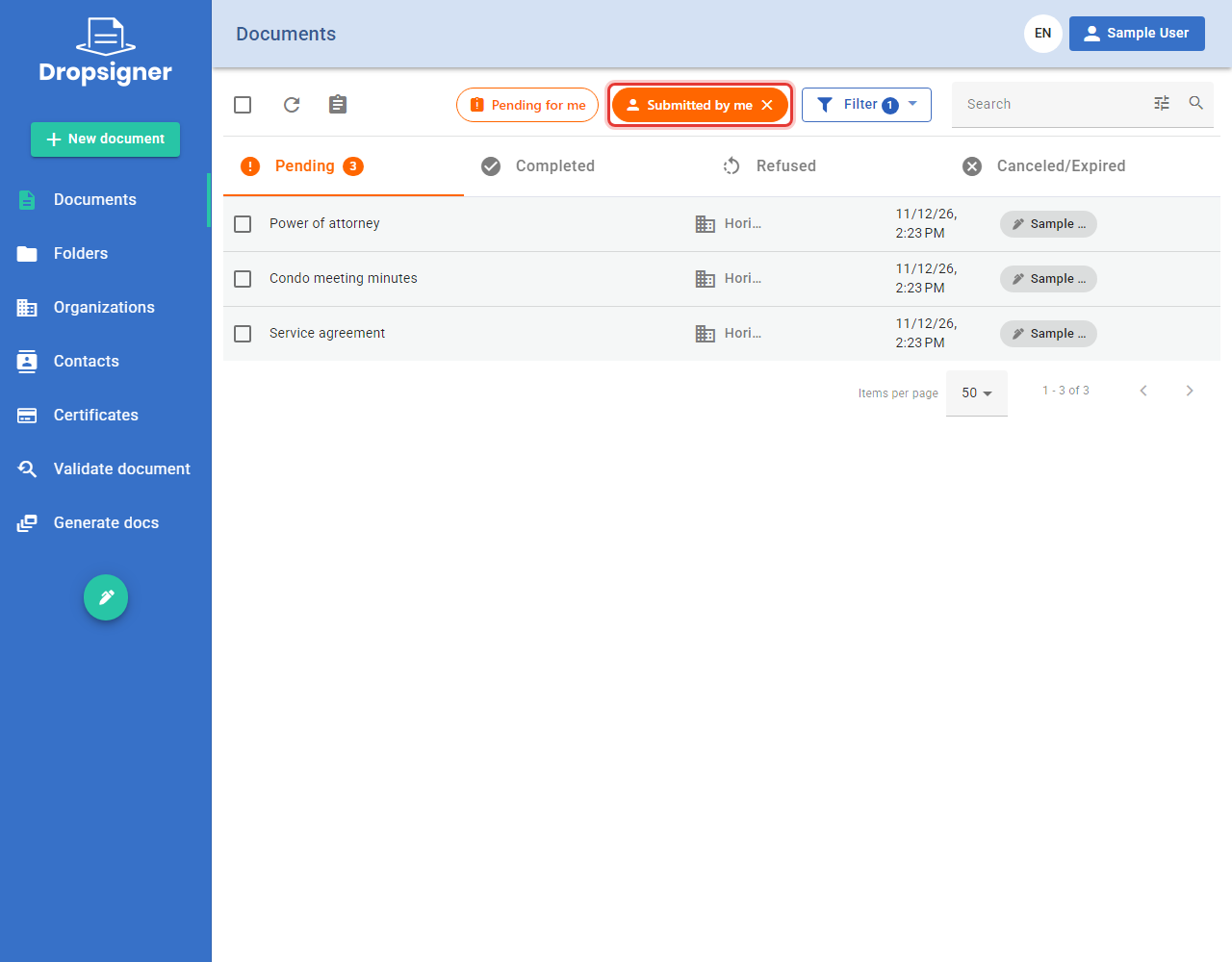
When a shortcut is on, its button turns solid and the Filter button shows how many filters are on. To turn it off, click the X on the button.
Filter
Click Filter to open the Filters panel.
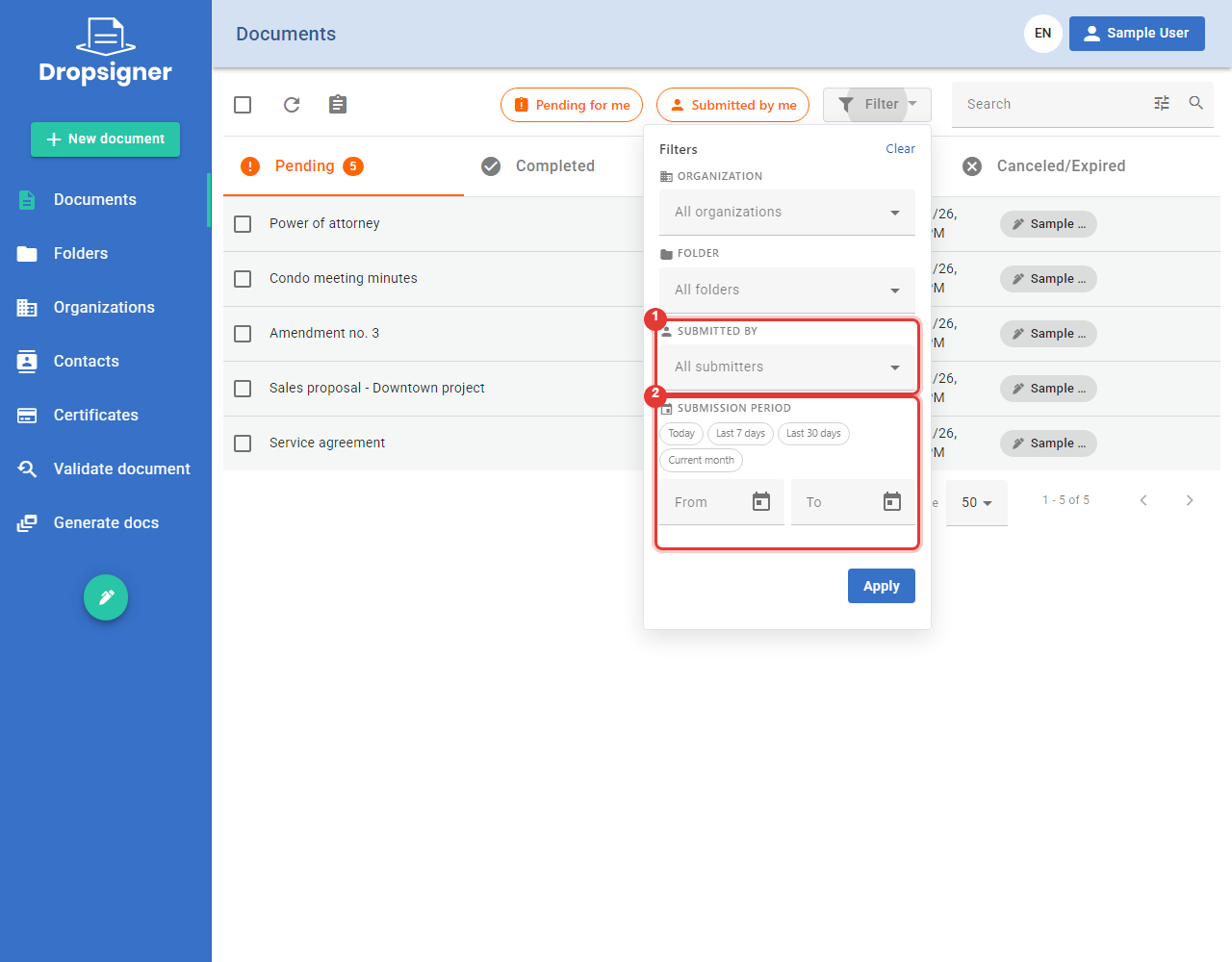
| Filter | What it does |
|---|---|
| Organization | Shows only the documents of one organization. |
| Folder | Shows only the documents of one folder. |
| Submitted by | Shows only the documents sent by one person. From version 3.3.0. |
| Submission period | Shows only the documents sent in a period. From version 3.3.0. |
To filter:
-
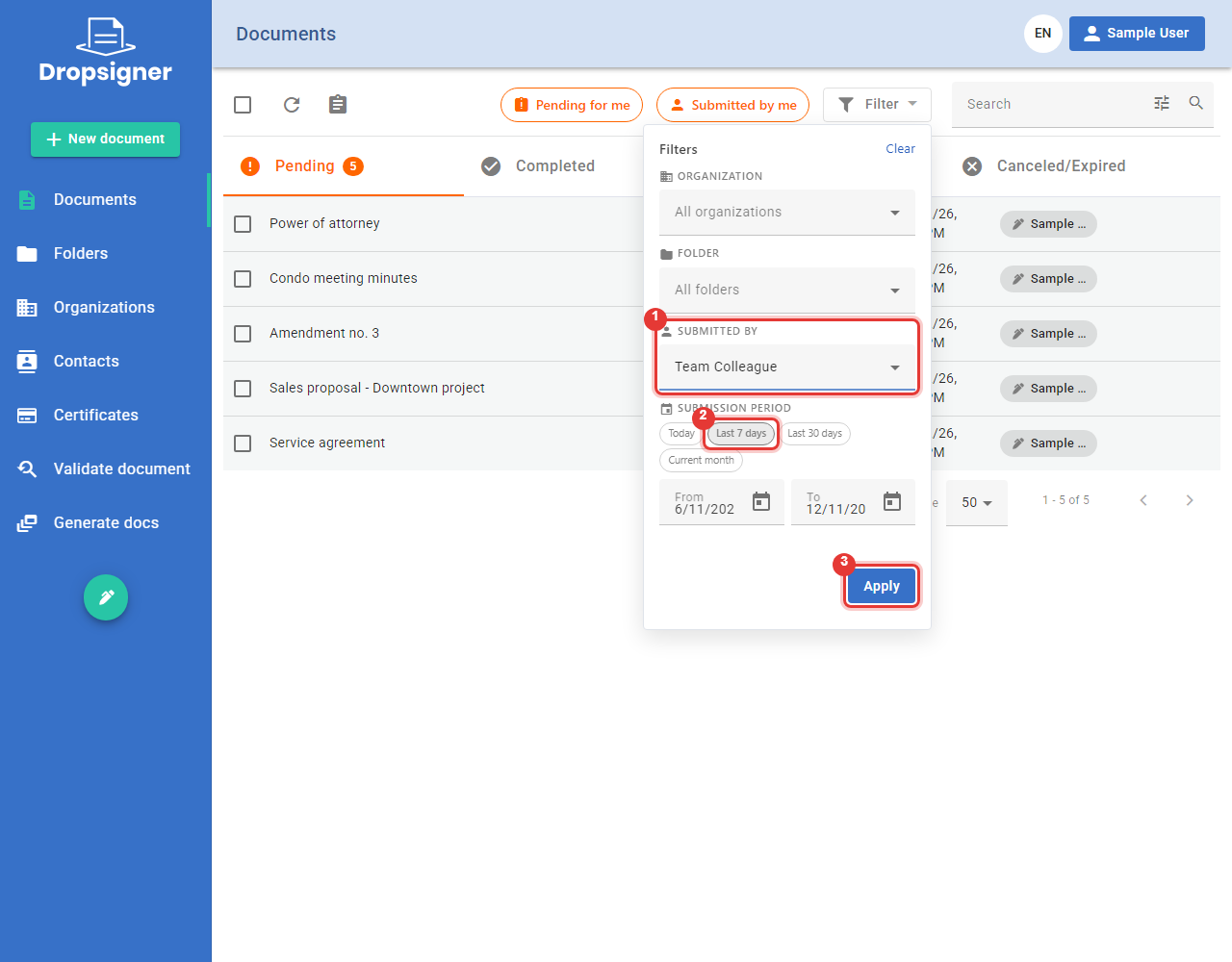
Fill in the filters you want.
- In Submitted by, type part of the person's name and pick them from the list.
- In Submission period, pick a shortcut (Today, Last 7 days, Last 30 days or Current month) or fill in the From and To dates.
-
Click Apply. Nothing changes in the list before that.
-
The list shows only the documents that match all the filters, and the Filter button shows how many are on.
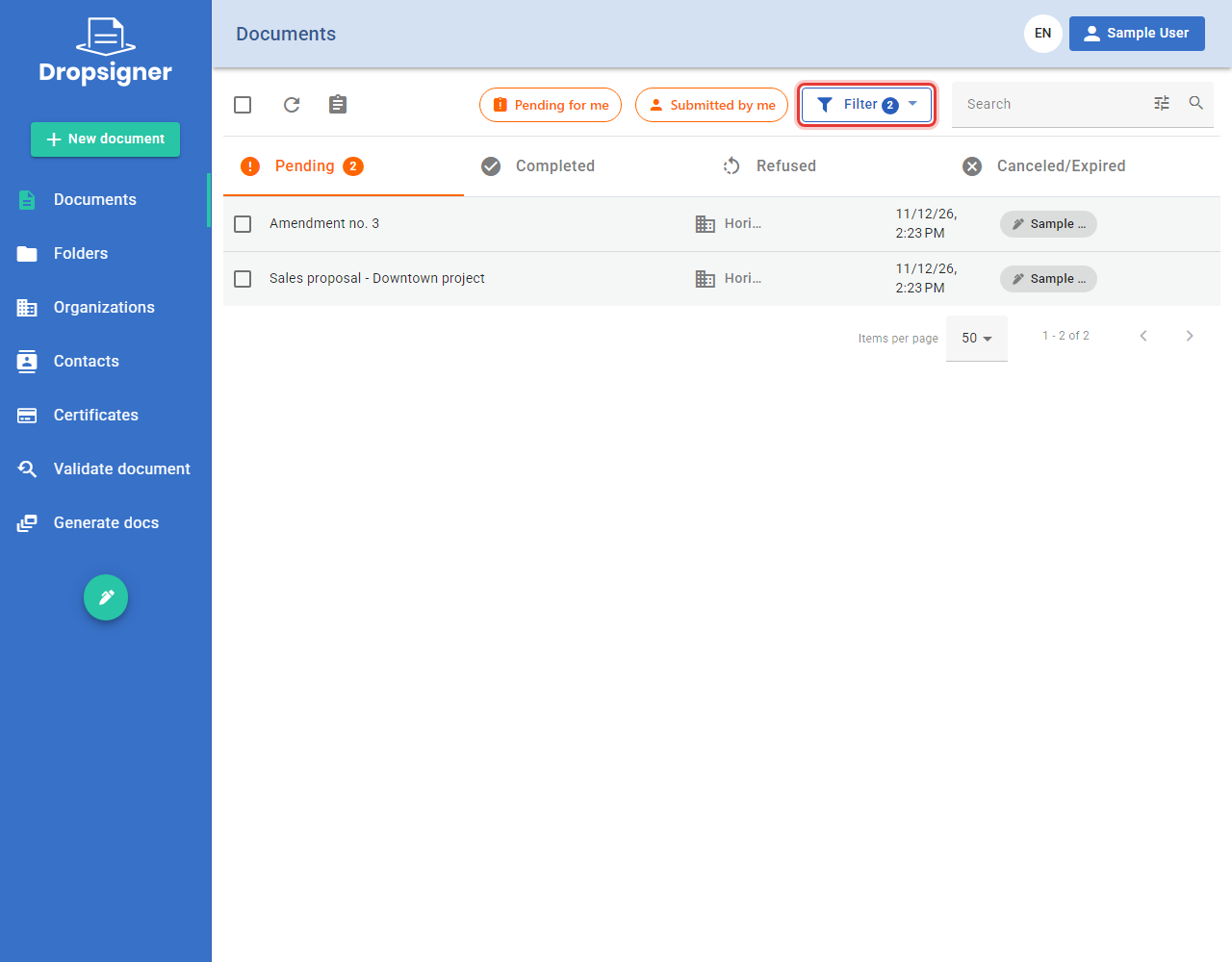
The filters stay on when you leave the list and come back. To undo them, open the panel and click Clear.
The Submitted by filter lists the people of the organizations where you can see the documents. In a personal account, use the Submitted by me shortcut.
The submitter filters are on by default. The instance can hide them with the General:EnableSubmittedByFilter
setting, for example so as not to expose who sent each document.
Actions on several documents
Check the box of one or more documents to see the actions you can take on them, such as signing, moving, downloading or deleting. To delete, see Deleting and restoring documents.