Signing several documents from the e-mail
When you have several documents waiting for your signature or approval, Signer sends a single e-mail with the list. From version 3.3.0, the View documents button in that e-mail opens a screen where you sign or approve them all at once, without creating an account and without logging in.
This screen appears when the General:PublicBatchSignatureEnabled setting is on. Without it, the e-mail button leads
to the document list, which asks you to log in.
Step by step
Depending on the instance settings, the link opens straight on the signing screen (step 3), without the start screen of step 2.
-
Open the e-mail with the pending documents and click View documents.
-
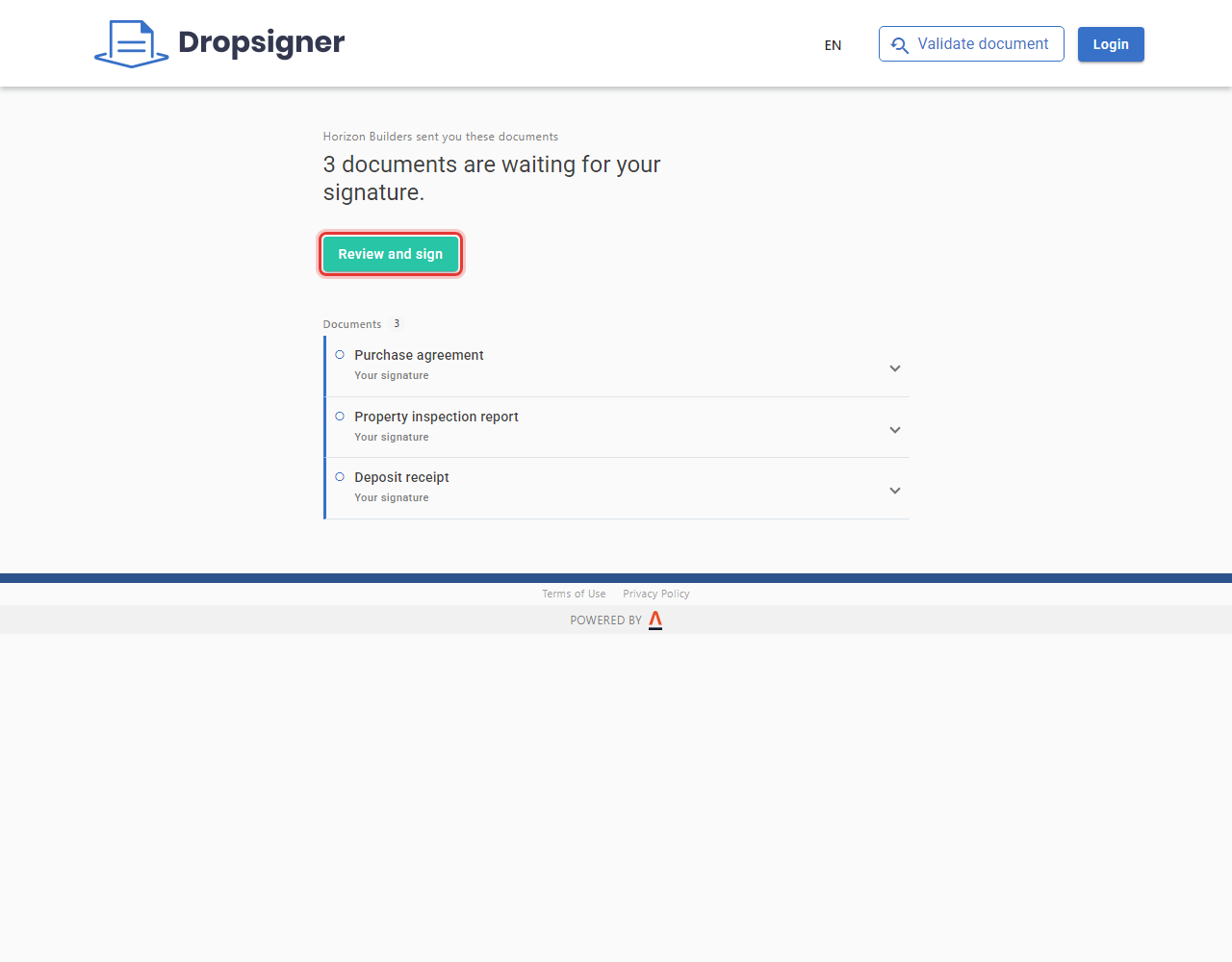
The screen shows who sent them, how many documents are waiting for your action, and their list. Click a row to see the document's details. When you are ready, click Review and sign.
-
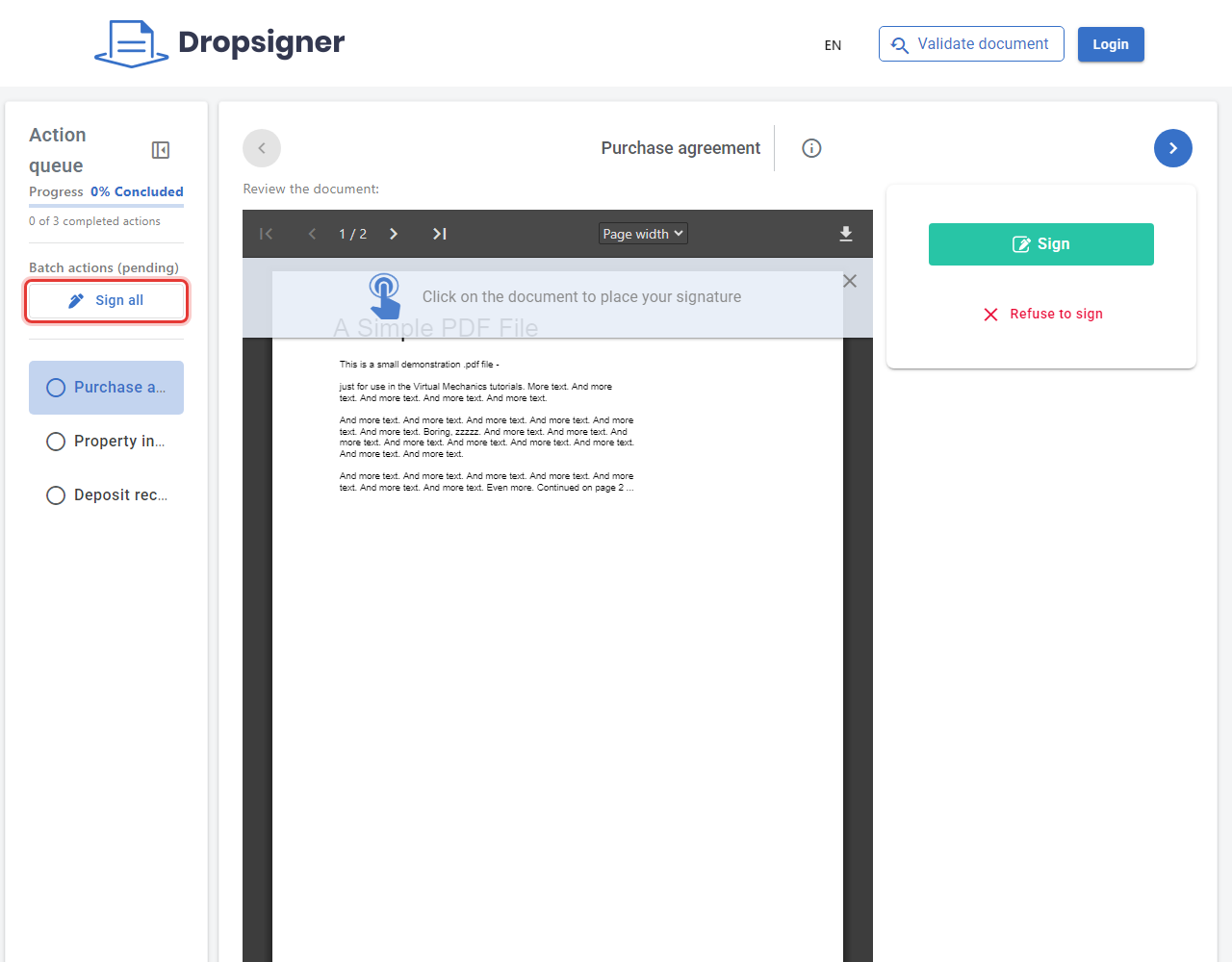
The Action queue column shows the progress and the list of documents. You can:
- review and sign one document at a time, with the Sign button next to the document; or
- click Sign all (or Approve all, for approvals) to act on all of them together.
-
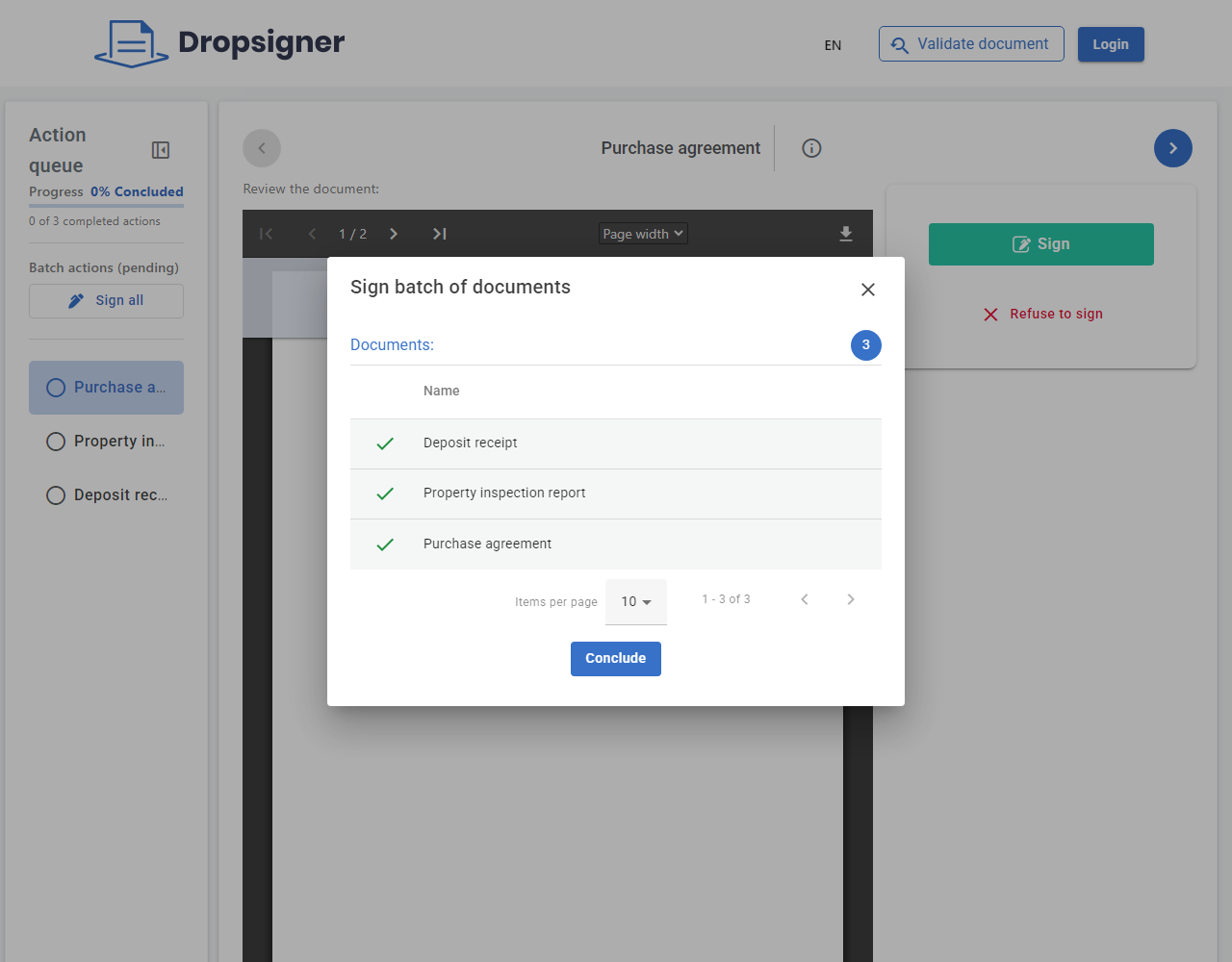
Follow the signing steps. Each document gets a green check when it is done. Click Conclude.
-
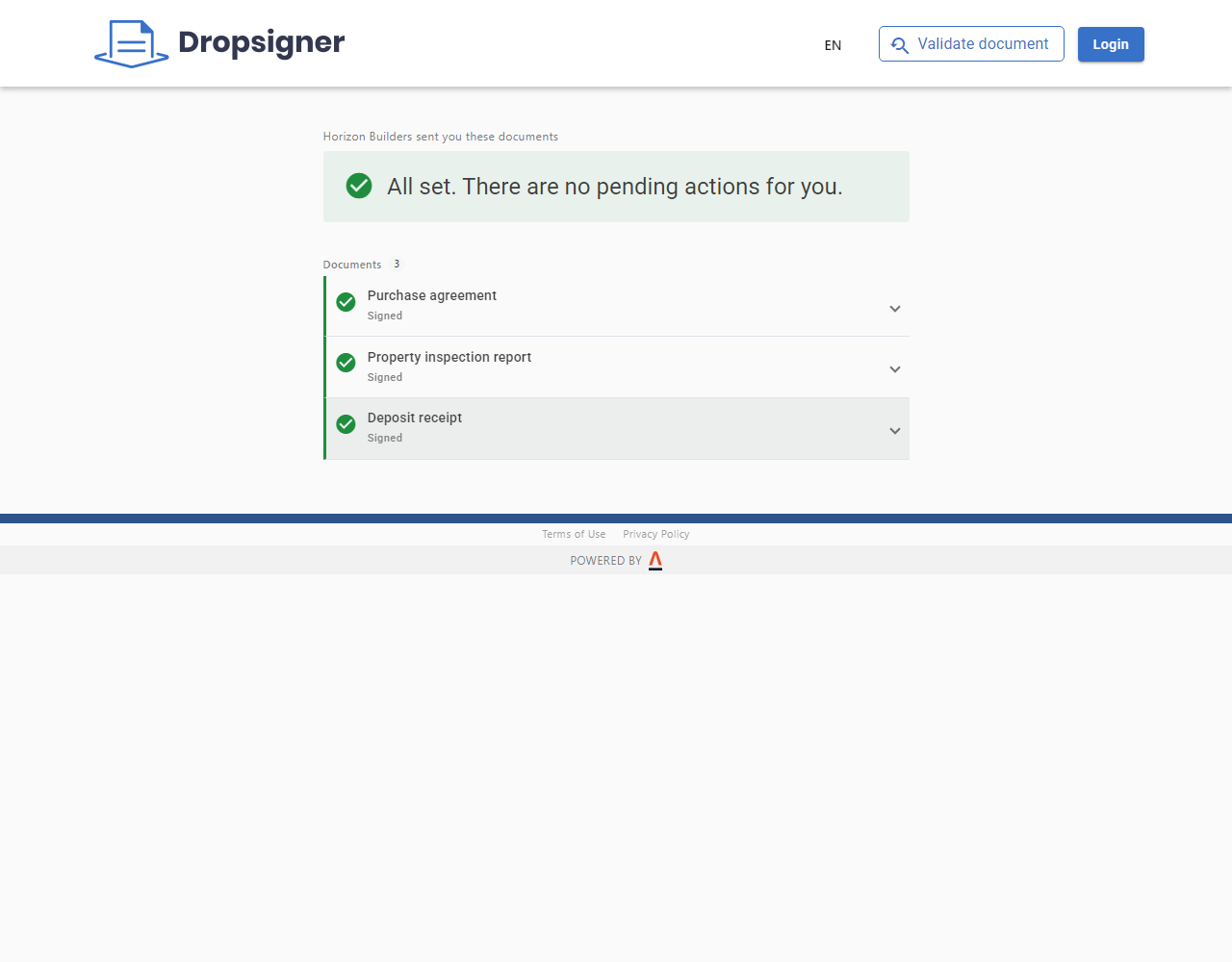
If you open the same link again, the screen shows what was already done. When nothing is left, it shows All set. There are no pending actions for you.
Good to know
- The link is valid for a limited time. The start screen shows until when.
- The button leads to every document waiting for you at that moment, even the ones that didn't fit in the e-mail's list.
- To understand when Signer groups the notices, see Grouped notices.