Signer Zoom Integration
Signer integrates with Zoom to hold and store video conferences about documents.
Account configuration
This integration requires a Zoom account on the Pro plan or higher.
The account settings must also allow the Cloud recording feature, as shown below:
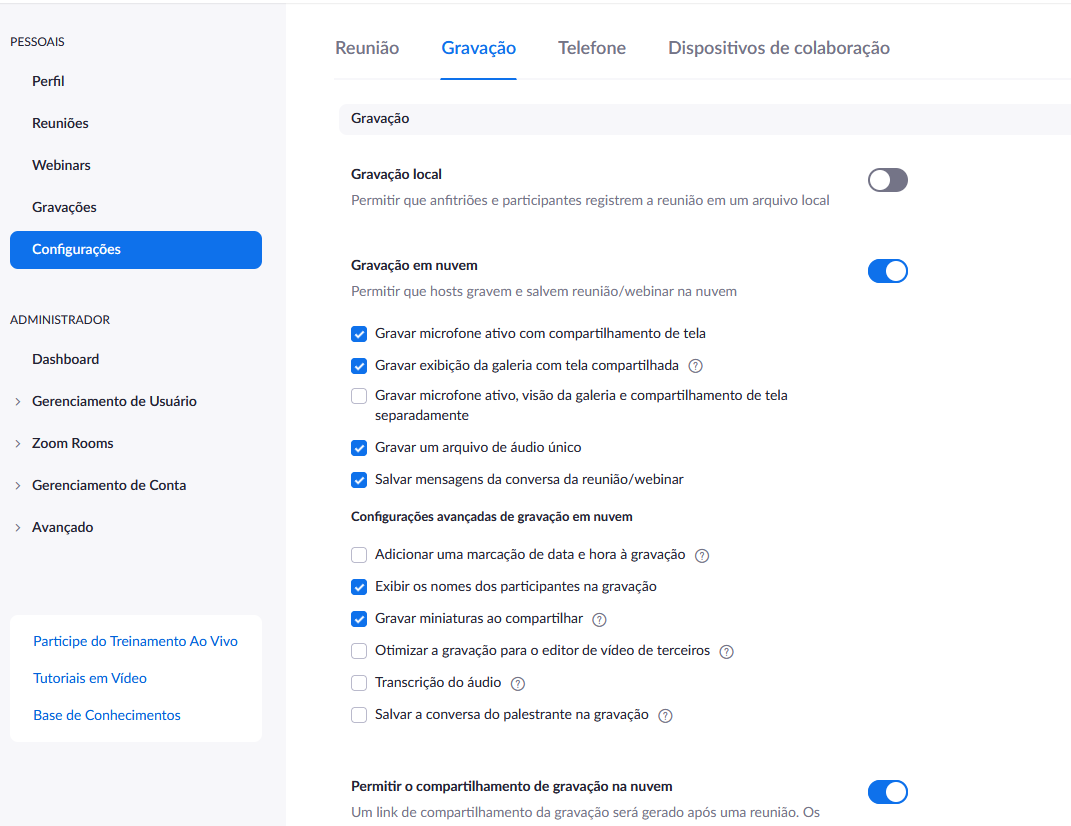
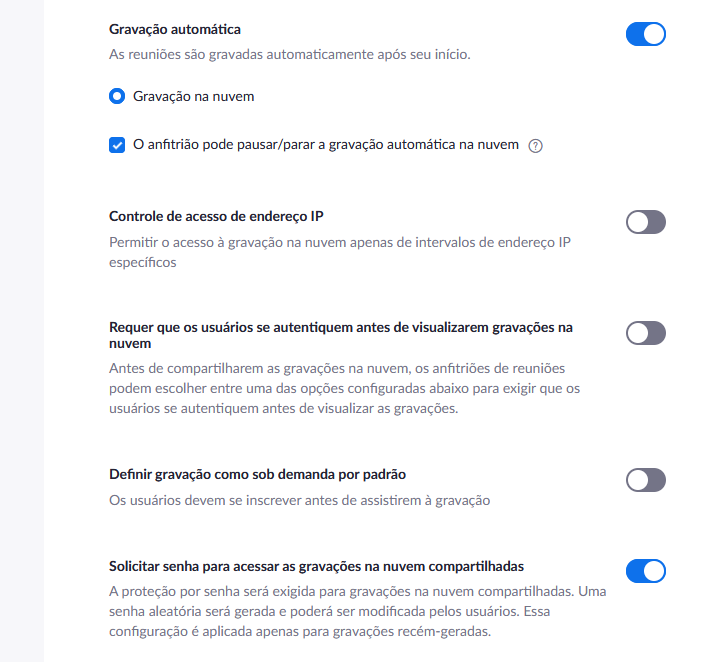
In this integration, each user/license of the account is treated as a meeting room. When a Signer user asks to create a conference, Signer lists all Zoom users and looks for one that is not in a conference at that moment. So, if you want to hold simultaneous conferences, you need more than one user/license in the Zoom account.
When you set up the account's users, remember to assign them a license; otherwise, the video of conferences held with that user will not be saved to the cloud.
Getting the credentials
To enable the integration, you need a credential that lets Signer call the Zoom APIs. Follow the procedure below:
- After signing in to your account, go to https://marketplace.zoom.us/;
- Open the
Developmenu in the upper-right corner of the screen; - Select the
Build Appoption in the menu that opens; - Select the
Server-to-Server OAuthoption: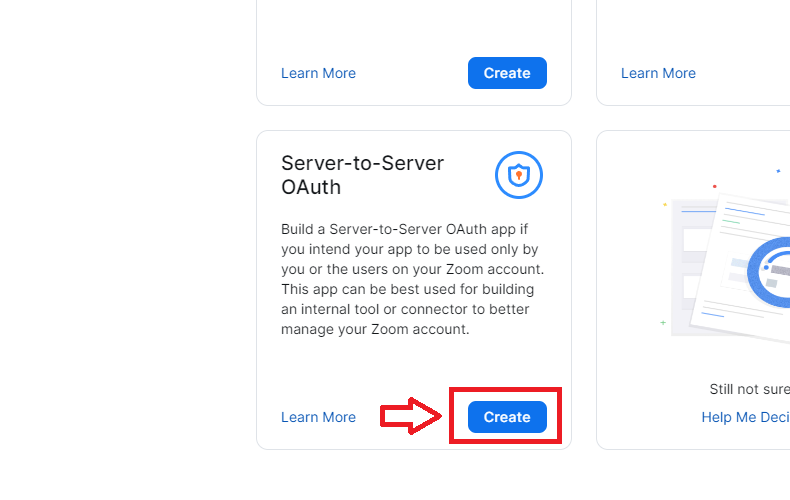
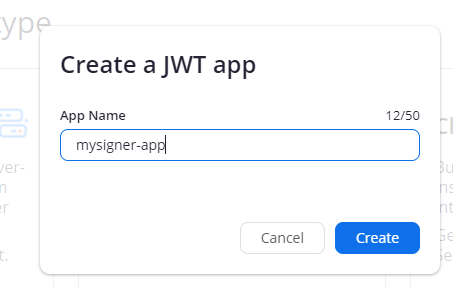
- Name your app (it can be the same as your Signer instance);
- Select the
Informationpanel; - Fill in the basic information and the developer contact information;
- Select the
Scopespanel; - Select the following:
- Meeting:
- View a meeting (meeting:read:meeting:admin)
- Create a meeting for a user (meeting:write:meeting:admin)
- View a user's meetings (meeting:read:list_meetings:admin)
- Recording:
- Returns all of a meetings's recordings (cloud_recording:read:list_recording_files:admin)
- View a recording (cloud_recording:read:recording:admin)
- User:
- View users (user:read:list_users:admin)
- View a user (user:read:user:admin)
- Dashboard:
- View meeting participants' metrics (dashboard:read:list_meeting_participants:admin)
- Meeting:
- Select the
App Credentialspanel; - Copy the values the integration needs:
AccountId,ClientIdandClientSecret.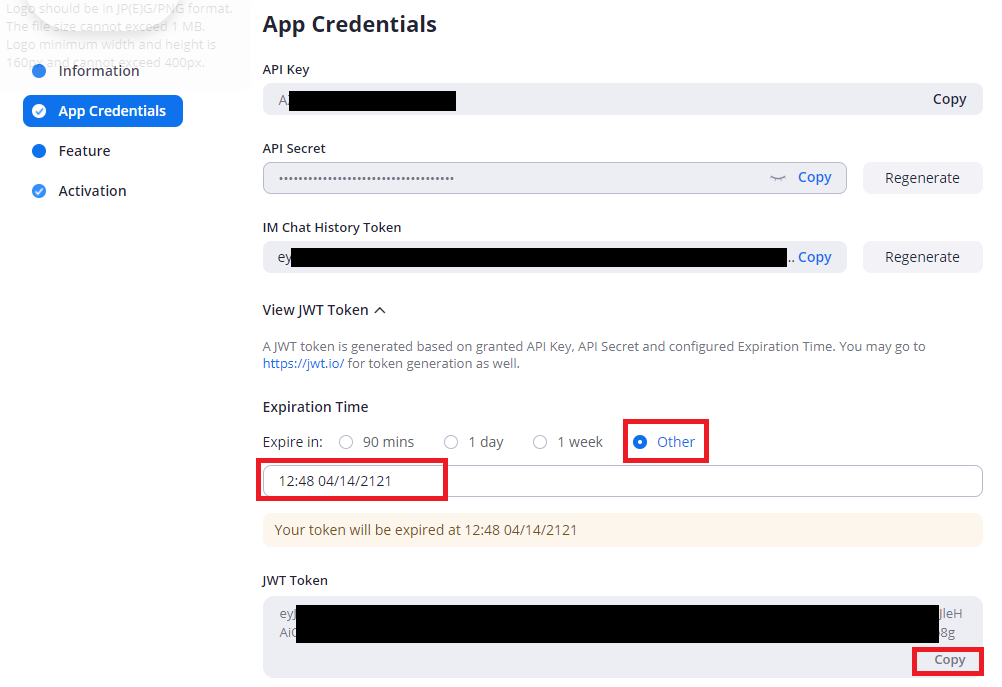
How it works
To create a conference, open a document's details page and click the start conference button:
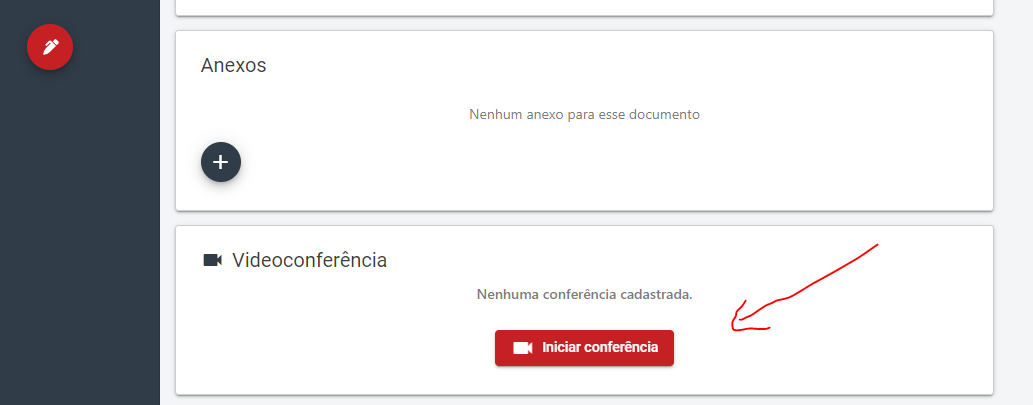
Only the document creator (for a personal account) or someone with manager or administrator permission (for an organization account) can do this.
Two links are then shown: the first to join as the conference host, and the other to send or share with the participants:
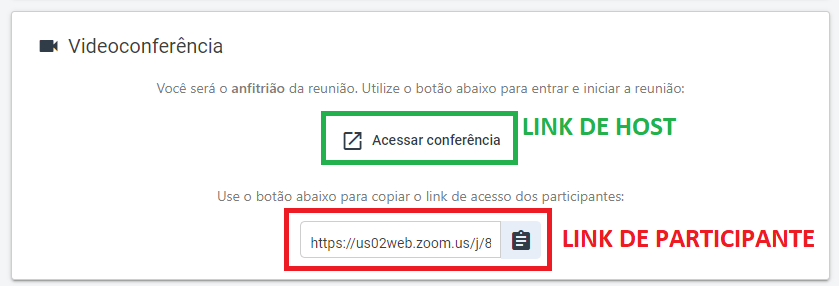
In Zoom, at the end of the conference, the host must use the End Meeting for All option:
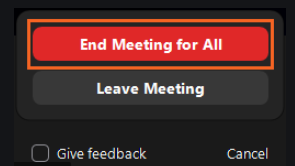
Once the meeting ends, its video appears on the document's details page:

How long the video takes to become available depends on the size of the meeting. For small meetings it takes about 15 to 20 minutes. For large meetings it can take up to 24 hours.