Version 1.56.0 added an integration to send notifications via Whatsapp.
It uses the Whatsapp Business API provided by Meta.
The prerequisites for this integration are:
-
A verified Meta Business Account.
-
A Whatsapp Business Account associated with the Meta Business Account.
-
A phone number (mobile or landline) verified and associated with your Whatsapp Business Account.
-
The phone number must not have been registered in the Whatsapp or Whatsapp Business apps.
Configuring the Whatsapp account
-
Open the Business Settings page of your Meta Business Account.
-
Select
Accounts, thenWhatsApp Accounts. Click theAddbutton to register the number that will be used to send Whatsapp messages. -
If your Business Account is not verified yet, start the verification process (it can take about two business days).
-
Once your account and the number are verified, open the Whatsapp Manager of the Whatsapp account you created.
Configuring message templates
Meta requires every message started by the application to be registered beforehand as a template. Otherwise, messages can only be sent after the user has contacted your Whatsapp number (which starts a Conversation).
Once your Whatsapp number is verified, open Message Templates to register the templates of the messages the application sends.
Since the application supports 3 languages (Portuguese, English and Spanish), each template must have three versions: Portuguese (BR), English and Spanish.
Templates have parameters, so when you create one you must provide a sample value for each parameter. The values must be the same across the language versions of the same template.
Also, any URL given as a sample parameter value must work and be consistent with the other parameters.
The Meta team reviews the templates. This takes about two business days on average.
Contact our support to get the list of templates to register, with the name and content of each one. You are free to change the content of the templates as long as you don't change the number or the order of the parameters.
Configuring the technology partner
Once the account and the templates are configured, you must set Lacuna Software as a technology partner so that Signer can access the Meta API.
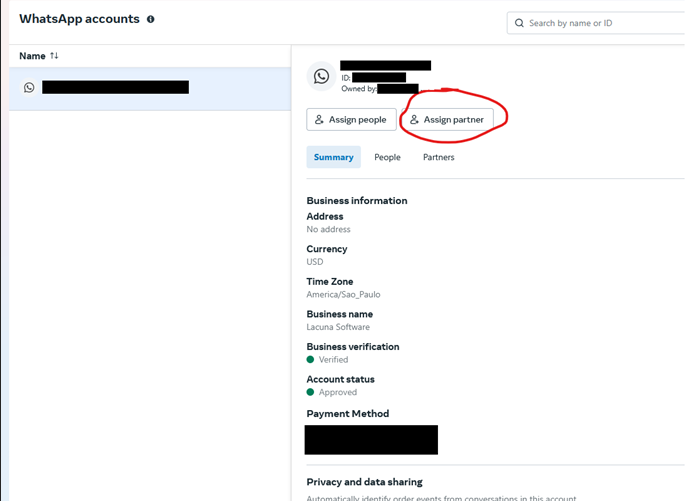
- Open the Whatsapp accounts panel of your Business Account.
- Choose the account and click the "Assign partner" button:
- In the window that opens, enter the Lacuna Software partner code (ask our support for it) and check the "Full Control" option:
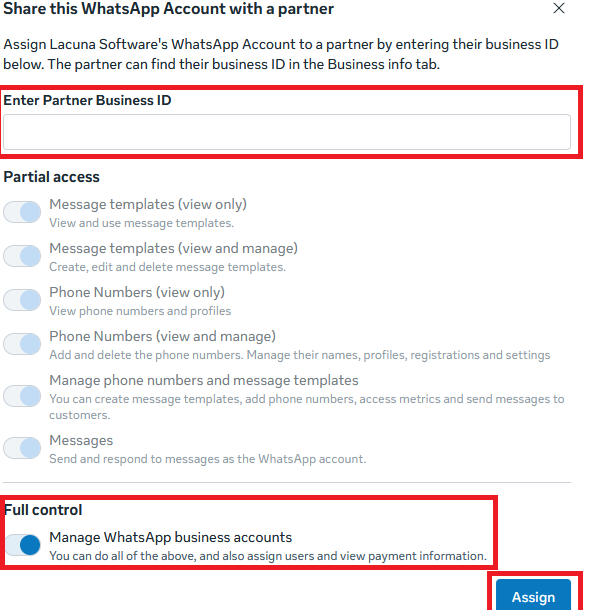
- Finally, contact our support team to tell them the partner is assigned, so that we can enable the integration.
If you have an on-premises instance, see the Whatsapp settings section to learn how to configure the settings that enable the integration.
If Whatsapp messages do not arrive, see Fix notification sending failures.