Signer Pix Authentication
Signer can authenticate users for electronic signatures through a payment made with Pix, the Brazilian instant payment system.
The Pix QR codes are generated through an integration with the Gerencianet APIs.
Gerencianet is a Brazilian service and its interface is in Portuguese. The labels below are quoted as the interface shows them, with a translation in parentheses.
Account configuration
This integration requires a Gerencianet account. You can open a new account by downloading their app from Google Play or the App Store.
To enable the integration, you need:
- API credentials:
Client IDandClient Secret. - An authentication certificate.
- A Pix key.
API credentials
Once your account is created, open the web interface and select the API option in the main menu:

In the side menu, select Minhas aplicações (My applications) and click the Nova Aplicação (New application) button:

- For the application name, enter the name of your instance.
- Turn off the issuing API (Boletos e Carnês).
- Turn on the Pix API and enable the following production and sandbox (homologação) scopes:
Alterar Cobrança(change charge)Consultar Cobrança(query charge)Consultar Payload(query payload)Alterar Pix(change Pix)Consultar Pix(query Pix)Enviar Pix(send Pix)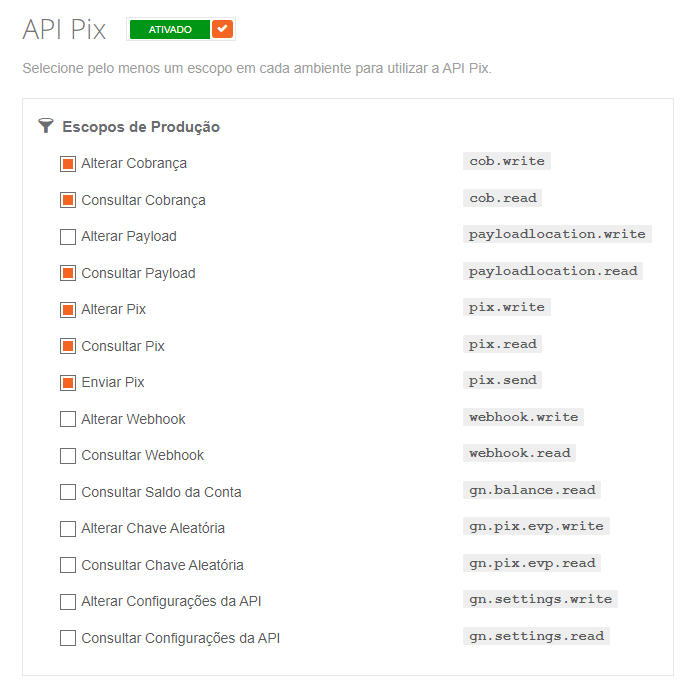
The Client ID and Client Secret values are shown on the Produção (Production) tab of the new application.
Authentication certificate
Still in the web interface, select Meus certificados (My certificates) in the side menu.
On the Produção (Production) tab, click the Novo Certificado (New certificate) button.
Name the certificate after your instance. Use the - character instead of spaces (if any).
Download the certificate and store it in a safe place.
As the message shown after creation says, the certificate cannot be downloaded again.
Pix key
In the app you used to create the account, sign in and open the Pix area.
Select Minhas Chaves (My keys) and click the + button to register a Pix key.
Select the Chave aleatória (Random key) type and complete the operation.