Electronic Service Invoice (NFS-e)
Signer can issue and cancel an NFS-e (the Brazilian electronic service invoice) for paid invoices directly, through an integration with NFE.io.
NFE.io and the municipal tax systems are Brazilian services: the linked pages and the NFE.io panel are in Portuguese. Panel labels below are quoted as the panel shows them, with a translation in parentheses.
Integrating Signer with NFE.io
Most major Brazilian state capitals are already integrated, but you must ask the NFE.io sales team for the full list of integrated municipalities, along with the prices.
First steps
- Register with the municipality to issue NFS-e, following the NFE.io document.
- Create an account - https://nfe.io/docs/nossa-plataforma/criar-conta/
- Create a company - https://nfe.io/docs/nossa-plataforma/criar-empresa/
- Enter the tax information - https://nfe.io/docs/nossa-plataforma/alterar-empresa/
- Upload the digital certificate - https://nfe.io/docs/nossa-plataforma/upload-certificado/
- Contact NFE.io to negotiate prices and activate the account for production.
- While in touch with NFE.io, ask whether the municipality that issues the invoice requires the CNAE (Brazil's National Classification of Economic Activities). If it does, use IBGE's online CNAE search.
- For specific questions about NFS-e, NFE.io provides a document that summarizes how the service invoice works.
Getting the credentials
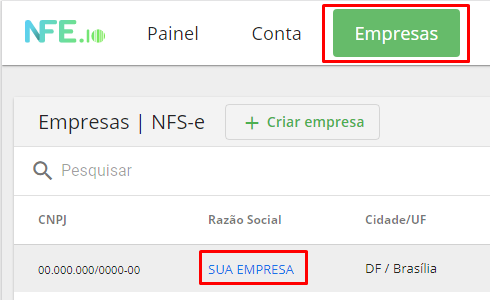
To configure the integration you need the access key and your company ID. Open the Empresas (Companies) menu, then click the name of the company that will issue the NFS-e.
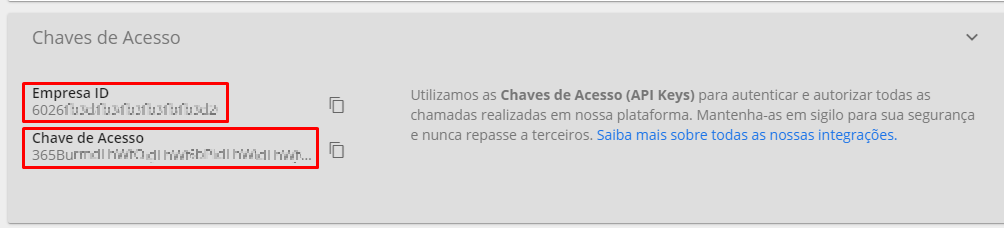
Then scroll down to the Chaves de Acesso (Access keys) section. It shows the access key (Api Key) and the company ID
(CompanyId).
Creating the webhook
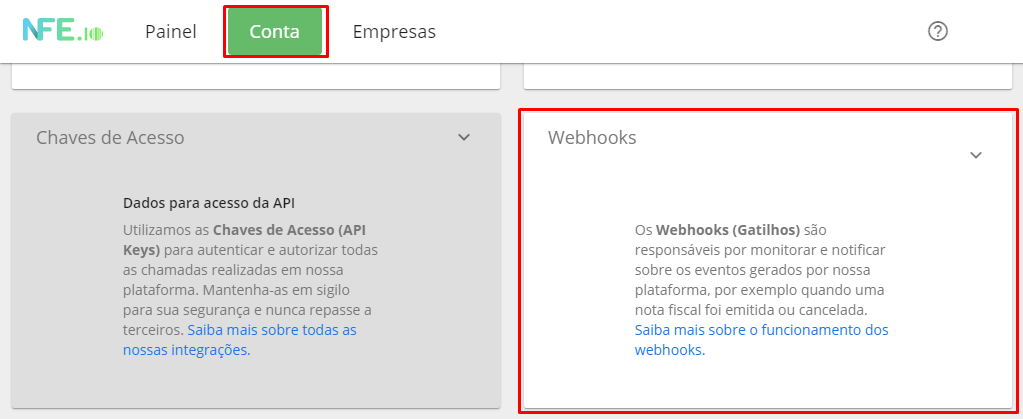
The next step is to create the webhook, which notifies Signer when an NFS-e is issued or canceled. Open the Conta
(Account) option, scroll down and select the Webhooks section:
Then click the Criar Webhook (Create webhook) button:

Select NFS-e as the webhook type and fill in the fields as shown below:
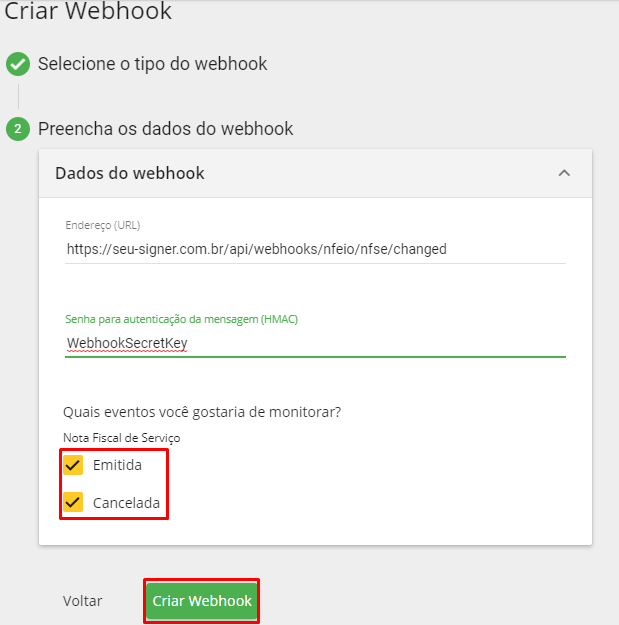
Fill in the address (URL) field with the address of your Signer instance followed by the standard webhook path, as in the example below:
https://your-signer.com/api/webhooks/nfeio/nfse/changed
Finally, the message authentication password (HMAC) field can be any password, but we recommend at least 8 characters.
Service code
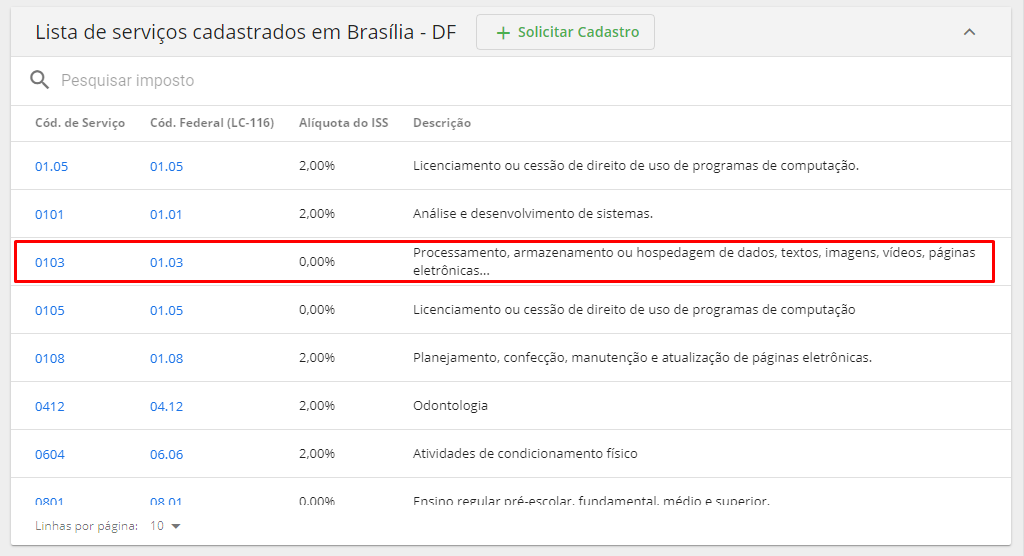
The service code is a number that identifies the type of service provided, used on the NFS-e. The municipality where the invoice is issued provides this code, along with the municipal tax rate.
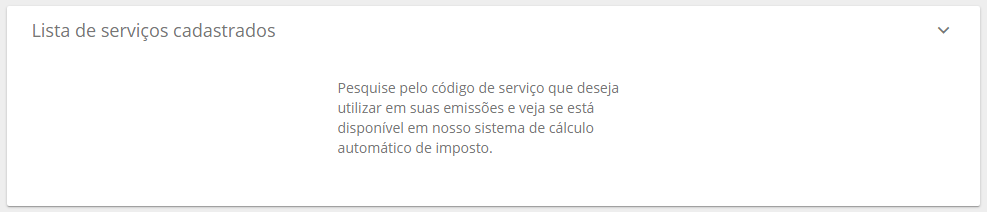
NFE.io provides a list of the services registered for the city where the NFS-e is issued. Open the Empresas (Companies)
menu, select the company that will issue the NFS-e and click the Lista de serviços cadastrados (Registered services)
section.
As mentioned above, each municipality has its own list of codes and descriptions. Taking Brasília as an example, Signer
falls under code 0103, but if in doubt we suggest checking with your company's accountant.
Issuing and canceling NFS-e in Signer
Issuing invoices
Once all parameters are configured in NFE.io and Signer, you can issue an NFS-e for a paid invoice directly from the invoice details page.

- Only the instance administrator can issue or cancel an NFS-e.
- The service invoice system does not depend on the iugu integration.
- If the Signer instance is also integrated with iugu, paying the invoice automatically requests the NFS-e.
Issuing and canceling an NFS-e depends on the municipality's system. If that system is unstable, some invoices may take hours or even days to be issued or canceled.
You can also issue an NFS-e for an invoice with the request below:
POST /api/invoices/{id}/receipts
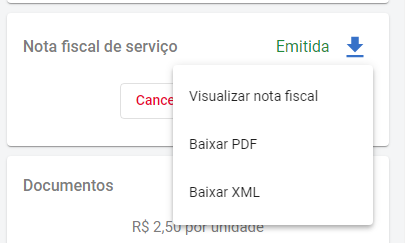
When the NFS-e is issued, NFE.io itself emails the user or organization responsible for the invoice with the NFS-e PDF and XML. You can also download or view the NFS-e on the invoice details page:
Canceling invoices
Once an NFS-e is issued, you can cancel it on the invoice details page.

You can also cancel the NFS-e of an invoice with the request below:
DELETE /api/invoices/{id}/receipts
An NFS-e can only be canceled once it is issued: if it is still being issued, wait until it is. The same applies to a new issue requested after a cancellation.