iugu payment gateway
Starting with version 1.27.0, you can integrate Signer directly with the payment gateway of iugu. Once an invoice is closed, users and organizations can then pay it themselves by credit card, boleto bancário (Brazilian bank payment slip) or Pix.
The iugu control panel is in Portuguese. The labels below are quoted as the panel shows them, with a translation in parentheses.
Configuration in the iugu control panel
To sign up with iugu, you must choose a subscription plan. Each plan has its own features, fees and per-transaction costs, which the instance administrator should weigh, but Signer works fully with the most basic plan ("Conheça a iugu").
After signing up with iugu, open the
control panel and create an API token. To do so, go to Configurações (Settings) >
Integração via API (API integration) and click the Novo (New) button:
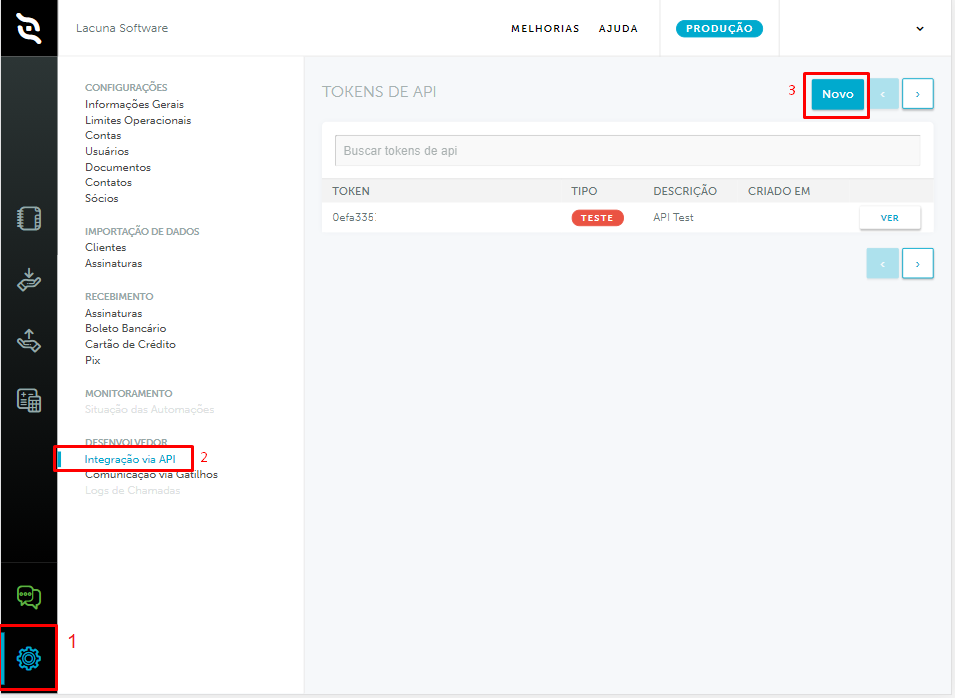
The token type must be Produção (Production). Also add a description, for example "API Signer Prod".

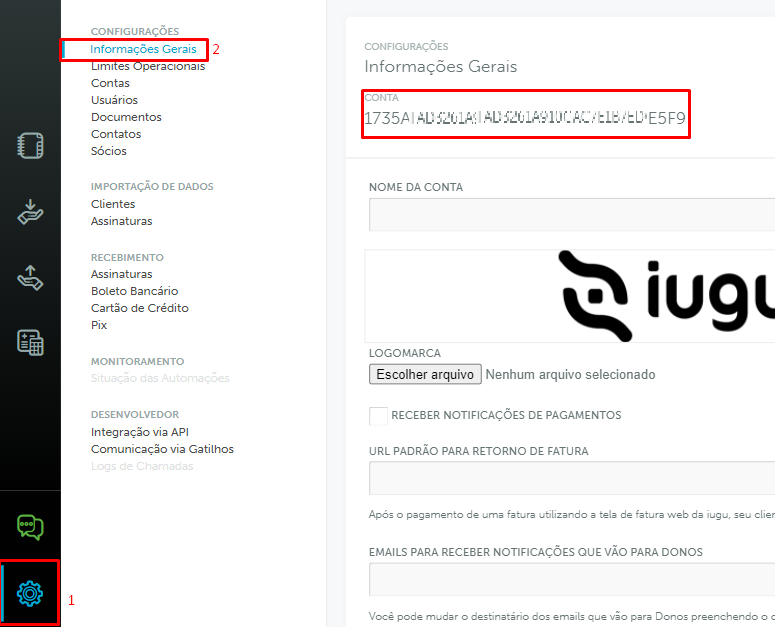
Next, get your account ID in Configurações (Settings) > Informações gerais (General information). Your iugu account
ID is shown under CONTA (Account).
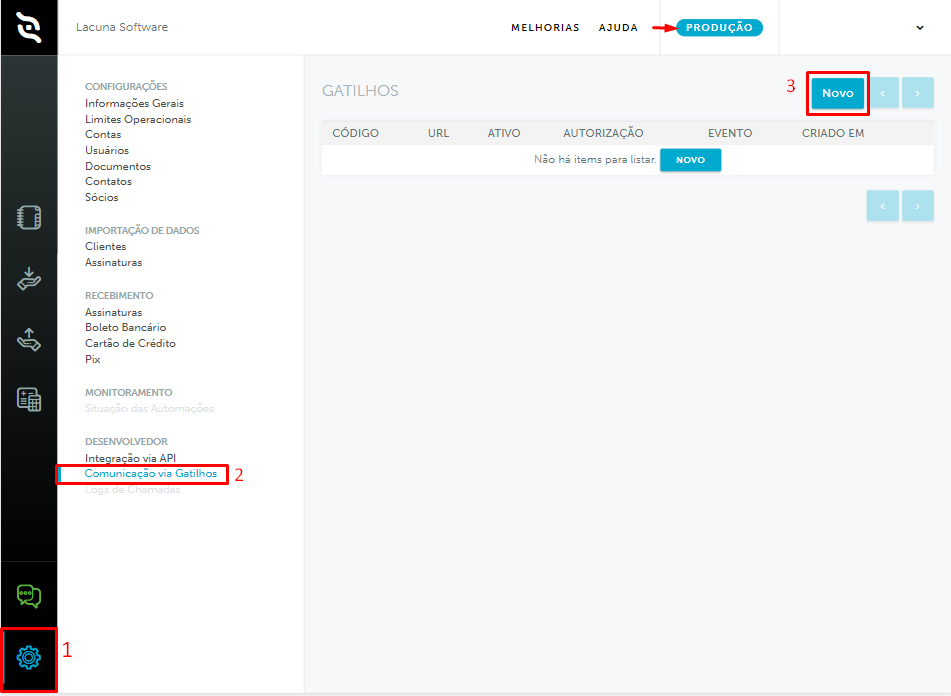
The next step is to configure the webhook that notifies Signer about payments. Still in the settings, go to
Comunicação via Gatilhos (Triggers) and click the Novo (New) button:
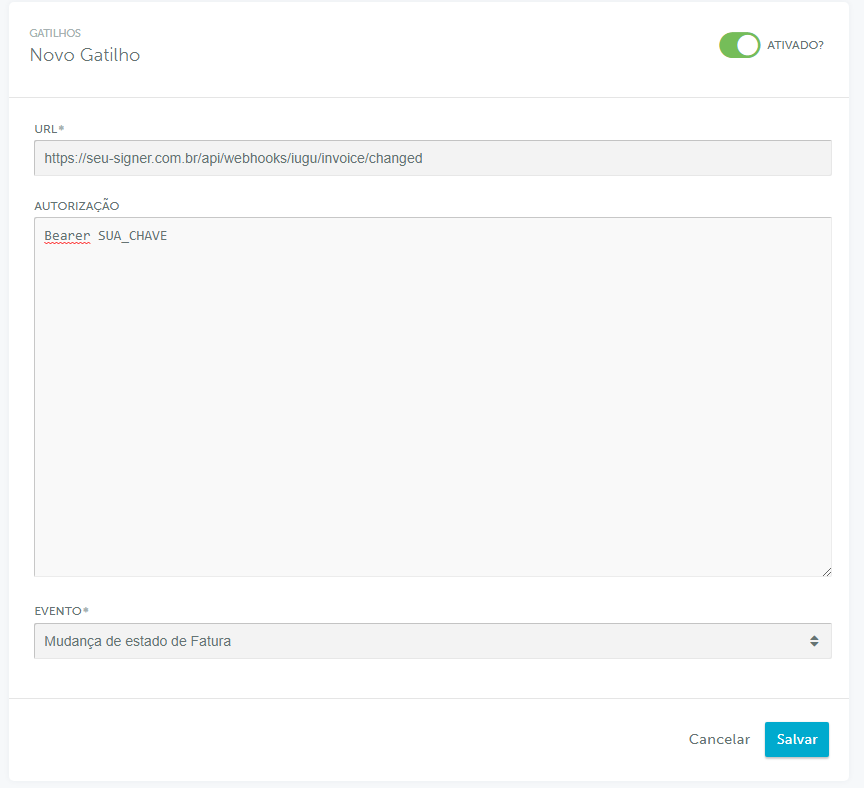
Fill in the URL field with the address of your Signer instance followed by the standard webhook path, as in the example below:
https://your-signer.com/api/webhooks/iugu/invoice/changed
If registering the webhook fails, add ?noecho to the end of the URL.
Fill in the authorization field as follows:
Bearer WebhooksAuthKey
WebhooksAuthKey can be any value, but we recommend a random, high-entropy string. Contact us for instructions on how to
generate it.
- The webhook must be created in the production environment (the selected environment is shown at the top of the page).
- The authorization field must start with
Bearer, as in the example. - The selected event must be
Mudança de estado de Fatura(Invoice status change).
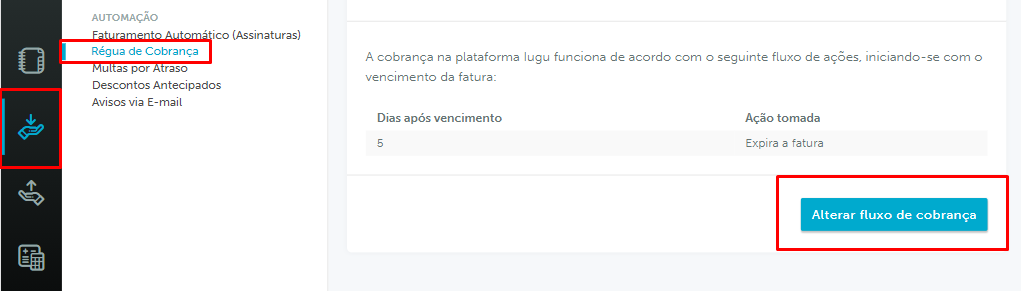
Next, turn off iugu's own dunning, because Signer has its own billing system. Go to Recebimento (Receiving) >
Régua de Cobrança (Dunning schedule) and click Alterar fluxo de cobrança (Change dunning flow).
Keep only the "Expira a fatura" (Expire the invoice) step, set to 5 days after the due date.
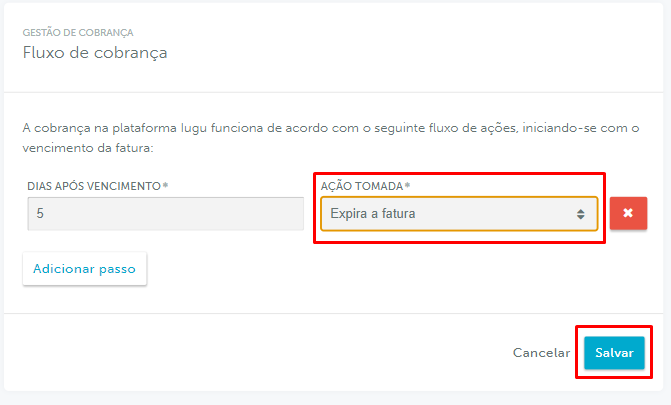
"Expira a fatura" is an iugu mechanism that marks an invoice as expired a few days after its due date. We recommend at least 5 days, so that boletos paid up to the due date have 5 days to clear.
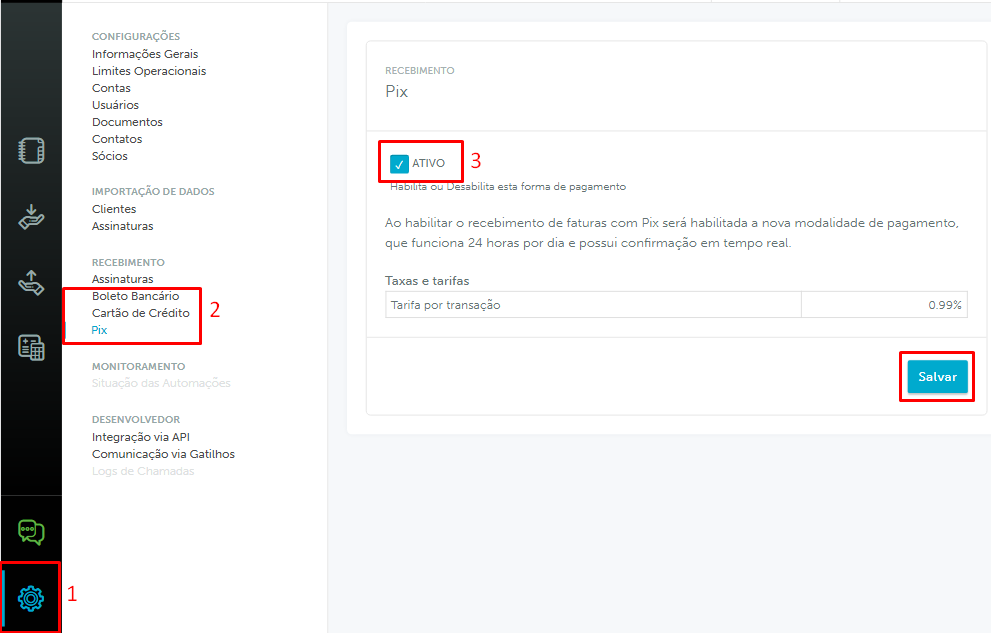
The last step is to check that all payment methods (boleto bancário, credit card and Pix) are enabled. Go to
Configurações (Settings) > Recebimentos (Receiving) and select each of the listed payment methods, checking the
"Ativo" (Active) option and clicking "Salvar" (Save):
Configuration in Signer
Users and organizations that entered their billing information before version 1.27.0 must enter it again, so that it is validated against iugu's requirements.
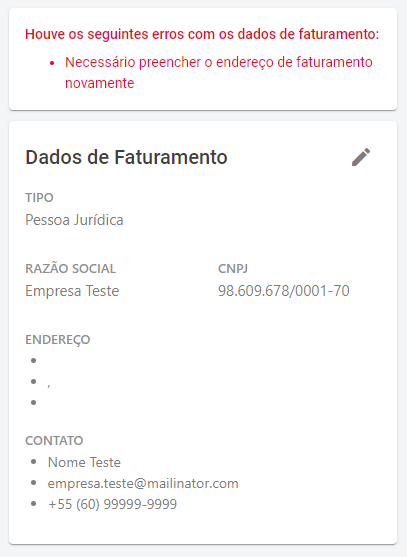
Once the billing information is submitted again, the user can set a default payment method for their personal or organization account:
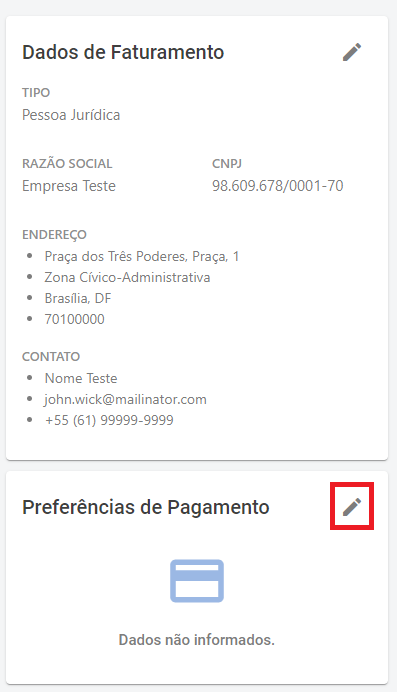
The default credit card payment method can also be chosen when paying an invoice.
The payment methods available to users and organizations are Pix, boleto bancário and credit card. For credit cards, they can pick a card already on file or add a new one:
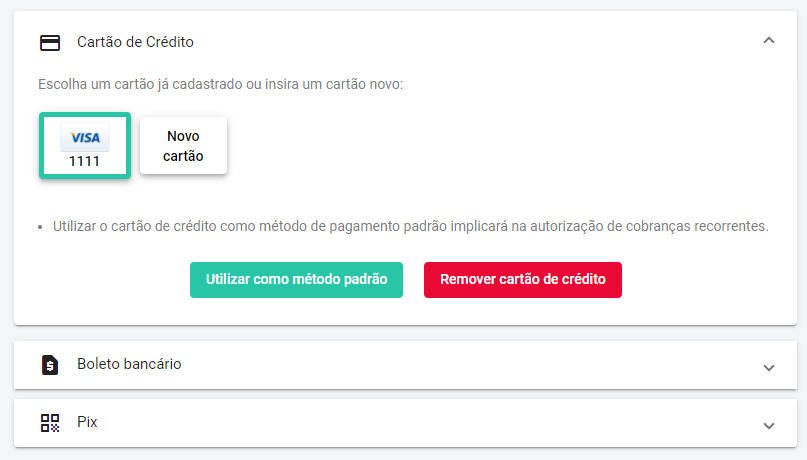
The accepted credit card brands are:
- American Express
- Diners
- Elo
- MasterCard
- Visa
When an invoice is closed, the user or organization can pay it on the invoice details page, as shown below:
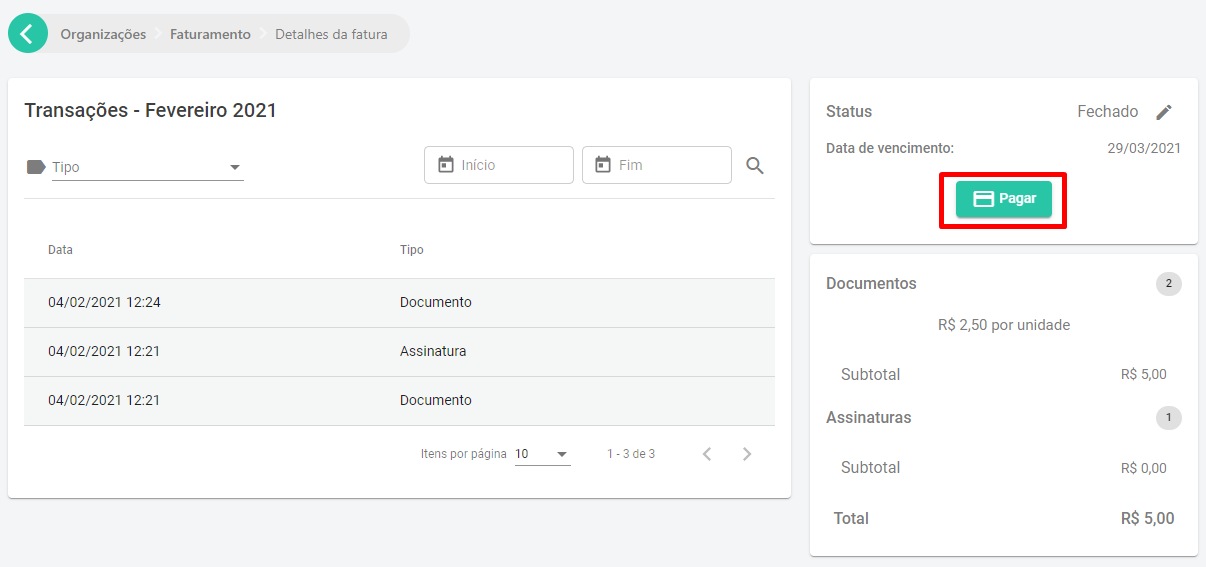
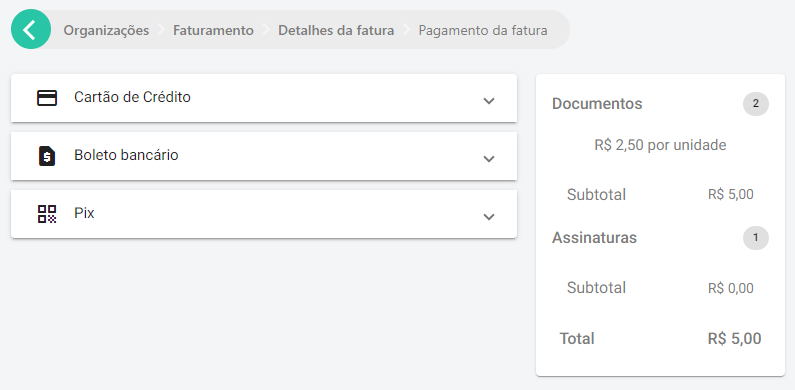
After payment, the invoice status is updated with the payment method used and the date and time.

Credit card payment failures
Paying an invoice by credit card can be declined for many reasons. An error code is shown at payment time, and you can look it up in this list of errors (in Portuguese).

In some cases, the cardholder may get an SMS or card app notification saying the charge succeeded. However, if the user's or organization's invoice does not show as PAID, that charge is automatically reversed on the card statement within 7 to 10 business days.
Automatic charge
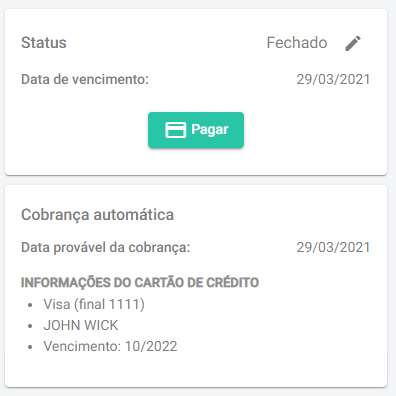
Signer automatically charges the credit card when the user or organization saves a credit card as the default payment method.
The automatic charge is scheduled for the invoice due date, but it can take one or two extra days.
However, there are some cases in which no automatic charge is made:
- If the default payment method of the user or organization is not a credit card when the invoice is closed.
- If the invoice is paid before the due date.
- If the user or organization changes the invoice payment method to boleto bancário. Once the boleto is generated, the automatic charge is canceled for that invoice only.
To check whether an automatic charge is scheduled, see whether the invoice details show the automatic charge information, as below:
Test mode
You can put your instance in test mode to test the integration and the iugu credentials. Use the credentials of the test
environment and remember to turn on the test option in the instance settings too
(TestMode).
In test mode, only test credit cards can be used, as listed on the page Usar cartões de teste em modo de teste (in Portuguese).
To test a Pix payment, use the button below the QR code:
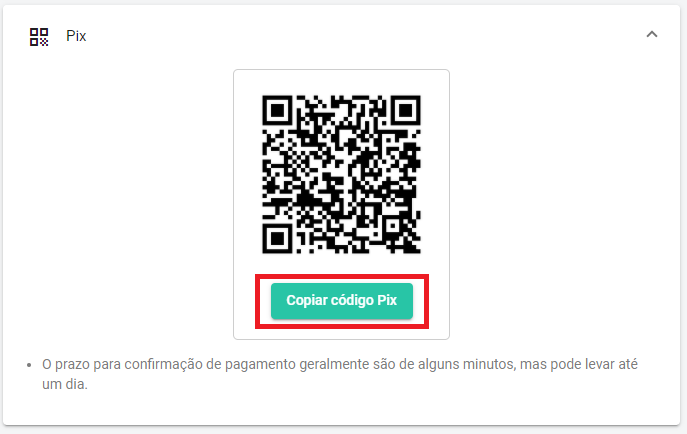
It copies a URL similar to the one below:
http://faturas.iugu.com/iugu_pix/a32c46b6-ab85-469e-bafc-601c1a4e96ae/test/pay
Open that URL in the browser to simulate the payment.
To test a boleto payment, get the URL the same way as for Pix, but replace test with sample and iugu_pix with
iugu_bank_slip, as below:
http://faturas.iugu.com/iugu_bank_slip/a32c46b6-ab85-469e-bafc-601c1a4e96ae/sample/pay