What's new in version 3.5.0
This page shows, step by step, how to use what arrived in version 3.5.0 of Signer. In each screenshot, the spot to click is marked in red. When there is more than one, the numbers give the order.
The complete technical list, with the bug fixes, is in the changelog.
For those who sign and send documents
Document group link
Your company's system can send several documents at once, as a document group. When the participants of these documents have an operator, the operator receives a single e-mail for the whole group, with a link that gathers every document and every person they can act for.
-
In the e-mail, check the list of participants and documents and click the button that opens the single link.
-
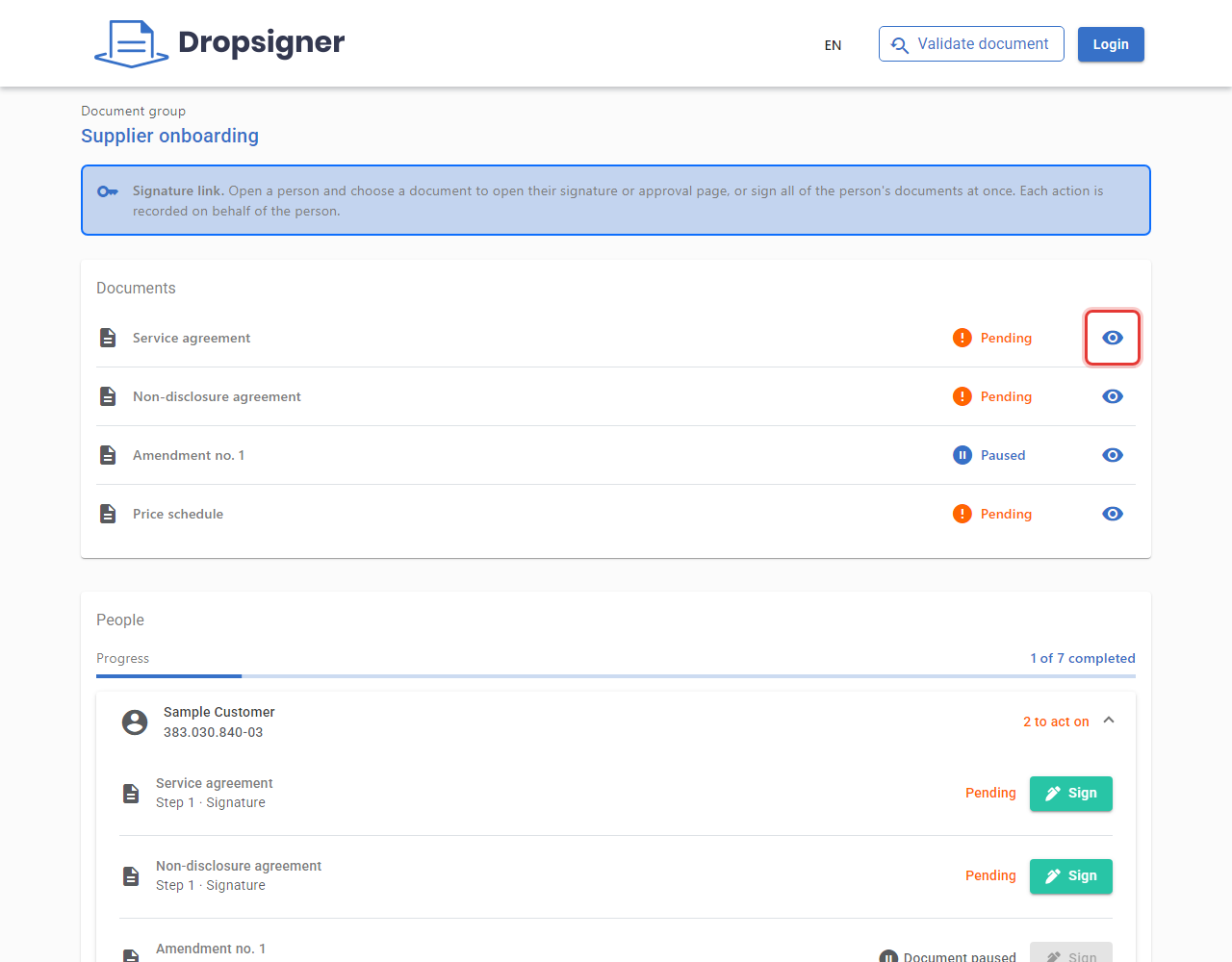
The link's page shows the group's name, the Documents with the status of each one and, further down, the People you can act for. To read a document before acting, click the eye icon next to it.
-
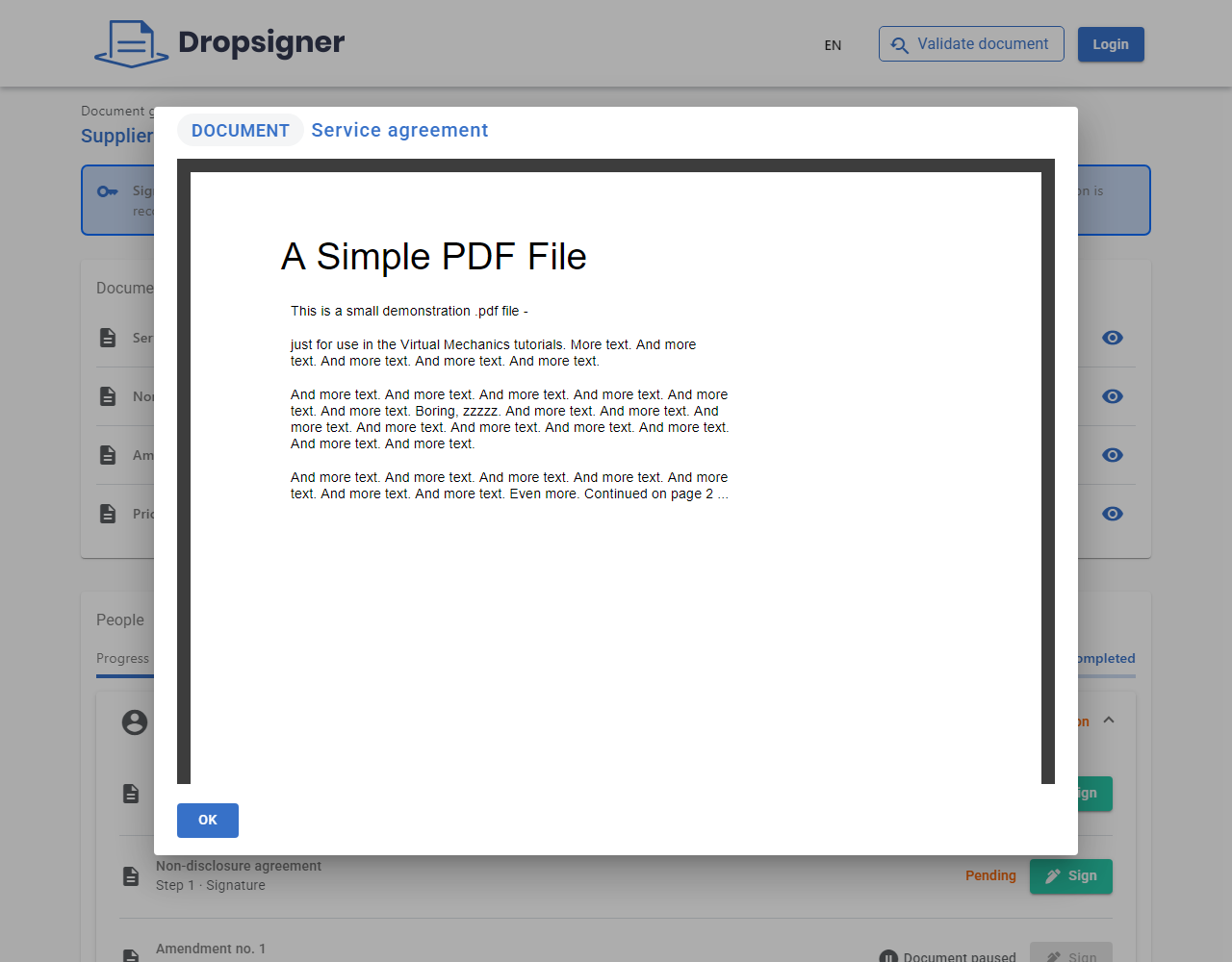
The document opens in a window. Click OK to go back to the list.
-
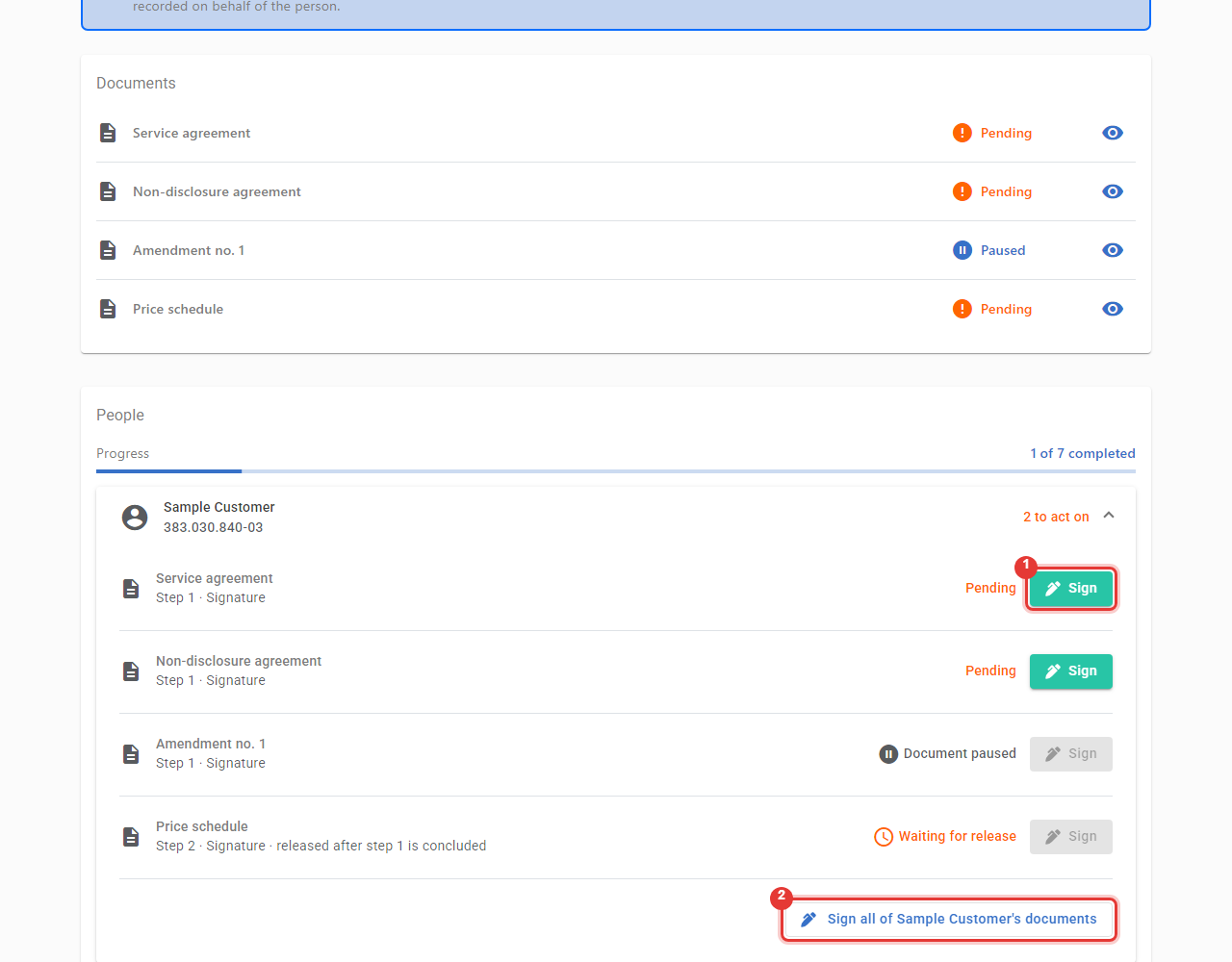
Under People, each person shows how many documents still wait for them (2 to act on). Click Sign or Approve on a document's row to act on that one only (1), or Sign all of person's documents to act on all of their pending documents at once (2). To sign electronically, Signer sends a code to the person's own e-mail. After acting, click Back to the list.
What each status means
Each row shows the status of that person's action on that document:
-
Pending: the person can act now; the Sign or Approve button is enabled.
-
Signed, Approved or Refused: the action is done. Details opens the document.
-
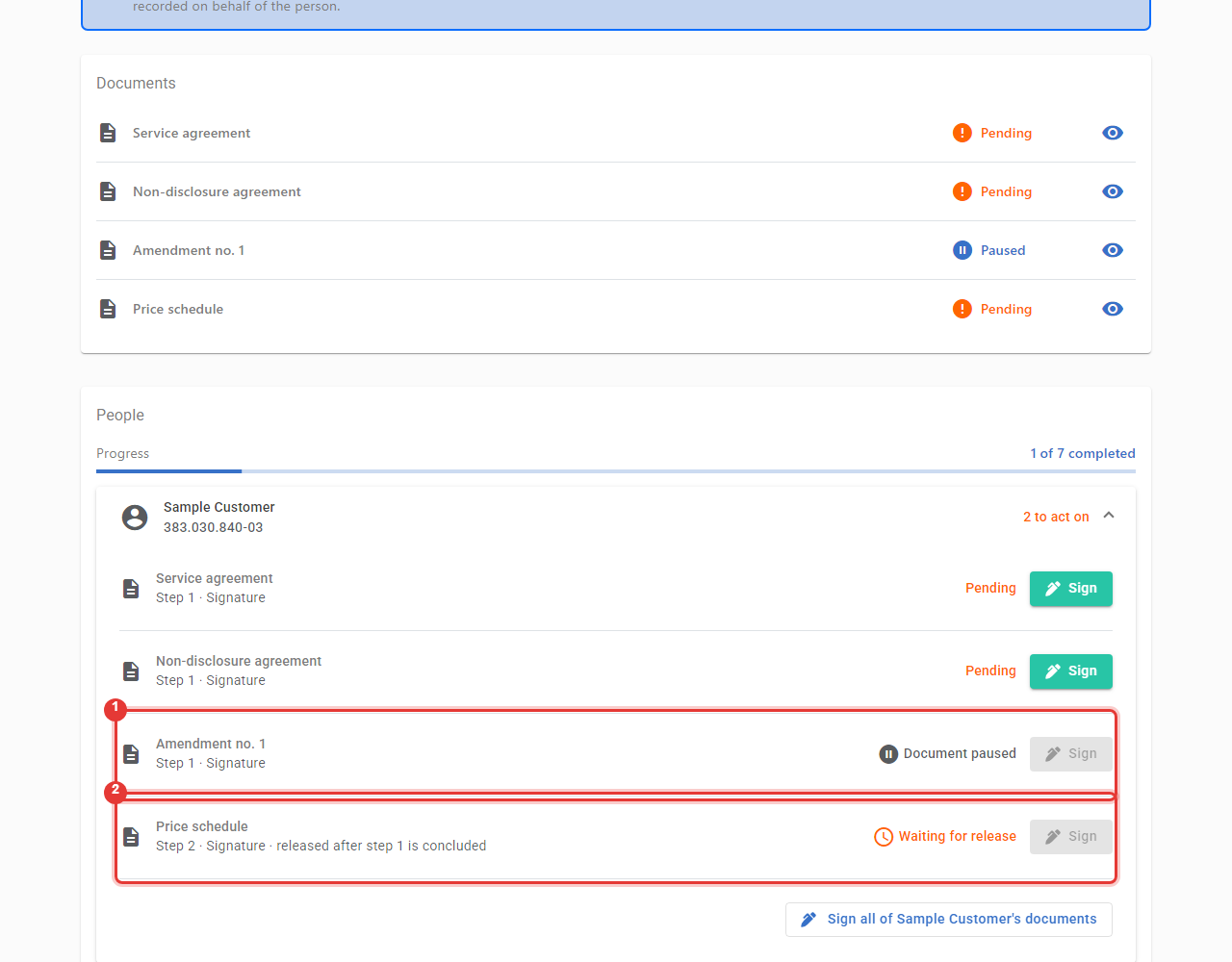
Document paused: whoever sent the document paused it. Nobody can act until it is resumed.
-
Waiting for release: the action is in a later step, released after the previous step is concluded.
-
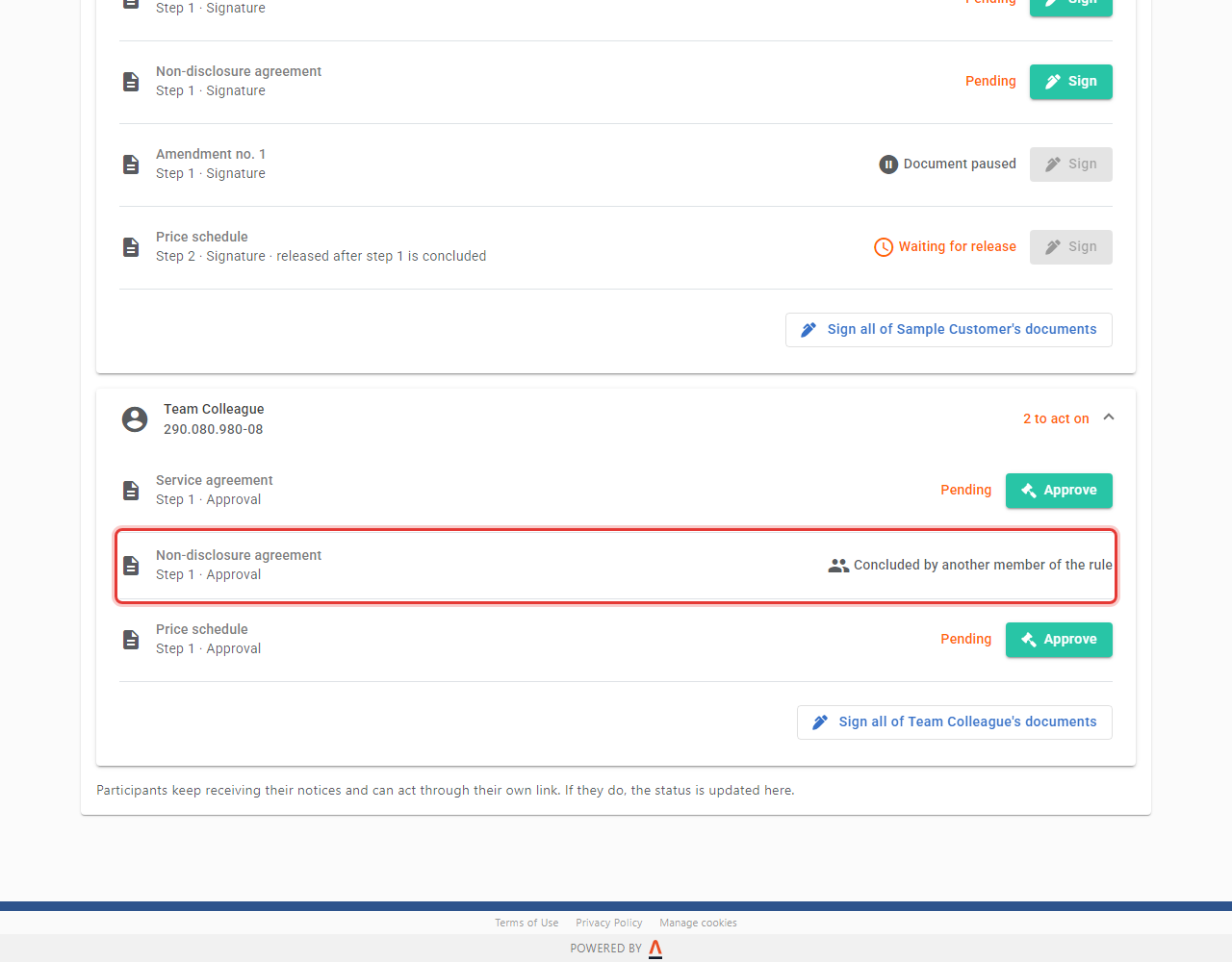
Concluded by another member of the rule: the person is part of a signature or approval rule, and another member of the rule already acted. They no longer need to act on that document.
-
Not completed: the document no longer waits for actions (for instance, it was canceled) and the person did not act.
Participants keep receiving their notices and can act through their own link. If they do, the status is updated on the group's page. When the link expires, the page shows Link expired: ask whoever sent the documents for a new link.
The document group is created through the API, in a single request that gathers new or existing documents, each with its own participants and operators. See Document groups through the API.
Learn more in Document group.
Facial biometrics: new consent and digital certificate
In the electronic signature with facial biometrics (Datavalid), the signer now understands what happened when the biometrics cannot be used, and has a way forward.
When the previous consent is no longer valid
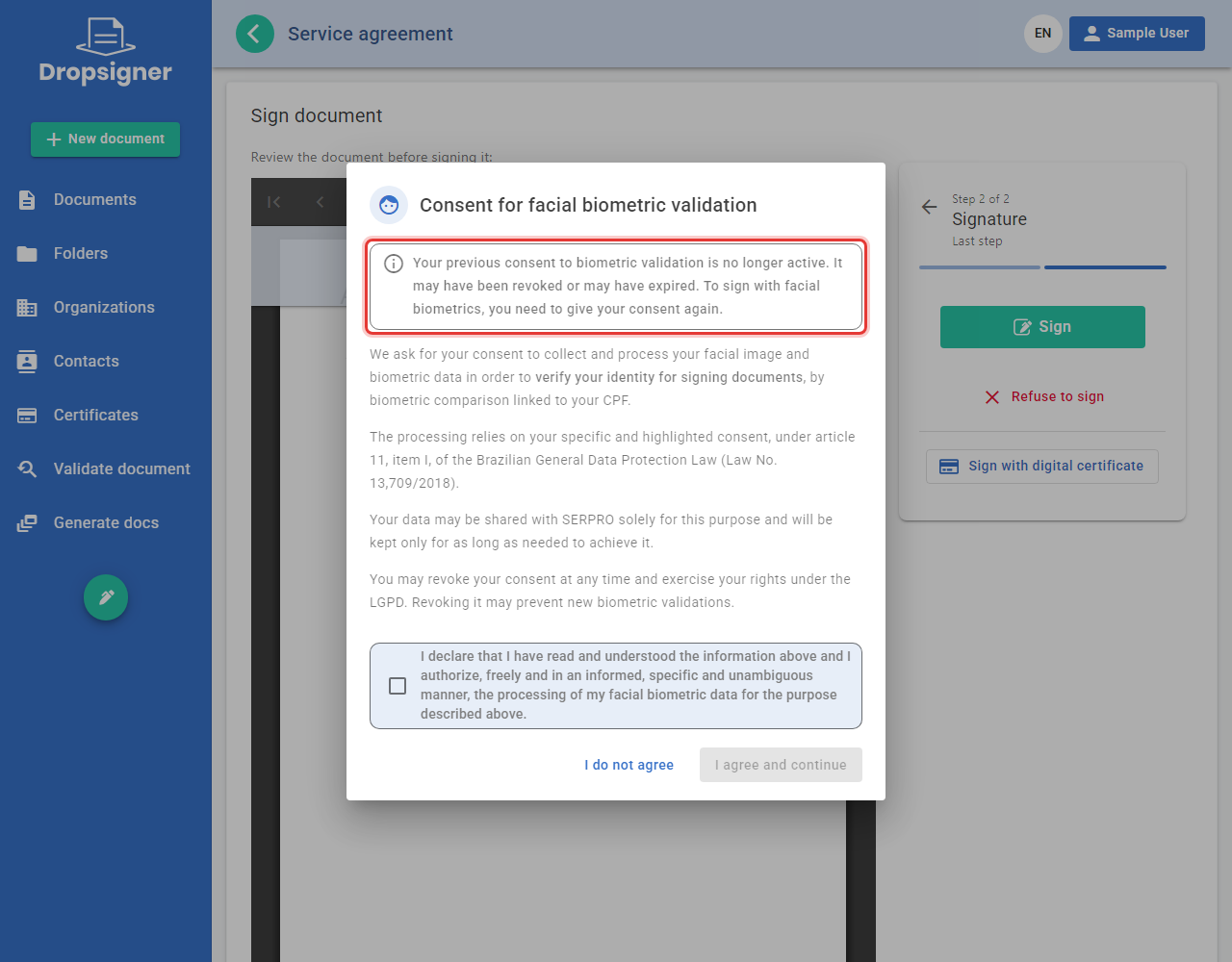
The consent for facial biometrics is valid for a while. If it expired or was revoked between opening the page and signing, the consent window opens again when you click Sign, with a notice explaining why.
-
Read the notice at the top of the Consent for facial biometric validation window.
-
Check the statement and click I agree and continue. The selfie you already took is kept and the signature goes on. With I do not agree, facial biometrics is not used and you can sign with a digital certificate.
When facial biometrics is unavailable
If the biometrics cannot be validated (for instance, the CPF was not found in the government database, there is no driver's license photo for the CPF, or validation is unavailable on the portal), Signer shows a clear message, with no technical terms. When the attempt was not charged, the message says so.
-
The Facial biometrics unavailable window explains the reason. Click Sign with digital certificate to go on with your certificate, or Close to stay on the signing screen.
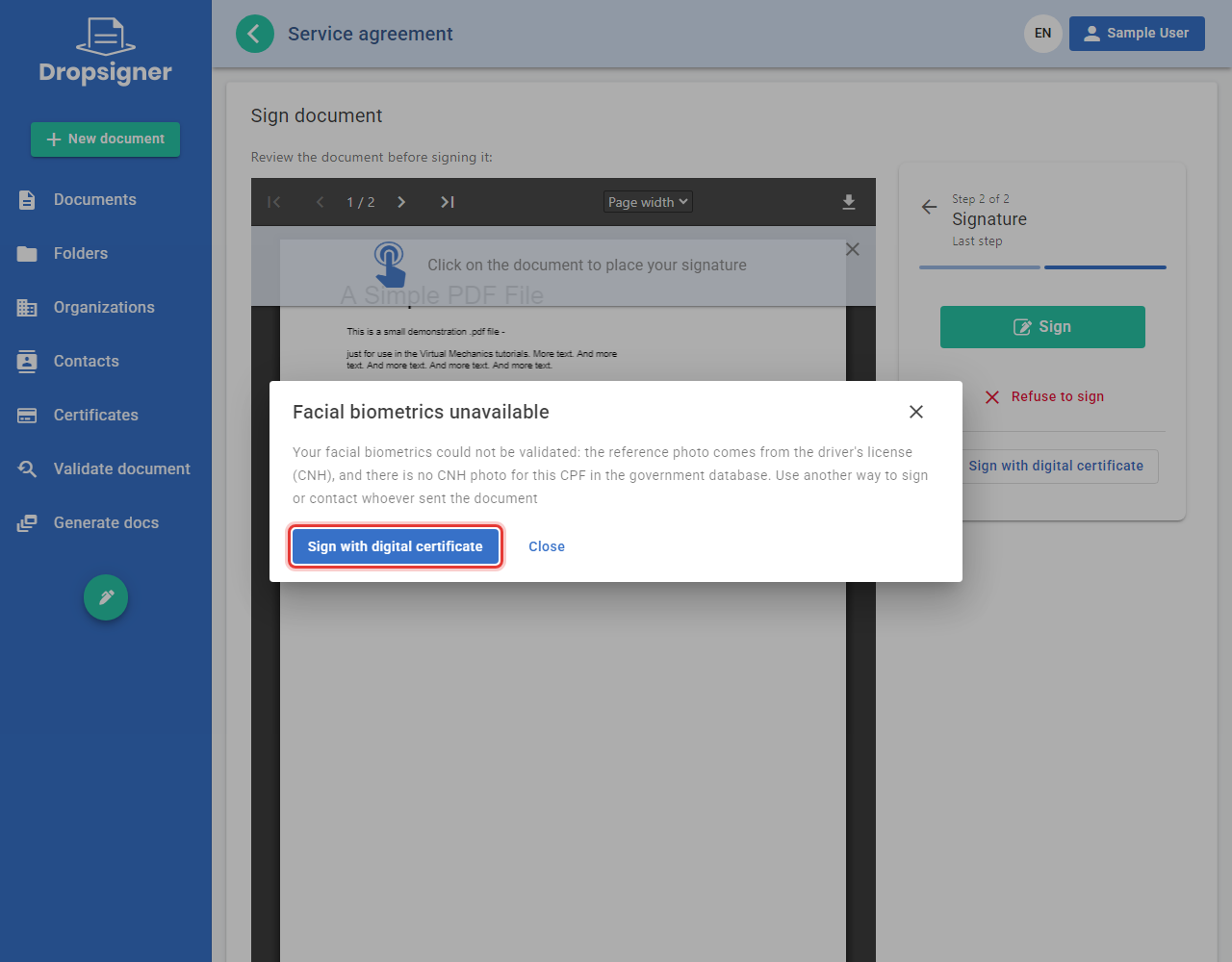
The digital certificate option appears when the document also accepts that kind of signature. When validation is only temporarily down, the message asks you to try again later.
The messages apply to version 5 of the Datavalid API (Datavalid:ApiVersion). The technical details of each
failure, such as a configuration problem of the portal at Serpro, go only to Signer's log.
Learn more in Facial biometrics unavailable.