Embedded signatures integration
Introduction
Embedded Signature Integration allows you to sign/approve documents in Signer within any application through the component LacunaSignerWidget.
Signer must be configured with a Web PKI license that has the same domain in which the component will be loaded.
Installation
First, include the latest lacuna-signer-widget.js file on your page:
<script type="text/javascript" src="https://cdn.lacunasoftware.com/libs/signer/lacuna-signer-widget-0.8.0.min.js"
    integrity="sha256-kS96fv3kyz1iJOP3crrI/2dvBzAgEHu4dZF9ecS/f0I="
    crossorigin="anonymous"></script>
Instantiate the class LacunaSignerWidget:
var widget = new LacunaSignerWidget();
Then call the on() method passing the event type you want to listen and a callback function that will be called when the user signs/approves the document:
//signing
widget.on(widget.events.documentSigned, function (e) {
	// ...
	//alert('Document ' + e.id + ' signed');
});
//approval
widget.on(widget.events.documentApproved, function (e) {
	// ...
	//alert('Documento ' + e.id + ' approved');
});
If you prefer, use the listen() method to listen to all events with just one callback:
widget.listen(function (e) {
	if (e.type === widget.events.documentSigned) {
		// ...
		//alert('Document ' + e.id + ' signed');
	} else if (e.type === widget.events.documentApproved) {
		// ...
		//alert('Documento ' + e.id + ' approved');
	}
});
Always check in the backend whether the document is actually completed because callbacks can be triggered by other javascript files.
Finally, load the iFrame using the render() method which needs two mandatory inputs:
embedUrl: it is the URL related to the action you want to take. Corresponds to the embedUrl parameter returned by API Action URLelementId: it is the element's id in which the signature component will be displayed.
And two optional inputs:
page: page number where the document will open on startup (to open the last page of any document, no matter its size, assign the number'-1').scale: the percentage that will define at what scale the document will be opened. It can be defined through a simple string'100'or through thewidget.scaleOptions.S100
widget.render(embedUrl, 'embed-container', page, scale);
If you wish, the DOM element can be provided directly:
widget.renderElement(embedUrl, document.getElementById('embed-container'), page, scale);
Online Example
To try it, open Sign without leaving your page on the Demo Site, which embeds Dropsigner's signing page with this widget. Its Markdown version lists every call it makes.
The page below is the browser side of an embedded signature. The button asks your own backend for an embed URL, and your backend, which keeps the API key away from the browser:
- Uploads the PDF (
POST /api/uploads) and creates the document with the signer as a participant anddisablePendingActionNotifications: true, so nobody is e-mailed (POST /api/documents). - Asks for that participant's action URL (
POST /api/documents/{id}/action-url) and returns itsembedUrl.
See Signing in your own application for both calls.
The script calls the backend with jQuery's $.post, so load jQuery on the page, or use fetch instead.
In the POST /api/documents/{id}/action-url route, {id} is the document ID, not the ID of the participant's action (flowActionId). With the action ID in the route, the API responds with the DocumentNotFound error. Send flowActionId in the request body, and only when the participant has more than one pending action on the document. The action IDs are in flowActions[].id, in the response of GET /api/documents/{id}.
<script src="https://cdn.lacunasoftware.com/libs/signer/lacuna-signer-widget-0.8.0.min.js"></script>
<div style="text-align: center;">
  <h1>
  Signer embedded signature
  </h1>
  <button type="button" onclick="startSignature(this)">
  Start Signature for Alan Turing (560.723.861-05)
  </button>
</div>

<div id="embed-container" class="frame-container">

</div>
.frame-container {
  position: relative;
  width: 100%;
  height: 0;
  padding-bottom: 56.25%;
}

.frame-responsive {
  width: 100%;
  height: 100%;
  position: absolute;
  top: 0;
  left: 0;
  border: none;
}
function sign(embedUrl) {
	var widget = new LacunaSignerWidget();

	widget.on(widget.events.documentSigned, function (e) {
		// ...
		alert('Document ' + e.id + ' signed');
	});

	widget.render(embedUrl, 'embed-container');
}

// Replace with your own call: your backend creates the document and returns the embed URL
function startSignature(elem) {
	elem.innerHTML = 'Loading ...';

	$.post("/your-backend/embedded-signature", {}).
		done(function (data) {
			if (data) {
				sign(data);
				elem.style.visibility = "hidden";
			} else {
				elem.innerHTML = 'Error';
			}
	}).fail(function () {
		elem.innerHTML = 'Error';
	});
}
Sign with the Lacuna test certificate of Alan Turing (CPF 560.723.861-05), from Test certificates, on an instance that trusts the Lacuna Test PKI. If Web PKI is not installed, the widget sends the user to its installation page, which brings them back to your application at the end.
Online example of cloud signing
The BirdID test certificate will be used (CPF 026.102.470-10, see the instructions below for pairing).
The page is the same as in the online example, with another title and button; the backend creates the document for the BirdID test user instead, who signs with a cloud certificate.
<script src="https://cdn.lacunasoftware.com/libs/signer/lacuna-signer-widget-0.8.0.min.js"></script>
<div style="text-align: center;">
  <h1>
  Signer embedded Cloud signature
  </h1>
  <button type="button" onclick="startSignature(this)">
  Start Signature for Usuario Teste BIRDID (026.102.470-10)
  </button>
</div>

<div id="embed-container" class="frame-container">

</div>
function sign(embedUrl) {
	var widget = new LacunaSignerWidget();

	widget.on(widget.events.documentSigned, function (e) {
		// ...
		alert('Document ' + e.id + ' signed');
	});

	widget.render(embedUrl, 'embed-container');
}

// Your backend creates the document for the BirdID test user and returns the embed URL
function startSignature(elem) {
	elem.innerHTML = 'Loading ...';

	$.post("/your-backend/embedded-signature?cloud=true", {}).
		done(function (data) {
			if (data) {
				sign(data);
				elem.style.visibility = "hidden";
			} else {
				elem.innerHTML = 'Error';
			}
	}).fail(function () {
		elem.innerHTML = 'Error';
	});
}
To sign as the test user of the BirdID test (homologation) environment, scan the QR code below in the BirdID app:

Additional settings
When instantiating the Lacuna Sign Widget class you can pass an object with one or more settings listed below:
| Atributo | Tipo | Descrição |
|---|---|---|
enableNotifications | boolean | Notifications are not sent after completing an embedded signature/approval. Set this parameter to true to send notifications. |
disableDocumentPreview | boolean | If true, it will hide the document preview. In this case, only the signing button and signer/approver data will be displayed. You can set this parameter after instantiation using setDisableDocumentPreview method. |
enableRefusal | boolean | If true, it will display the option to decline to sign a document. You can set this parameter after instantiation using setEnableRefusal method. |
culture | string | Defines the widget language, the options available are "pt" (portuguese), "en"(english) and "es"(spanish). |
theme | string | Defines the widget theme with the 3-character string (e.g. Theme: amazon-cornell-red - Code:"acr"). The themes are available at the themes page |
Example:
var widget = new LacunaSignerWidget({ disableDocumentPreview: true });
var widget = new LacunaSignerWidget();

widget.setDisableDocumentPreview(true);
Online example of signature without preview
The same page as in the online example, with disableDocumentPreview: true and the widget in a container at most 600 pixels
wide.
<script src="https://cdn.lacunasoftware.com/libs/signer/lacuna-signer-widget-0.8.0.min.js"></script>
<div style="text-align: center;">
  <h1>
  Signer embedded signature without Preview
  </h1>
  <button type="button" onclick="startSignature(this)">
  Start Signature for Alan Turing (560.723.861-05)
  </button>
</div>

<div class="container">
  <div id="embed-container" class="frame-container">

  </div>
</div>
.container {
  max-width: 600px;
  height: 100%;
  margin-left: auto;
  margin-right: auto;
}
function sign(embedUrl) {
	var widget = new LacunaSignerWidget({ disableDocumentPreview: true });

	widget.on(widget.events.documentSigned, function (e) {
		// ...
		alert('Document ' + e.id + ' signed');
	});

	widget.render(embedUrl, 'embed-container');
}

// Replace with your own call: your backend creates the document and returns the embed URL
function startSignature(elem) {
	elem.innerHTML = 'Loading ...';

	$.post("/your-backend/embedded-signature", {}).
		done(function (data) {
			if (data) {
				sign(data);
				elem.style.visibility = "hidden";
			} else {
				elem.innerHTML = 'Error';
			}
	}).fail(function () {
		elem.innerHTML = 'Error';
	});
}
Example for mobile devices
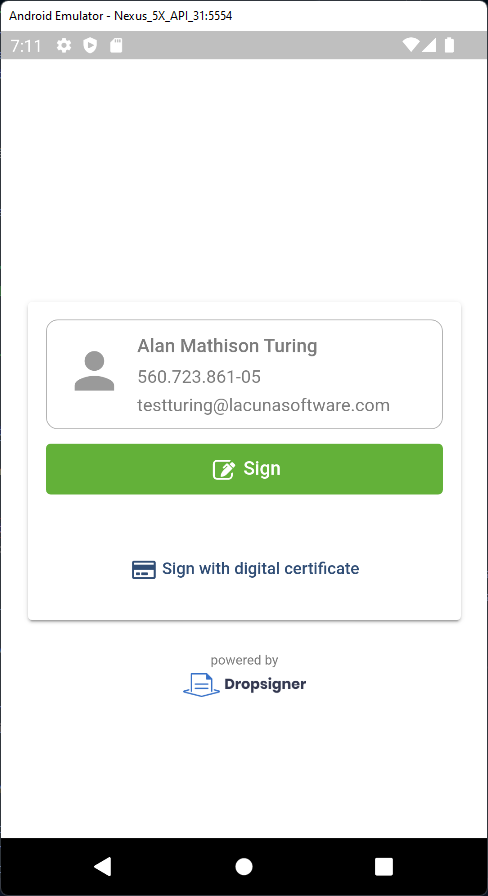
Alternatively, it is possible to use embedded signatures in mobile devices, an example app is available at our GitHub repository. The example displays a web page containing the embedded signature widget in JavaScript inside your mobile phone. The application was designed with Flutter.
The following image displays a signature example without the document preview:
Signature marks positioning
From Signer version 1.70.0 and version 0.7.0 of the Widget, it is possible to embed the signature marks positioning page in other applications as it was already done for the signature page. Once the marks are positioned, the position information will be retrievable through the Widget as well as Signer API in order to create one or more documents with the selected positions.
The first step is to create a marks positioning session using the session creation API. There are two variants of the API:
-
Basic session creation API: creates a session by requiring only necessary information. Signer personal information such as e-mail and country identifier for instance are optional. Use this API if, after obtaining the session result, you still intend to modify the request data before sending a create document request to Signer.
-
Session creation with document create request API: creates a session by using the same request that is sent to create documents. Use this API if you prefer to use the session result without any modifications when using the create documents API.
The result of both APIs will be the return of a session ID and a URL to embed the positioning page:
{
	//Session ID
	"id": "4cdcfa93-8f38-46f9-8634-246d5589fe5f",
	//URL to use with the Widget
	"embedUrl": "https://www.dropsigner.com/position-marks/4cdcfa93-8f38-46f9-8634-246d5589fe5f?v=1"
}
Once the session URL is obtained, initialize the Widget the same way it was done for the signature page mode:
var widget = new LacunaSignerWidget();
Call the on() method passing the marks positioned event type and a callback function that will be called when the user finishes positioning marks:
//assinatura
widget.on(widget.events.marksPositioned, function (e) {
	// The data attribute will contain the request with the marks positions defined
	//console.log(e.data);
	//alert('Marks positioned');
});
Finally, load the iFrame using the render() method:
widget.render(embedUrl, 'embed-container');
Once the positioning session is concluded, each entry of the flowActions attribute from the request provided when creating the session will be updated with the selected positions
(more specifically - the prePositionedMarks attribute will be filled accordingly).
The updated request can be obtained by the data attribute of the marks positioned event or by the attribute of same name in the
get session data API.
The positioning session has a duration of 1 hour after its creation. After that interval, it won't be posible to retrieve nor update session data.