Database model update - Rest PKI
Database updates on on premises instances of Rest PKI can be performed automatically or manually.
In automatic mode, the database is updated the first time a new version of the system runs, and no additional procedure is needed. In manual mode, after a version update of the system that requires a database update, the system stays out of service until the procedure is performed manually (see the section below).
The most suitable setting depends mainly on the choice made during the installation of the system regarding the system's permissions on the database:
- The system is the owner of the database, or
- The system has only read and write permissions on the database
If you chose option 1 (system is the owner of the database), both database update settings can be used, and automatic updates are recommended. If you chose option 2 (system has only read and write permissions on the database), the system must be configured to perform database updates manually.
Configuring the update mode
The update mode -- manual or automatic -- is configured in the AppSettings.config file, on the AutoUpdateDatabase item.
To use automatic database updates (recommended setting when the system is the owner of the database):
<add key="AutoUpdateDatabase" value="True" />
To use manual database updates (required setting when the system has only read and write permissions on the database):
<add key="AutoUpdateDatabase" value="False" />
If the setting is omitted, manual updates are assumed (which is not ideal when the system is the owner of the database).
Manual database update
If, after updating Rest PKI, the message "HTTP Error 503.0 - The server is currently undergoing maintenance. Please try again later." appears, the database must be updated manually.
To know in advance whether an update requires a database update, check whether the changelog marks any of the versions between the installed version and the one you are installing as requiring a database update. To learn how to check the installed version of the system, see this article.
In that case, access the /Maintenance URL relative to the site address (for instance, http://localhost:9000/Maintenance) and follow the instructions on the screen.
To access this URL you must be accessing the site locally or through HTTPS. If you need to access this URL remotely through HTTP, see section 2.4.5 of the Setup manual for Windows Server (in Portuguese)
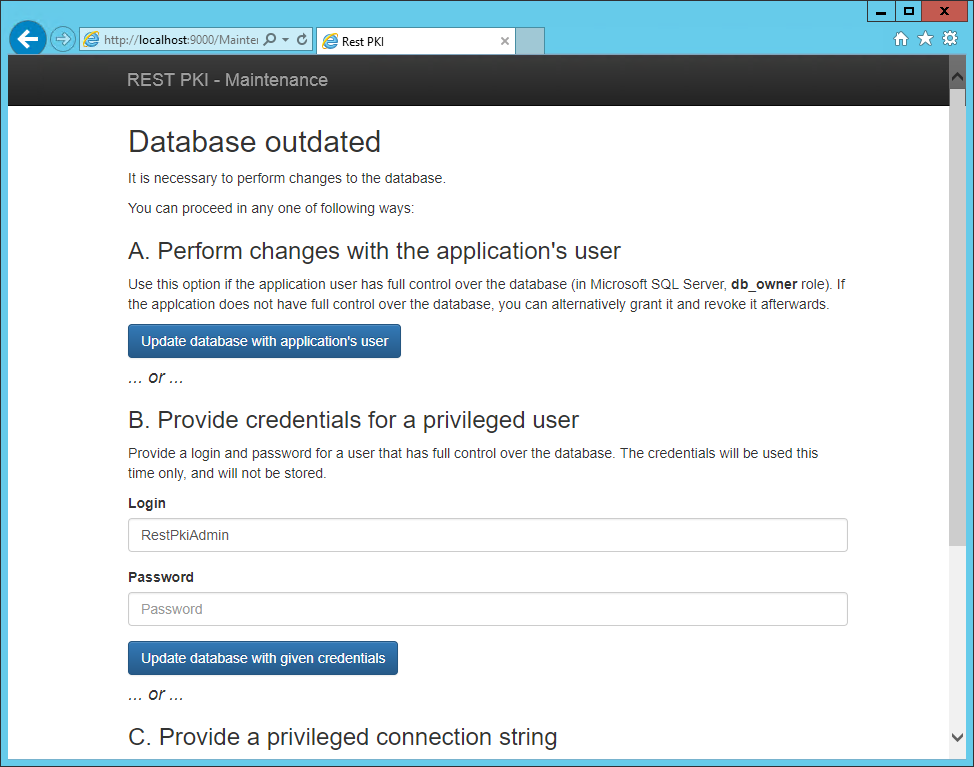
In this step, the system updates the tables in the database. Use one of the options shown on the screen to perform the changes, according to the application's permissions on the database chosen during the installation:
- If the system is the owner of the database, proceed with option A (Perform changes with the application's user)
- If the system has only read and write permissions on the database, proceed with option B (Provide credentials for a privileged user). Then provide "RestPkiAdmin" as the privileged user (or the username chosen during the installation as the database administrator user) and its password
After you follow the instructions, the home screen with the message "REST PKI on premises" is shown and the update procedure is complete.