Configure Timestamping - Rest PKI
To perform digital signatures on your on premises instance of Rest PKI with signature policies that require a signature timestamp, for instance the PAdES-T or CAdES Ad-RT policies, you need to hire an external timestamping service.
You can use the Rest PKI cloud (https://pki.rest/) to provide timestamps to your Rest PKI instance. See the prices here.
The timestamping service must meet the following requirements:
- Communication through the Timestamp Protocol (TSP - RFC 3161) over HTTP or HTTPS
- One of the following authentication methods:
- HTTP basic authentication
- SSL/TLS with mutual authentication
- OAuth Bearer Token
If you choose to use the Rest PKI cloud, follow the steps below to get the access credentials:
- Sign in on the Rest PKI cloud website (https://pki.rest/)
- On the Control Panel, click the Generate new access token button
- Copy the generated value
If you choose another timestamp provider, ask the provider for the access details (URL and credentials).
Once you have the access details of the timestamp provider, follow the steps below to configure your Rest PKI instance:
-
Access your Rest PKI instance
-
Sign in with the "Admin" user or another administrator user (the password was set during the installation)
-
On the top menu, go to Administration > Timestamp Plans
-
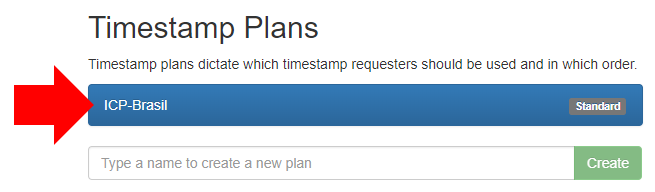
Click the ICP-Brasil item
-
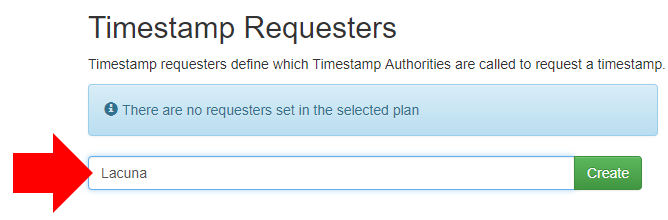
In the Timestamp Requesters area, type a name and click Create
-
On the next screen, fill in the provider's URL and click Create
- For the Rest PKI cloud, the URL is:
https://pki.rest/tsp/a402df41-8559-47b2-a05c-be555bf66310
- For the Rest PKI cloud, the URL is:
-
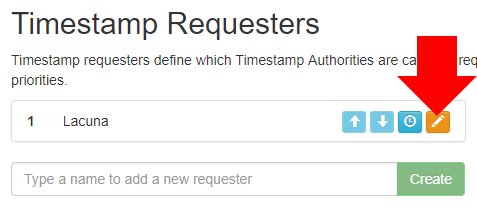
Once the requester is created, open its settings
-
On the Authentication field, choose the option specified by the provider
- For the Rest PKI cloud, the option must be OAuth Bearer Token
-
Depending on your choice, a new field is shown and must be filled:
- HTTP basic authentication: fill the Credentials field with the username and password given by the provider
- OAuth Bearer Token: fill the OAuth Token field with the token given by the provider (without the "Bearer" prefix)
- SSL with mutual authentication: see the section below
-
Click the Test button. If a message says the test was successful, the configuration is correct.
Authentication through SSL/TLS with mutual authentication
To use a timestamp provider that requires authentication through SSL/TLS with mutual authentication, you must first import the certificate given by the provider into the Windows certificate store, in the Personal folder of the user that runs Rest PKI.
With the .pfx file (PKCS #12) given by the provider at hand, follow one of the sections below, depending on the environment where Rest PKI is installed, to import the certificate into the Windows store.
Configuration on Windows Server
-
Access the server where Rest PKI is installed
-
Create a local user for Rest PKI
- On the start menu, search for "Edit local users and groups" and click it
- Right-click the Users folder and click New User...
- Fill in a username and a password
- Uncheck the option User must change password at next logon
- Check the option Password never expires
- Click Create
-
Grant the new user the required permissions on the Rest PKI installation folder
- Find the folder where Rest PKI is installed (e.g.
c:\inetpub\RestPKI) - Right-click the folder and go to the Security tab
- Click Edit... > Add.. > type the name of the user you created and click OK
- Leave only the List folder contents and Read items checked
- Click OK
- Find the folder where Rest PKI is installed (e.g.
-
Change the identity of the application pool
- Open the IIS Manager
- Go to Application Pools
- Click the Rest PKI application pool
- Click Advanced Settings... on the right-hand menu
- In the Process Model section, edit the Identity setting
- Choose the Custom account option
- Click the Set... button and enter the credentials chosen for the user you created
- Click OK
-
Check that Rest PKI still works normally (access the web interface)
-
Browse to the
C:\Windows\System32folder -
Find the
mmc.exefile -
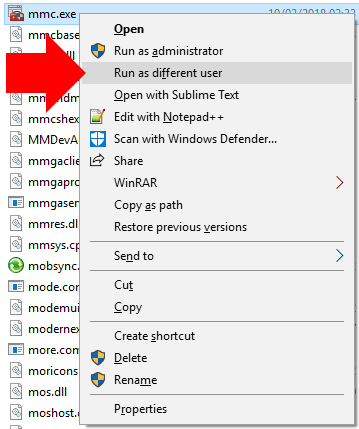
Hold the SHIFT key and right-click the file
-
Click the Run as different user option
-
Enter the credentials of the user you created
-
Go to File > Add/Remove Snap-in...
-
Click Certificates, click the Add > button and click OK
-
Expand the Certificates - Current User folder
-
Right-click the Personal folder > All Tasks > Import...
-
Follow the wizard, providing the .pfx file and its password
Once the certificate is imported, it is listed on the SSL Certificate field of the timestamp provider settings in Rest PKI.
Configuration on Azure App Service
- Open the App Service settings on the Azure dashboard
- Open the App Service's SSL certificates
- Click Upload Certificate
- Provide the .pfx file and its password and click Upload
- When the operation finishes, the certificate appears on the list of certificates
- Copy the value of the certificate's Thumbprint column
- Open the App Service's Application settings
- In the Application settings section, add a new setting
- Name:
WEBSITE_LOAD_CERTIFICATES - Value: (the value copied from the Thumbprint column)
- Name:
- Save the settings
Once the certificate is imported, it is listed on the SSL Certificate field of the timestamp provider settings in Rest PKI.