Rest PKI Core - Setup on Windows Server
To install an on-premises instance of Rest PKI Core on Windows Server, first download the binaries of the desired version. The latest version available is provided on the link below:
Prerequisites
- Windows Server 2016 or later (any edition)
- SQL Server 2014 or later (Standard edition or higher recommended)
- PKI SDK license (in Base64 format)
- Web PKI license (binary/Base64 format)
Database requirements
- Database with collation
Latin1_General_100_CI_AIorLatin1_General_CI_AI - Credentials of a user with the
db_ownerrole
If you need help preparing the database, see Preparing a database.
Installation
-
Install IIS
-
Install the ASP.NET Core Runtime 10.0 Hosting Bundle (section ASP.NET Core Runtime, item Hosting Bundle under Windows)
-
Create a folder for the IIS site. Example:
C:\inetpub\Rest PKI Core -
Create a folder for logs. Example:
C:\Logs -
Create the site on IIS
-
On the corresponding application pool:
-
Select Basic Settings and set the .NET CLR version to
No managed code
-
Select Advanced Settings and set Load User Profile to
True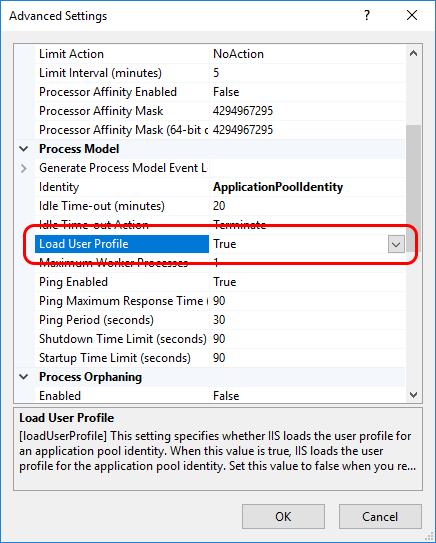
-
-
Extract the files of the binaries package to the site folder.
The ASP.NET Core Hosting Bundle must be installed after IIS; otherwise, you may get the error 500.19 (0x8007000d) when running the site.
If that is your case, run the Repair option of the Hosting Bundle installer.
Configuration
-
Create the folder
C:\ProgramData\Lacuna Software\Rest PKI Core -
In the site folder, go to
config-templates\linuxand copy theappsettings.conffile to the folder you just created, renaming it toappsettings.ini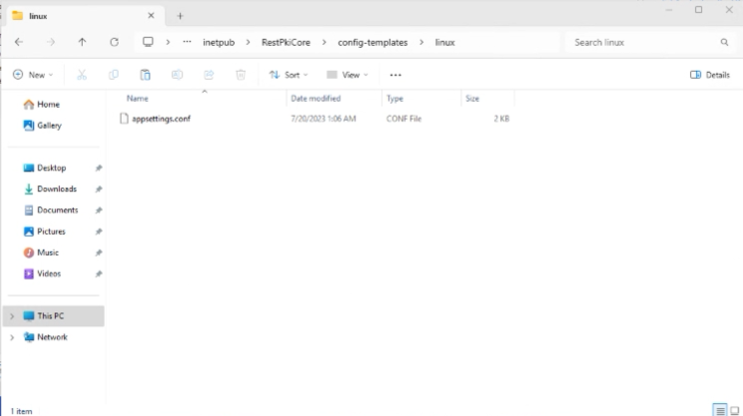
-
Open
C:\ProgramData\Lacuna Software\Rest PKI Core\appsettings.iniand fill in the settings as described in the file's comments, such as the database connection string ([ConnectionStrings]), the site URL ([General]) and the licenses ([PkiSuite]) -
Add the blob storage section to
appsettings.ini(see Blob storage configuration for other options):[BlobStorage]Type=FileSystemPath=C:\Path\To\Storage -
Save and close the file
Generating the encryption key and the password hash
For the EncryptionKey setting of the [General] section, generate a 256-bit key used to encrypt sensitive data stored in the database.
Run the following command in the site folder (C:\inetpub\Rest PKI Core):
dotnet Lacuna.RestPki.Site.dll -- gen-enc-key
For the RootPasswordHash setting of the [General] section, choose a strong password for root access to the management interface and
compute its hash:
dotnet Lacuna.RestPki.Site.dll -- hash-root-pass
On IIS, start the site with the Start button on the right-hand panel.