Geolocation configuration (Geolocation) - Rest PKI Core
During a biometric session, Rest PKI Core can capture the geographic location of the user's device (latitude and longitude). The feature is
off by default and can be turned on from the dashboard, applying to every session of your application. On your own (on-premises)
instances, the same default can also be set directly in appsettings, in the Bio:Geolocation section.
There are four settings:
- Geolocation capture type: whether the location is captured and whether it is required:
- Disabled (default): the location is not captured.
- Optional: the system tries to capture the location, but the session carries on normally if the user does not grant permission or the capture fails.
- Required: the session only proceeds if the location is captured successfully.
- Best effort: the system tries to capture the location without ever interrupting the session, retrying transient failures automatically. If every attempt fails, the session carries on normally without the location.
- Geolocation capture policy: on which devices the location is collected (important in QR code flows, where the biometric capture is done
on the phone). It only appears when the capture is turned on:
- Collect on capture device (default): collects only on the device that performs the biometric capture (e.g. the phone).
- Collect on all devices: collects both on the computer that started the session and on the phone that performed the capture.
- Maximum attempts: only appears when Geolocation capture type is Best effort. Number of capture attempts before the session carries on without the location (default: 3).
- Show instructions for best-effort geolocation capture: only appears when Geolocation capture type is Best effort:
- Enabled (default): the user sees a step asking for location permission, but without the cancel or skip buttons.
- Disabled: the capture happens without any Rest PKI Core step of its own. Even so, the user's browser may show its own location permission prompt, if the user has not decided on it yet.
Setting it up on the dashboard
- Sign in to the dashboard of your instance.
- On the left menu, click Settings.
- Find the Biometric session geolocation settings section and click Edit.
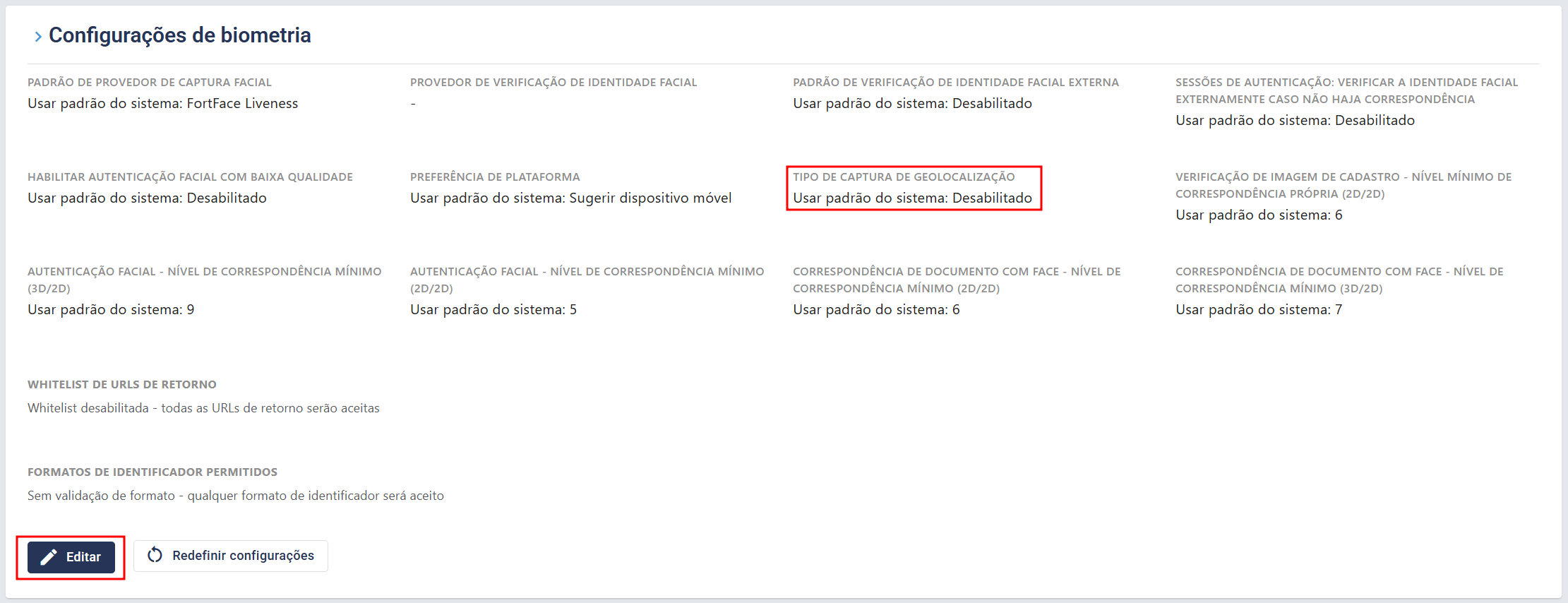
- In the Geolocation capture type field, choose Optional, Required or Best effort to turn the feature on.
- If you wish, adjust the Geolocation capture policy (this field only appears when the capture is turned on).

- If you chose Best effort, you can also adjust Maximum attempts, and set Show instructions for best-effort geolocation capture
to Disabled if you don't want to show the permission step to the user.

- Click Save to apply the settings.
tip
Integrating through the API? You can set the geolocation per session, overriding the default configured here: see Geolocation parameters.