Biometric sessions - Rest PKI Core
Biometric sessions are a feature of Rest PKI Core that lets your users perform biometric operations, such as liveness checks, enrollment, facial authentication and identification, as well as ID document captures.
Frontend flows
Rest PKI Core provides a biometric capture page, which your application can use either by redirecting the user to it or by embedding our widget.
Redirect flow (ReturnUrl)
In this model, your application "loses focus": the user is sent to a Rest PKI Core URL to capture their face.
To use it, pass the ReturnUrl parameter when creating the session.
- When to use: if you want a simpler implementation and redirecting the user to complete the flow is not a problem.
- Advantages: simpler implementation, with no need for advanced settings such as CSP (Content Security Policy).
- What happens at the end: the user is redirected to the URL you passed in
ReturnUrl, with thecompleteTicketin the query string (you need it to fetch the result later).
Diagram
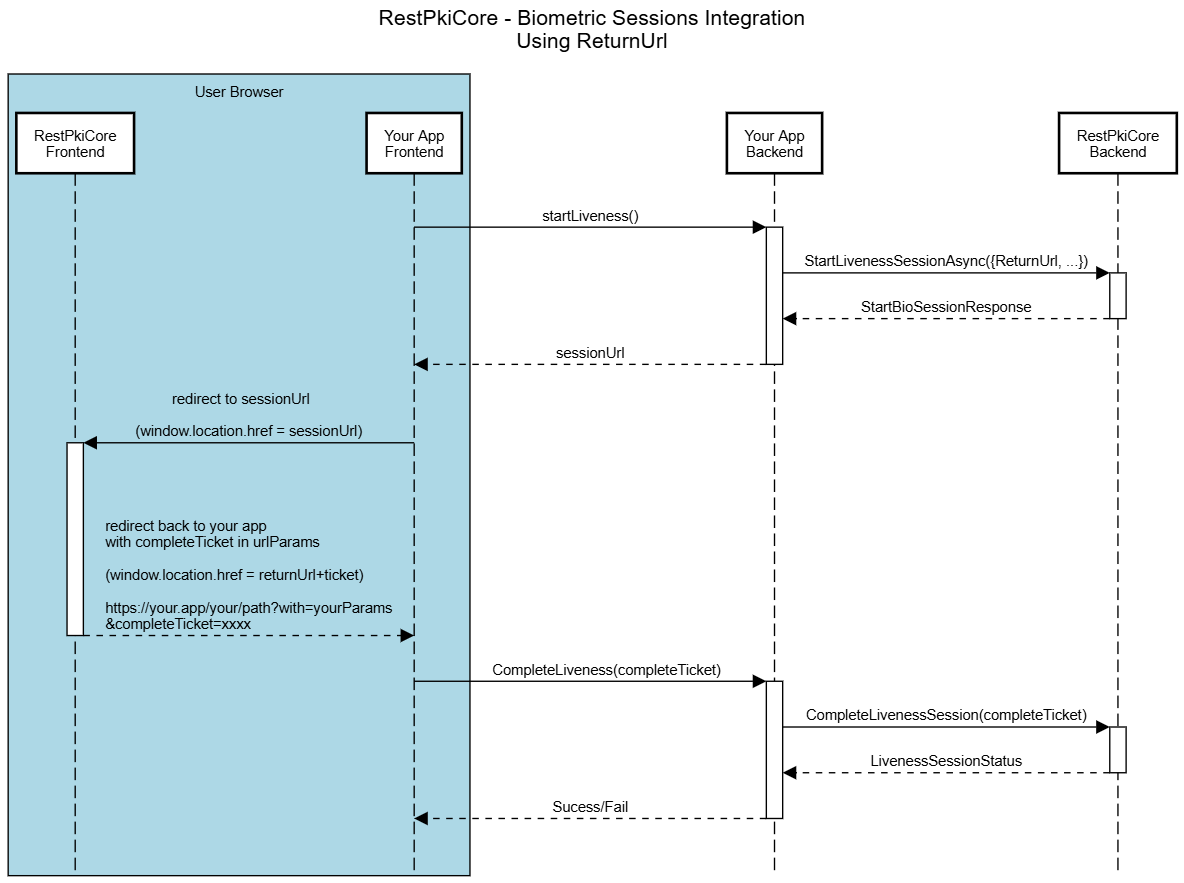
1. Preparation (backend)
It all starts when your user clicks to start the biometric check on your site.
-
startLiveness(): your frontend tells your backend that a session must be started. -
StartLivenessSessionAsync: your application's backend makes a request to the Rest PKI Core API. -
sessionUrl: Rest PKI Core returns a unique session URL. Your backend passes this URL on to your frontend.
2. User action (frontend + redirect)
This is when the camera opens and the user interacts.
-
redirect to sessionUrl: your frontend redirects to the biometric session page, which takes over, opens the camera, guides the user and captures the face or document. -
RedirectUrl + completeTicket: as soon as the user finishes, the page closes the camera and loads your return URL with the ticket in the query string.
3. Validation and result (backend)
Now your system must check whether the user passed.
-
CompleteLiveness(completeTicket): your frontend sends the ticket to your own backend. -
CompleteLivenessSession(completeTicket): your backend sends the ticket to Rest PKI Core. -
LivenessSessionStatus: Rest PKI Core answers your backend with the verdict (success or failure, and the captured data). -
Success/Fail: finally, your backend answers your frontend confirming whether the operation was approved, letting the user carry on in your flow (for instance, releasing a payment or a login).
Embedded flow (Widget/TrustedOrigin)
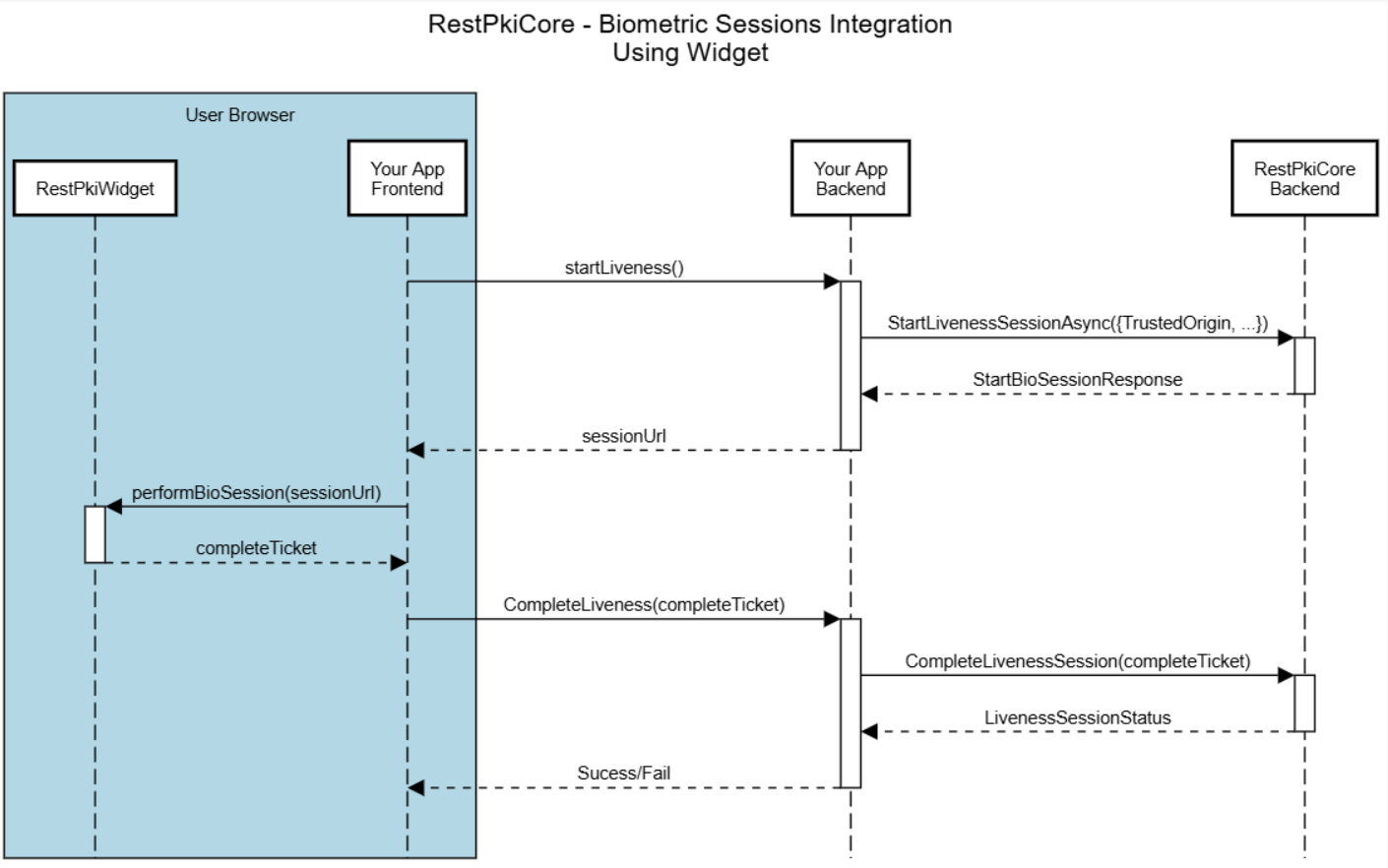
In this model, the user stays on your application's page the whole time: the capture screen is rendered inside your own site by our widget.
To use it, pass the TrustedOrigin parameter when creating the session.
TrustedOrigin must be the base URL of your site (e.g. https://mysite.com). It protects the JavaScript environment, making sure the widget
only works on your domain.
In the hosted service, the capture page is served from restpkicore.lacunasoftware.com, not from the API host core.pki.rest (on a self-hosted instance, it is served from the host of the returned sessionUrl). Allow this host in your Content Security
Policy (frames) and in the camera Permissions-Policy, and mention it in your privacy notice if needed.
- When to use: if you want to keep the user inside your environment for a smoother experience.
- Advantages: the flow is integrated: there is no need to redirect the user or to process return parameters in the query string.
- What happens at the end: the user stays on your application's page, and the session result (
completeTicket) is returned by the component call itself.
Diagram
1. Preparation (backend)
It all starts when your user clicks to start the biometric check on your site.
startLiveness(): your frontend tells your backend that a session must be started.StartLivenessSessionAsync: your application's backend makes a request to the Rest PKI Core API.sessionUrl: Rest PKI Core returns a unique session URL. Your backend passes this URL on to your frontend.
2. User action (frontend + widget)
This is when the camera opens and the user interacts.
-
performBioSession(sessionUrl): your frontend "feeds" the Rest PKI Core widget with the URL it received. The widget takes over, opens the camera, guides the user and captures the face or document. -
completeTicket: as soon as the user finishes, the widget closes the camera and returns a "ticket" to your frontend.
3. Validation and result (backend)
Now your system must check whether the user passed.
-
CompleteLiveness(completeTicket): your frontend sends the ticket to your own backend. -
CompleteLivenessSession(completeTicket): your backend sends the ticket to Rest PKI Core. -
LivenessSessionStatus: Rest PKI Core answers your backend with the verdict (success or failure, and the captured data). -
Success/Fail: finally, your backend answers your frontend confirming whether the operation was approved, letting the user carry on in your flow (for instance, releasing a payment or a login).
Installing and setting up the widget
To add the biometric capture to your frontend, use the Rest PKI widget. There are two ways to add it to your project: from the CDN (directly in the HTML) or from npm (for projects that use frameworks such as React, Angular or Vue).
1. From the CDN
This is the quickest way to start. Add the script tag to the head of your HTML file.
<!DOCTYPE html>
<head>
    <script
        type="text/javascript"
        src="https://cdn.lacunasoftware.com/libs/restpki/lacuna-restpki-widget-1.4.2.min.js"
        integrity="sha256-f4XVO4LU0aVEkKfv9H+98lULyviWnd0BYS8qSeNE1zQ="
        crossorigin="anonymous">
    </script>
</head>
</html>
2. From npm
If you use frameworks such as React, Angular or Vue, install the package from the terminal, so that you control versions and get the typings:
npm i lacuna-restpki-widget
Check in your package.json file that the dependency was installed:
{
    ...
    "dependencies": {
        "lacuna-restpki-widget": "x.y.z",
    },
    ...
}
Once installed, import the widget in your component or JavaScript file:
import RestPkiWidget from 'lacuna-restpki-widget';
Backend configuration
To get started, you need the following parameters:
- Endpoint: address of the Rest PKI Core instance to be used
- API key: key that authenticates your calls to the API
If you are using Rest PKI Core as a service (SaaS), ask our developer support for your parameters.
If you are using your own instance, the endpoint is the address of the Rest PKI Core dashboard itself, for instance
https://signatures.yourcompany.com/. Create an API key yourself by following the steps below:
- Sign in to the dashboard of your instance
- On the left menu, click Applications, then Add
- Fill in a name for the application
- Check the
Workerrole (this role is enough for the most common integration operations, such as creating signature sessions) - Click Create
- On the application's details page, click Keys, then Add
- Fill in any description for the key, choose an expiration (we recommend Never expires) and click Create
- Take note of the API key shown, since you will not be able to retrieve it later
Calling the API
Although Rest PKI Core offers REST APIs that can easily be called, they are usually not called directly. Instead, we provide libraries to consume the Rest PKI Core services (client libs) in several programming languages, along with sample projects that show how to use them, so that programmers don't need to worry about the details of consuming APIs and can code directly in their preferred language.
Using the client libraries:
If you need a sample in a language that is not listed, please contact us at suporte@lacunasoftware.com or EQN 102/103, Ed. Avenida 102, 2º Andar - Asa Norte, Brasília-DF, Brazil. Phone: +55 61 3030-5700.
Biometric session parameters
When starting a session, you set the parameters that define how the user will interact with the system and which security rules will apply.
General parameters
-
TrustedOrigin: required for the embedded flow. It must be the URL of the domain where the widget will be loaded (e.g.
https://my-site.com). This prevents your session from being stolen and run on malicious sites. -
ReturnUrl: required for the redirect flow. It is the URL the user is sent to after completing the biometric check. The result (ticket) is appended to this URL in the query string.
-
PlatformPreference: sets the platform preference and the QR code behavior.
- NoPreference: the session can be performed either on the computer or on a mobile device, with no QR code shown.
- PreferMobile: the session can be started on the computer, but a QR code is shown recommending that it be performed on a mobile device.
- RequireMobile: blocks desktop use and requires a mobile device, showing a QR code to perform the session.
User identifier (SubjectIdentifier)
SubjectIdentifier is a field that ties the biometric session to a specific person using your system.
For enrollment and authentication sessions, SubjectIdentifier is the unique identifier of the person you want to enroll in, or authenticate
against, the biometric system.
For anonymous sessions, such as liveness and document capture, this identifier is indexed and can be used to find the history of sessions with that identifier.
We recommend unique and constant identifiers, such as a CPF (digits only), a CNPJ, an e-mail address or your system's UUID.
If you want to accept only some specific identifier types, you can configure the identifier formats allowed for your subscription.
Face capture session parameters
- FaceCaptureProvider: sets which capture technology the biometric session uses:
FaceTecLiveness3dorFortFaceSdkLiveness, as long as the provider is enabled on the instance.- If not given, the organization's preferred provider applies, if any, or else the instance default,
FaceTecLiveness3d. - Older samples use the
FaceLivenessProviderparameter, which is obsolete: useFaceCaptureProvider.
- If not given, the organization's preferred provider applies, if any, or else the instance default,
Geolocation parameters
Rest PKI Core can capture the geographic location of the user's device during the biometric session. The feature is disabled by default;
it can be enabled per session, globally in the subscription settings or, on your own (on-premises) instances, directly in appsettings
(section Bio:Geolocation).
Prefer to set the default on the dashboard? See Geolocation configuration.
-
GeolocationCaptureType: sets the capture behavior.Disabled(default): geolocation is not collected.Optional: the system tries to capture the geolocation, but the session carries on normally if the user denies permission or the capture fails.Required: geolocation is required. The session is interrupted if the capture does not succeed.BestEffort: the system tries to capture the geolocation without ever interrupting the session. Transient failures (e.g. a timeout) are retried automatically, by default up to 3 attempts in all; permanent failures (e.g. permission denied) are not retried. If every attempt fails, the session carries on normally without the location.
-
GeolocationCapturePolicy: sets on which devices the geolocation is collected (relevant for sessions with a QR code).CollectOnCaptureDevice(default): the geolocation is captured only on the device that performs the biometric capture (e.g. the phone, in QR code flows).CollectOnAllDevices: the geolocation is captured on every device involved in the session: both the desktop that started it and the phone that performed the capture.
When GeolocationCaptureType is BestEffort, by default the user sees a step asking for location permission, but without the cancel or skip
buttons, since this capture can never interrupt the session. You can turn this step off on the dashboard, removing Rest PKI Core's own step:
see Geolocation configuration. Even so, the browser may show its own permission prompt if the user has not decided
on it yet (see the note below).
Whether the permission prompt is shown, and for how long the browser remembers a granted permission, are defined by each browser and are beyond Rest PKI Core's control. In some browsers, granting the permission temporarily (e.g. "Allow this time" in Chrome) may keep the location available for the browser session, even when the capture is optional. For details on each behavior, see the documentation of the browser.
Session types
- Liveness (
Liveness) - Biometric enrollment (
Enrollment) - Facial authentication (
Authentication) - Facial identification (
Identification) - Document capture (
IdentificationDocumentCapture)