Complete examples
Complete example with default automatic positioning
PKI SDK offers two templates for the automatic positioning of visual representations: Footnote and New page.
The @Lacuna.Pki.Pades.PadesVisualAutoPositioning.GetFootnote(System.Int32,System.Int32) method returns a positioning that arranges the signatures automatically in the footnote area of the page.
The @Lacuna.Pki.Pades.PadesVisualAutoPositioning.GetNewPage method returns a positioning that adds a new blank page at the end of the document and arranges the signatures automatically in a grid on that page.
The code below makes a basic signature with a visual representation, using the default footnote automatic positioning.
var signer = new PadesSigner();
signer.SetSigningCertificate(cert);
signer.SetPdfToSign(pdfBytes);
signer.SetPolicy(PadesPolicySpec.GetBasic(TrustArbitrators.Windows));

// Creating the visual representation object
var visual = new PadesVisualRepresentation2() {
    Position = PadesVisualAutoPositioning.GetFootnote(),       // Automatic positioning in the footnote area of the last page

    Text = new PadesVisualText() {                             // Text of the visual representation
        SignerName = cert.Certificate.SubjectDisplayName,      // Includes the signer's name
        IncludeSigningTime = true                              // Includes the signing date
    },

    Image = new PadesVisualImage() {                           // Background image of the visual representation
        Content = getPdfStampContent(),                        // Bytes of the image
        HorizontalAlign = PadesHorizontalAlign.Right           // Aligns the image to the right of the visual representation rectangle
    }
};
signer.SetVisualRepresentation(visual);                        // Sets the visual representation of the signature
signer.ComputeSignature();

byte[] signedPdf = signer.GetPadesSignature();                 // Returns the bytes of the signed PDF, with the
                                                               // visual representation
The code above should produce a signed PDF with a visual representation in the footnote area of the last page, with the signer's name, the signing date and a watermark image, as in the figure below.

Complete example with custom automatic positioning
We create a custom automatic positioning, applied to the last page of the document.
The container, the region in which the visual representations of the signatures are arranged automatically, follows the model in the image below.

The code below sets these parameters on a container.
var container = new PadesVisualRectangle() {
    Left = 3.00,
    Right = 3.00,
    Bottom = 2.00,
    Top = 8.00
};
For more information on defining a container, see Defining a container.
The visual representation of each signature follows the signature rectangle, text and image parameters in the model below.

The outer signature rectangle is 7cm wide by 3cm high. A seal is included as a background image, aligned to the right of the signature rectangle. The text container has a right margin of 1.50cm relative to the outer rectangle, which in this example keeps the text from overlapping the image. The code below sets these parameters.
// Defining the signature rectangle
var signatureRectangleSize = new PadesSize(7, 3);

// Defining the text container
var textContainer = new PadesVisualRectangle() {
    Left = 0,
    Right = 1.5,
    Bottom = 0,
    Top = 0
};

// Defining the background image
var image = new PadesVisualImage() {
    Content = getPdfStampContent(),                    // Bytes of the image
    HorizontalAlign = PadesHorizontalAlign.Right       // Aligns the image to the right of the visual representation rectangle
};
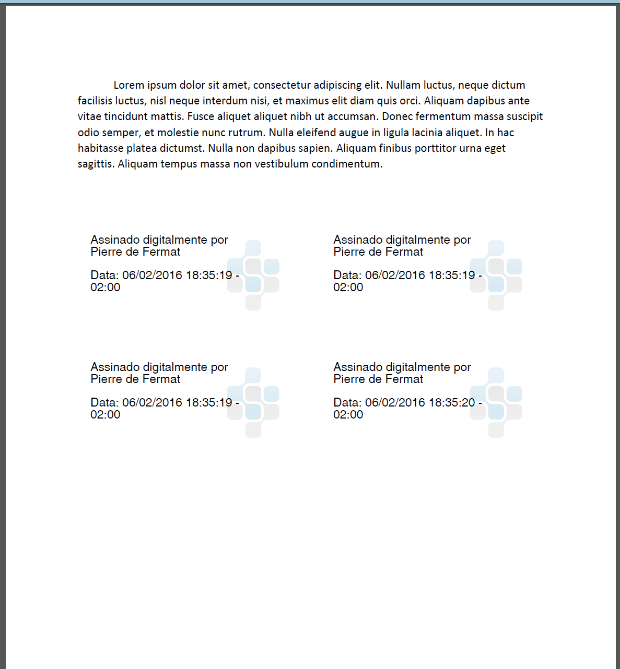
As signatures are made, the visual representations included automatically should look like the image below.

Complete sample code
var signer = new PadesSigner();
signer.SetSigningCertificate(cert);
signer.SetPdfToSign(pdfBytes);
signer.SetPolicy(PadesPolicySpec.GetBasic(TrustArbitrators.Windows));

// Creating the visual representation object
var visual = new PadesVisualRepresentation2() {
    // Defines the container for the automatic positioning of the visual representations
    Position = new PadesVisualAutoPositioning() {
        MeasurementUnits = PadesMeasurementUnits.Centimeters,   // Unit of measurement == cm
        PageNumber = -1,                                        // The container goes on the last page of the document
        SignatureRectangleSize = new PadesSize(7, 3),           // Size of the signature rectangle
        Container = new PadesVisualRectangle() {                // Dimensions of the container for automatic positioning
            Left = 3.0,
            Right = 3.0,
            Bottom = 2.0,
            Top = 8.0
        },
        RowSpacing = 1.5                                        // Spacing between the rows of visual representations
    },

    Text = new PadesVisualText() {                              // Text of the visual representation
        SignerName = cert.Certificate.SubjectDisplayName,       // Includes the signer's name
        IncludeSigningTime = true,                              // Includes the signing date
        Container = new PadesVisualRectangle() {                // Defines the text container
            Left = 0,
            Top = 0,
            Right = 1.5,
            Bottom = 0
        }
    },

    Image = new PadesVisualImage() {                            // Background image of the visual representation
        Content = getPdfStampContent(),                         // Bytes of the image
        HorizontalAlign = PadesHorizontalAlign.Right            // Aligns the image to the right of the visual representation rectangle
    }
};
signer.SetVisualRepresentation(visual);                         // Sets the visual representation of the signature
signer.ComputeSignature();

byte[] signedPdf = signer.GetPadesSignature();                  // Returns the bytes of the signed PDF, with the
                                                                // visual representation
Running the example above gives the following result when signing a PDF: