Blob Storage Configuration
The BlobStorage configuration section defines how an application stores and retrieves files.
File System
Stores files in the file system. Available settings:
- Path: the path to where the files will be stored.
Example (environment variables):
BlobStorage__Type=FileSystem
BlobStorage__Path=/var/files/myapp
Example (.ini or .conf file):
[BlobStorage]
Type=FileSystem
Path=/var/files/myapp
Example (JSON configuration):
{
    ...,
    "BlobStorage": {
        "Type": "FileSystem"
        "Path": "/var/files/myapp"
    },
    ...
}
Azure Storage Account
Stores files in an Azure Storage Account Container. Available settings:
- ConnectionString: the connection string for the Storage account.
- ContainerName: the name of the container where the files will be stored.
Example (environment variables):
BlobStorage__Type=Azure
BlobStorage__ConnectionString=DefaultEndpointsProtocol=https;AccountName=myaccountname;AccountKey=myaccountkey;EndpointSuffix=core.windows.net
BlobStorage__ContainerName=myapp-container
Example (.ini or .conf file):
[BlobStorage]
Type=Azure
ConnectionString="DefaultEndpointsProtocol=https;AccountName=myaccountname;AccountKey=myaccountkey;EndpointSuffix=core.windows.net"
ContainerName=myapp-container
Example (JSON configuration):
{
    ...
    "BlobStorage": {
        "Type": "Azure",
        "ConnectionString": "DefaultEndpointsProtocol=https;AccountName=myaccountname;AccountKey=myaccountkey;EndpointSuffix=core.windows.net",
        "ContainerName": "myapp-container"
    },
    ...
}
AWS S3 (Simple Storage Service)
Stores files in an S3 Bucket. Available settings:
- Region: the region of the bucket.
- BucketName: the name of the Bucket where the files will be stored.
- AccessKey: the access key ID of an IAM user that has access to the bucket.
- SecretKey: the secret access key of an IAM user that has access to the bucket.
Example (environment variables):
BlobStorage__Type=AwsS3
BlobStorage__Region=us-east-1
BlobStorage__BucketName=myappbucket
BlobStorage__AccessKey=MYACCESSKEYID
BlobStorage__SecretKey=MYSECRETACCESSKEY
Example (.ini or .conf file):
[BlobStorage]
Type=AwsS3
Region=us-east-1
BucketName=myappbucket
AccessKey=MYACCESSKEYID
SecretKey=MYSECRETACCESSKEY
Example (JSON configuration):
{
    ...
    "BlobStorage": {
        "Type": "AwsS3",
        "Region": "us-east-1",
        "BucketName": "myappbucket",
        "AccessKey": "MYACCESSKEYID",
        "SecretKey": "MYSECRETACCESSKEY"
    },
    ...
}
S3-compatible object storage
A self-hosted s3-compatible object storage service, also known as an "s3 clone", may also be used, for instance minIO. In this case, instead of the Region, specify the Endpoint.
Example (environment variables):
BlobStorage__Type=AwsS3
BlobStorage__Endpoint=http://localhost:9000
BlobStorage__BucketName=myappbucket
BlobStorage__AccessKey=MYACCESSKEYID
BlobStorage__SecretKey=MYSECRETACCESSKEY
Example (.ini or .conf file):
[BlobStorage]
Type=AwsS3
Endpoint=http://localhost:9000
BucketName=myappbucket
AccessKey=MYACCESSKEYID
SecretKey=MYSECRETACCESSKEY
Example (JSON configuration):
{
    ...
    "BlobStorage": {
        "Type": "AwsS3",
        "Endpoint": "http://localhost:9000",
        "BucketName": "myappbucket",
        "AccessKey": "MYACCESSKEYID",
        "SecretKey": "MYSECRETACCESSKEY"
    },
    ...
}
By default, path-style addressing is used when an S3-compatible storage is configured, instead of the default virtual-hosted–style addressing used when a standard
AWS S3 bucket is configured. This can be changed with the ForcePathStyle setting (true or false). For more information on S3 addressing, see
Virtual hosting of buckets.
Google Cloud Storage
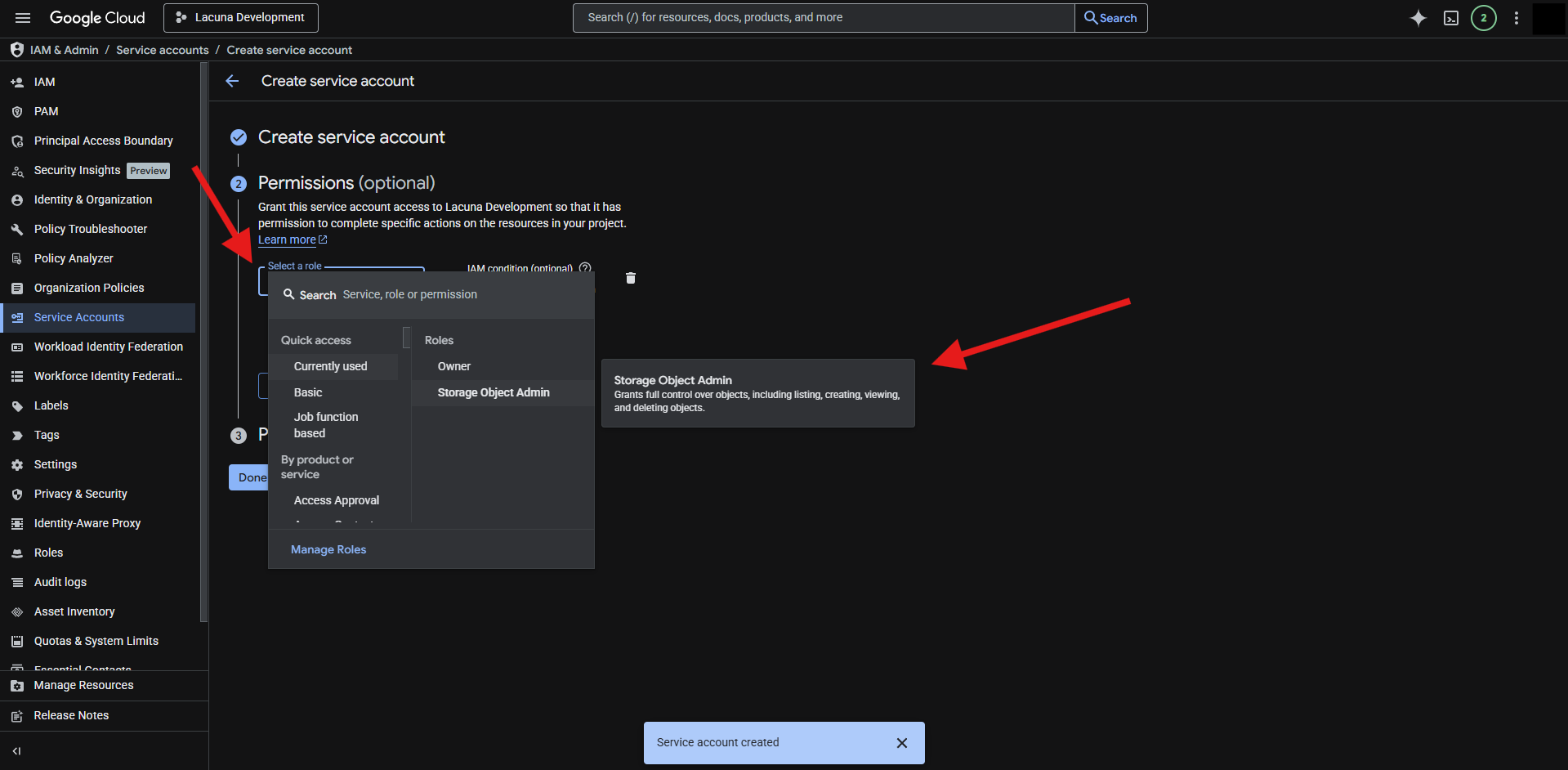
Stores files in a Google Cloud Storage bucket. You'll need a service account with a Storage Object Admin role. Available settings:
- BucketName: the name of the bucket where the files will be stored.
- ProjectId: the Google Cloud Project ID.
- PrivateKeyId: The ID of the service account private key.
- PrivateKey: The service account private key.
- ClientEmail: The service account email.
Example (environment variables):
BlobStorage__Type=Gcp
BlobStorage__BucketName=myappbucket
BlobStorage__ProjecId=my-app-project-id
BlobStorage__PrivateKeyId=MYPRIVATEKEYID
BlobStorage__PrivateKey=MYPRIVATEKEY
BlobStorage__ClientEmail=myserviceaccountemail@my-app-project-id.iam.gserviceaccount.com
Example (.ini or .conf file):
[BlobStorage]
Type=Gcp
BucketName=myappbucket
ProjecId=my-app-project-id
PrivateKeyId=MYPRIVATEKEYID
PrivateKey=MYPRIVATEKEY
ClientEmail=myserviceaccountemail@my-app-project-id.iam.gserviceaccount.com
Example (JSON configuration):
{
    ...
    "BlobStorage": {
        "Type": "Gcp",
        "BucketName": "myappbucket",
        "ProjecId": "my-app-project-id",
        "PrivateKeyId": "MYPRIVATEKEYID",
        "PrivateKey": "MYPRIVATEKEY",
        "ClientEmail": "myserviceaccountemail@my-app-project-id.iam.gserviceaccount.com"
    },
    ...
}
Obtaining the Google Cloud Storage settings
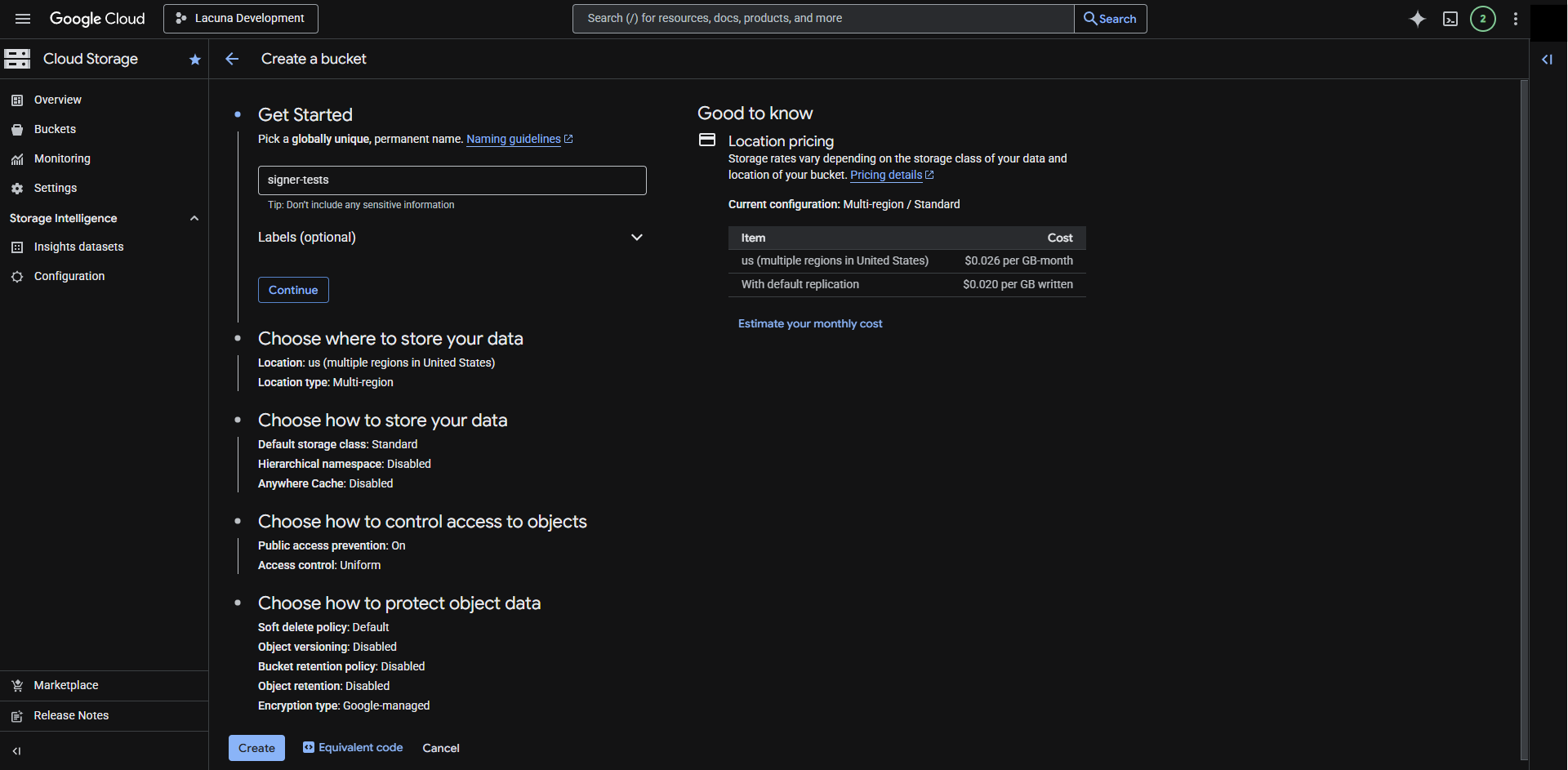
First we'll need a Google Cloud Storage bucket to store the files. A new bucket can be created using the Create button on the Google Cloud Storage console:

Pick a name for the new bucket and click on continue:
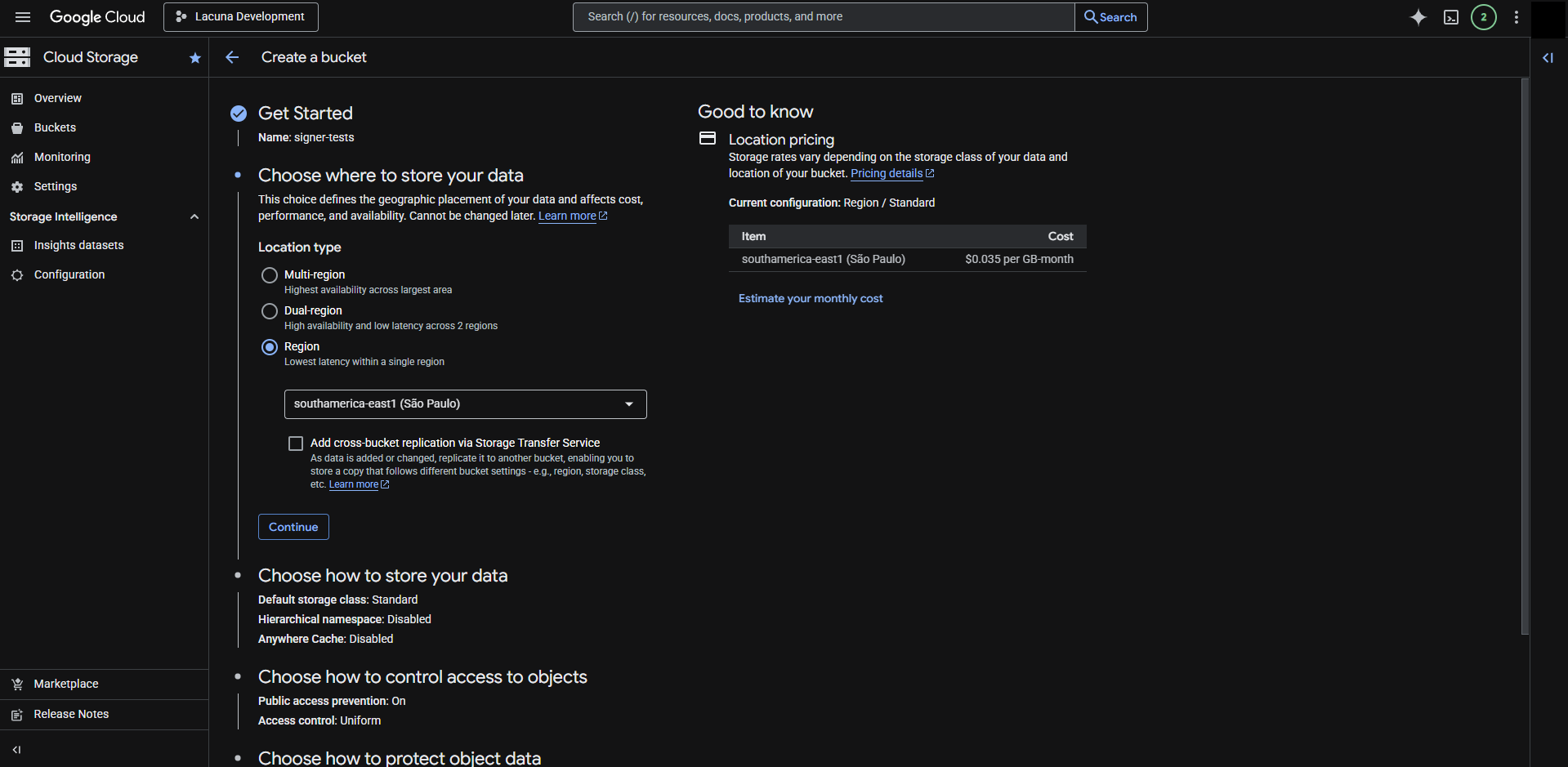
Choose the new bucket region:
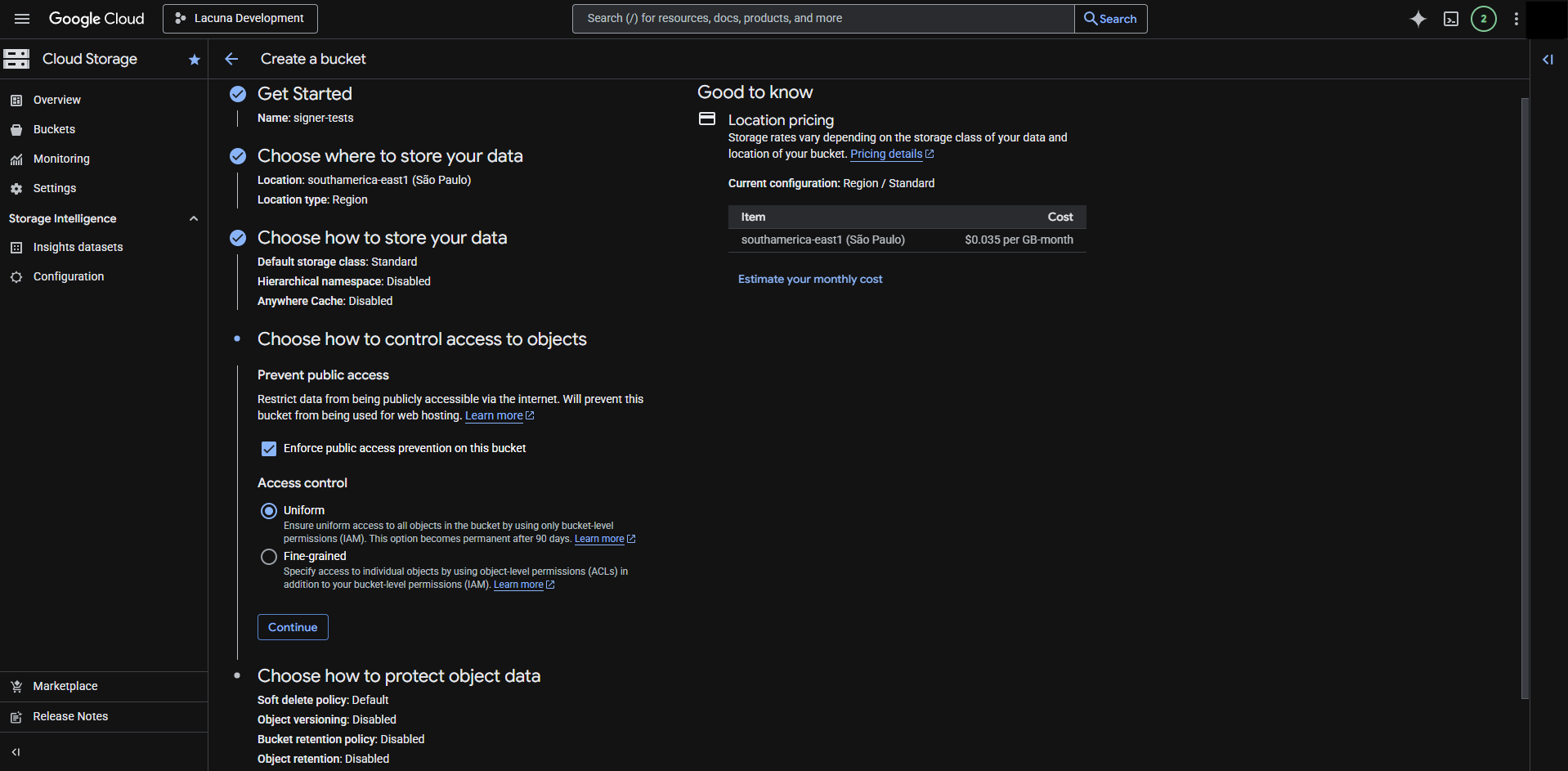
Make sure to enforce public access prevention and uniform access control for the new bucket:
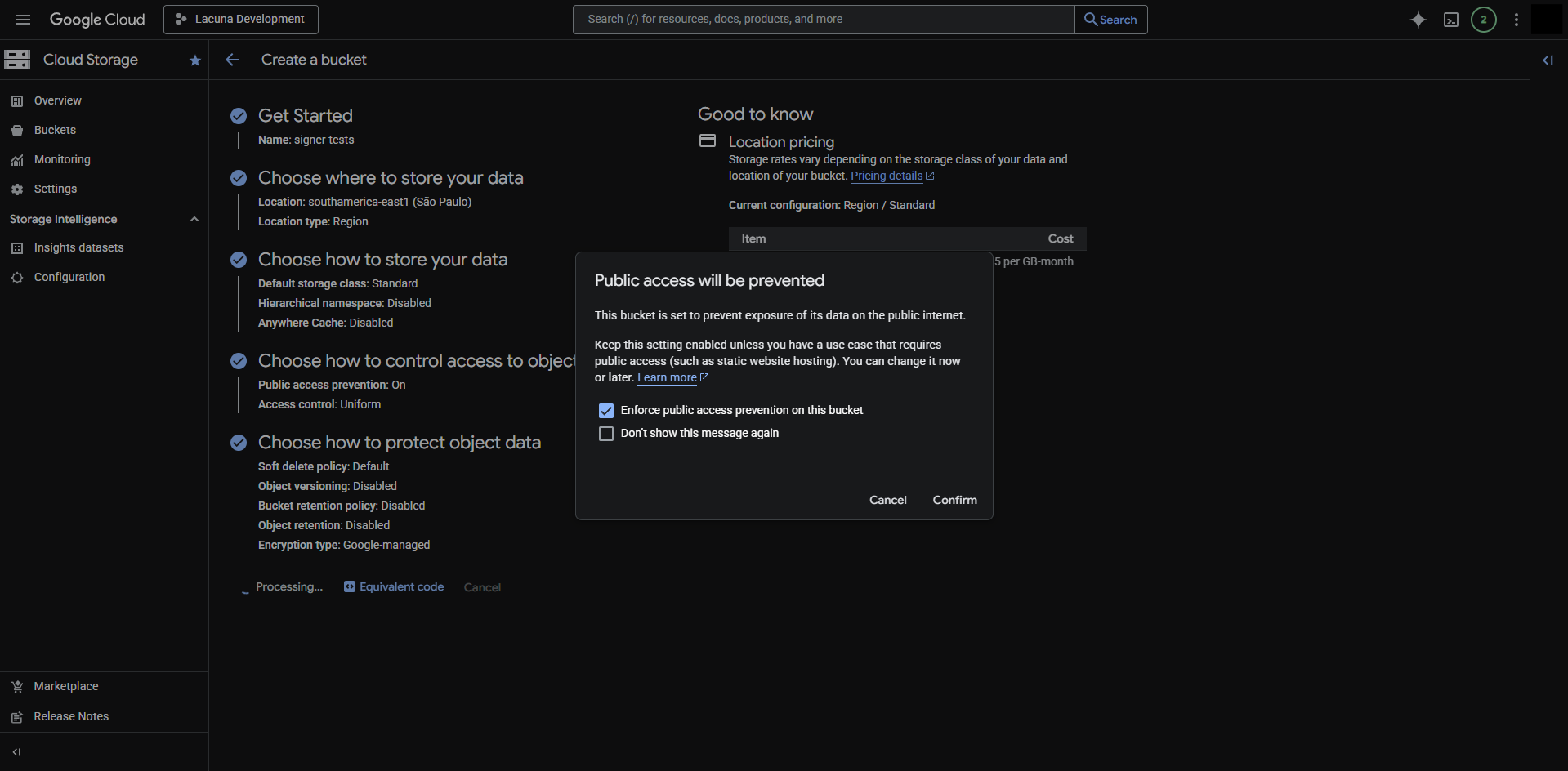
Choose the object retention policy and create the bucket:

A dialog might appear to confirm that public access will be prevented. Click on confirm to continue:
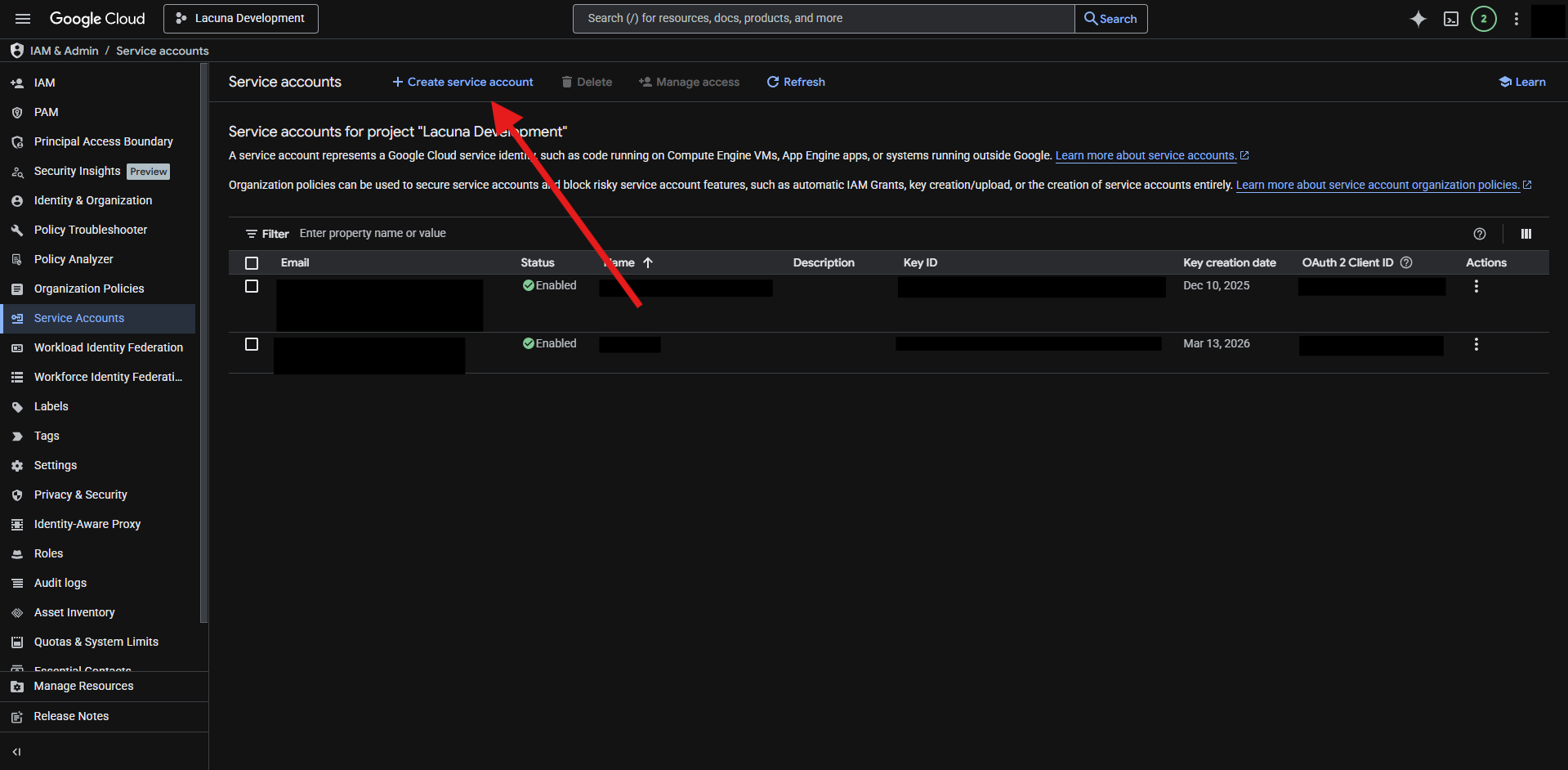
Next we need to create a Google Cloud service account to access the bucket. This can be done using the Create service account button on the Service Accounts page under IAM & Admin:
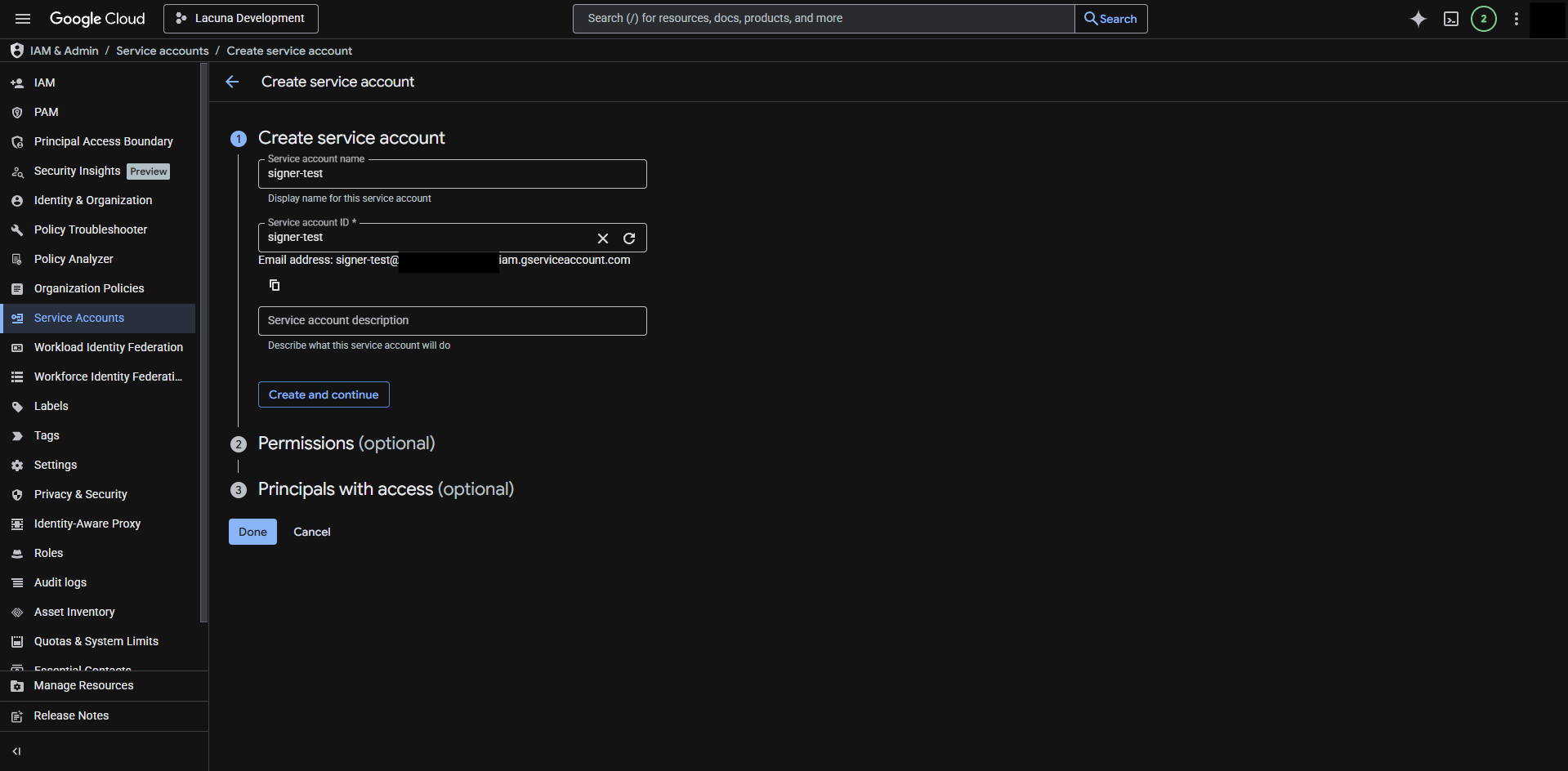
We'll also need a name for the new service account. Choose it and click on Create and continue:
Ensure the new service account is given the Storage Object Admin role:
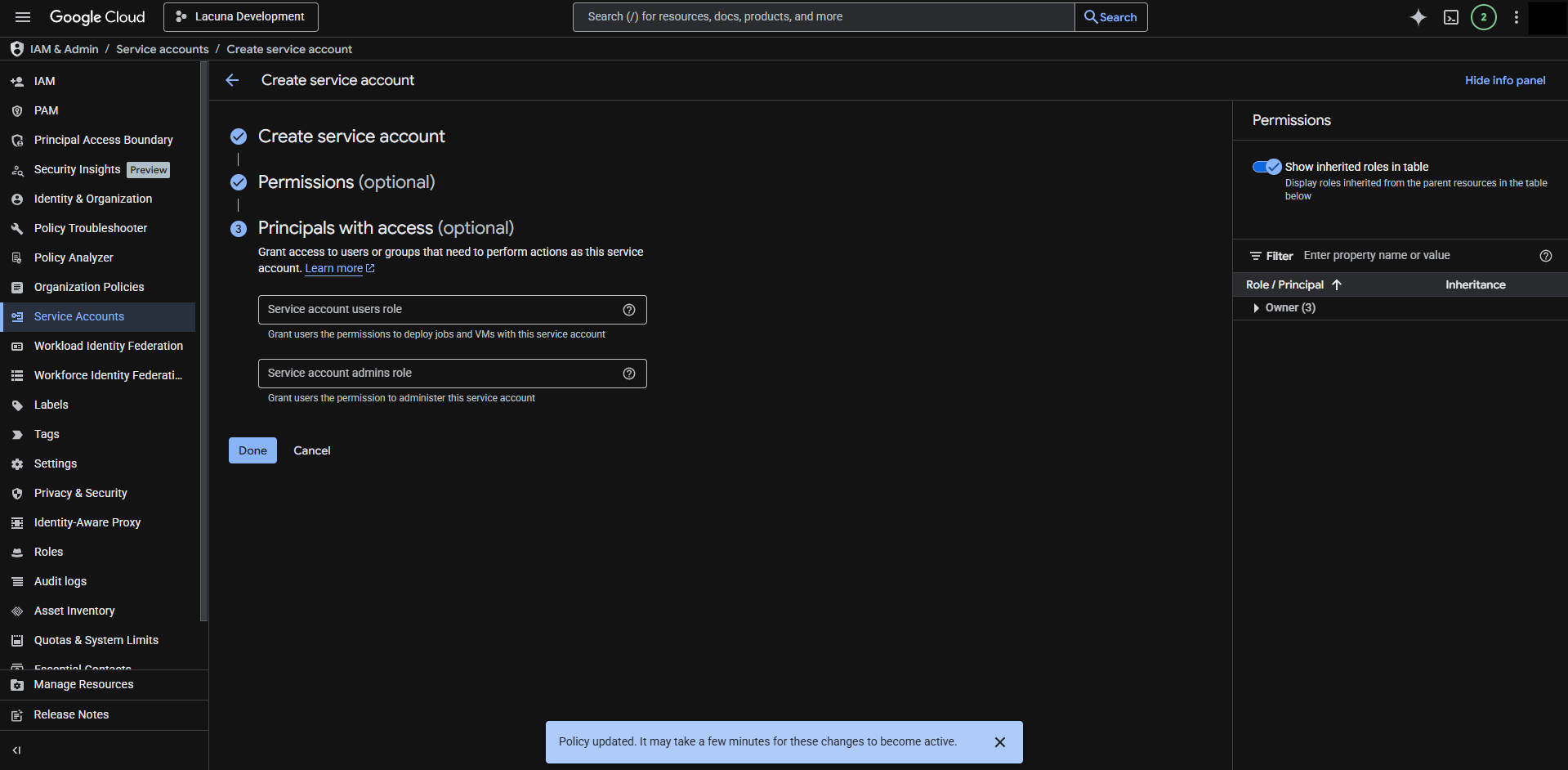
Grant access to principals if needed and click on done to finish the new service account creation process:
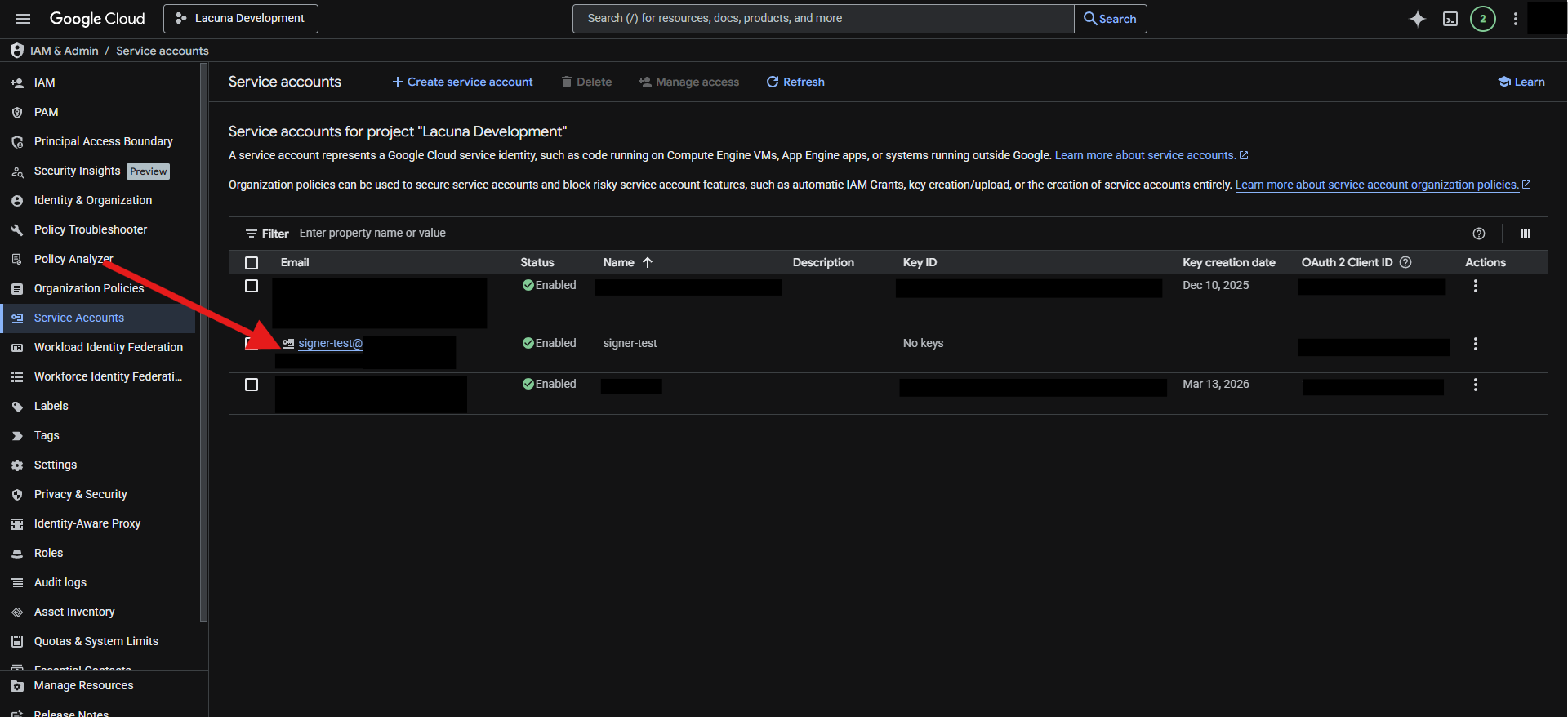
Now that the service account is created we need a key to authenticate it. Click on new service account to open its details page:
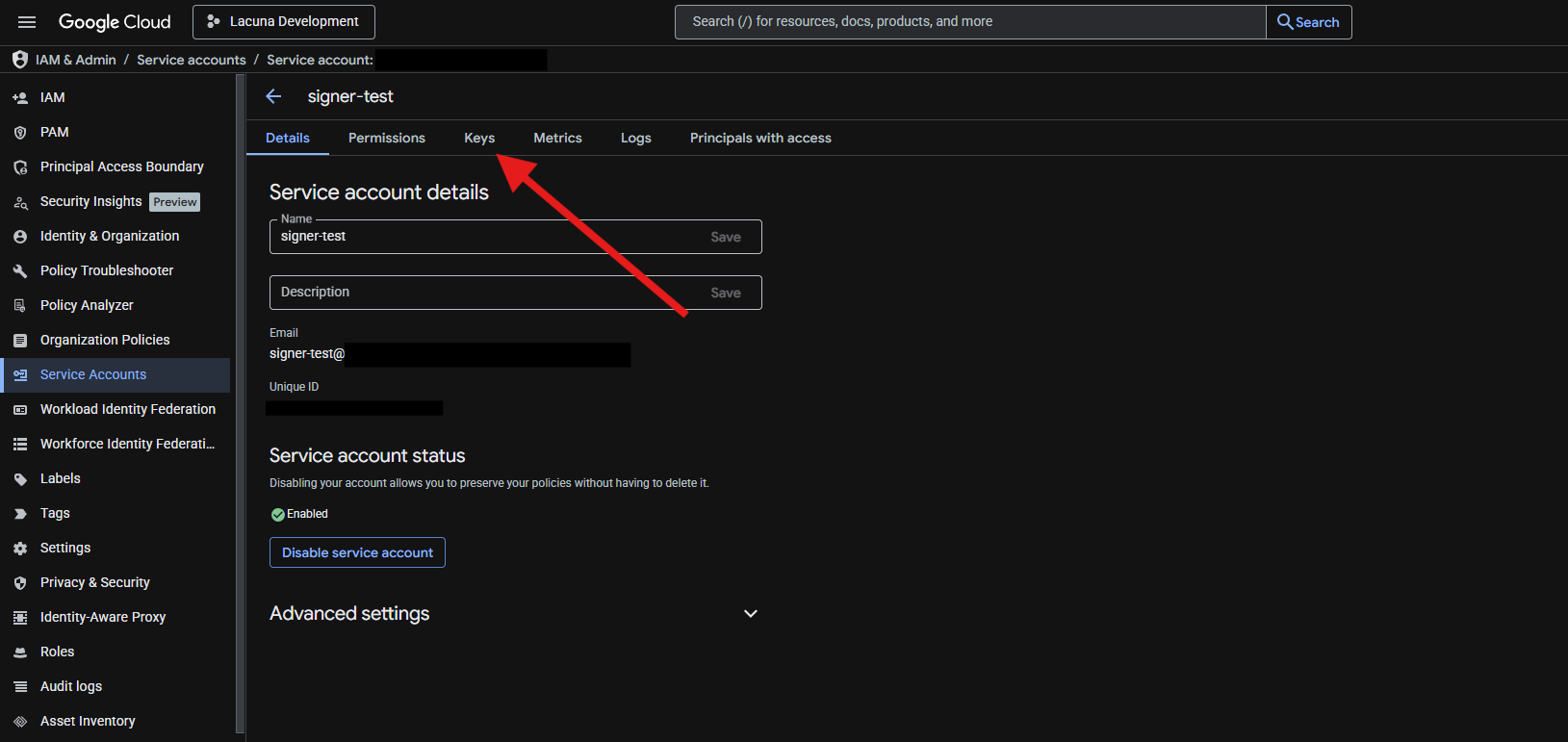
Inside the service account details, go to the keys section:
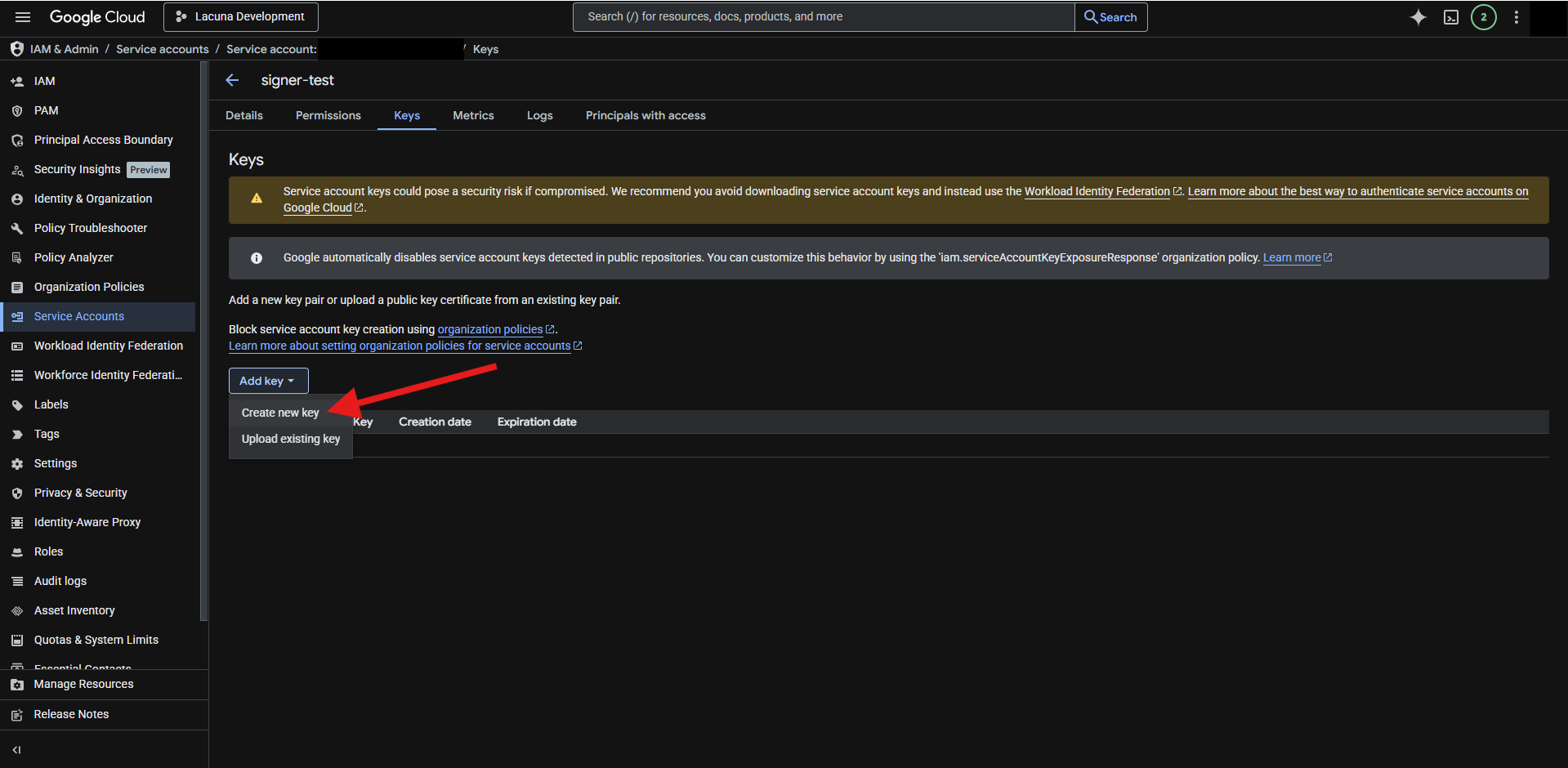
Under the Add key option, choose Create new key:
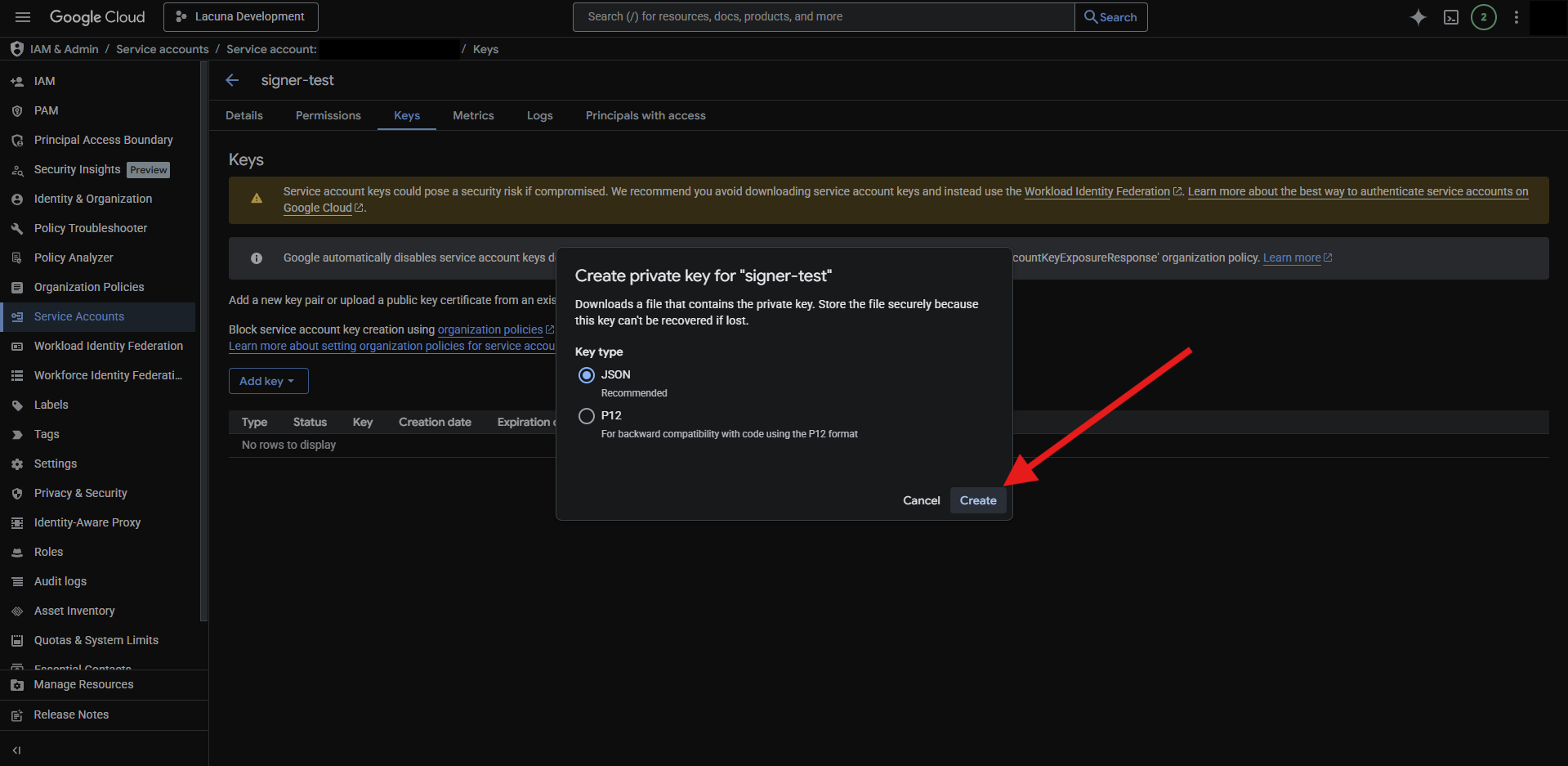
Choose the JSON format and click on the Create button:
A JSON file will be downloaded containing the private key and other information related to the service account:
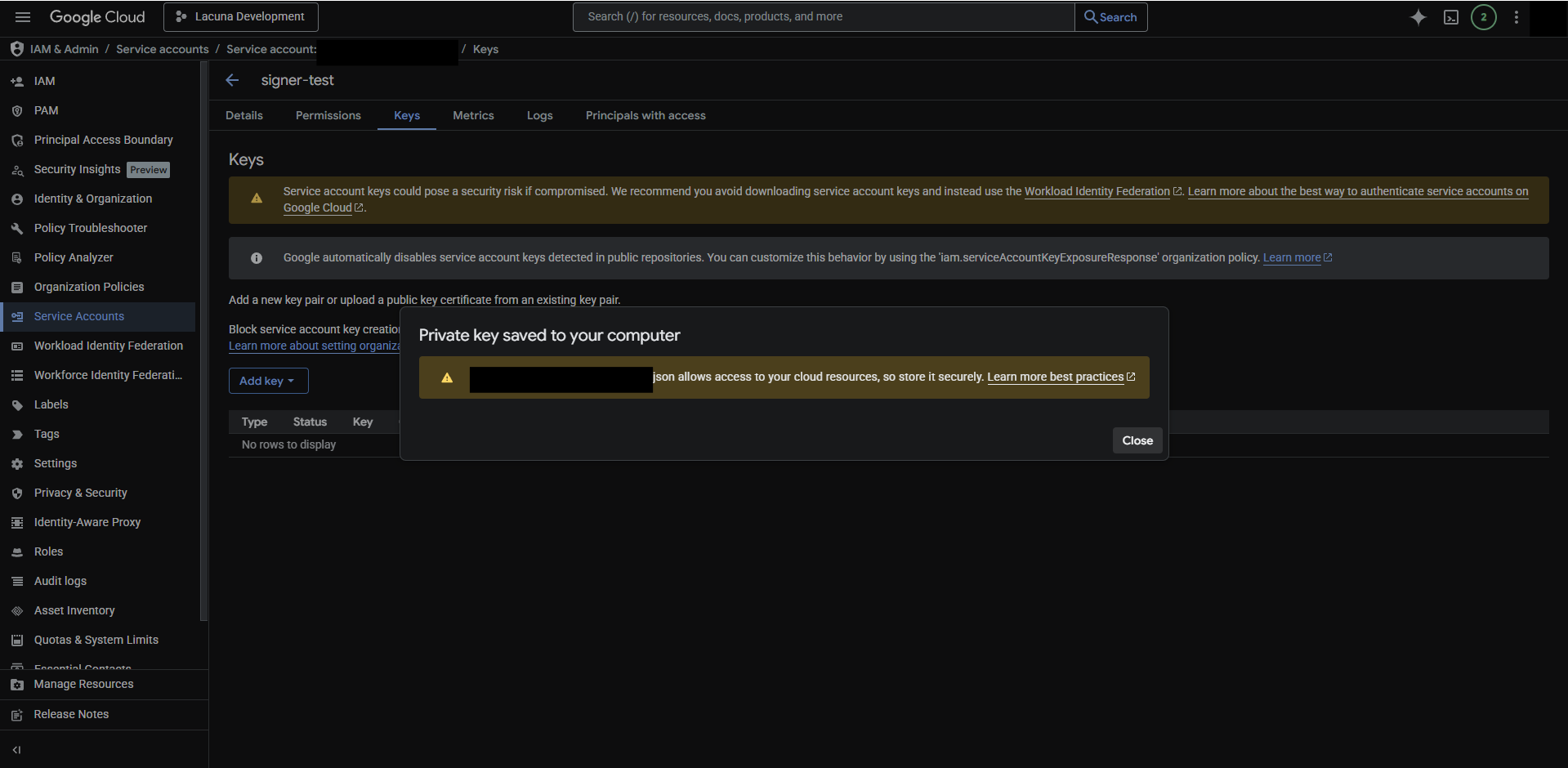
Inside the JSON file you'll be able to obtain the project_id, private_key_id, private_key and client_email fields to configure the Blob Storage service.
Important
The information inside this JSON file allows access to the GCP resources and must not be compromised! Make sure to store or dispose of it securely.