Set up the Signer integration
Digiploma collects every signature through a Lacuna Signer instance. This page describes how to connect the two applications so that Digiploma can create documents in Signer, and Signer can tell Digiploma when they are signed.
The integration is configured on both sides, each in its own organization:
- Digiploma → Signer: Digiploma calls Signer's API with a Signer API key, saved in the Digiploma organization's settings.
- Signer → Digiploma: Signer notifies Digiploma through a webhook, authenticated by a Digiploma API key.
So you need an organization in each application before you start.

The numbers in the diagram follow the setup:
- In Signer, create an application and an API key (Configure Digiploma).
- In Digiploma, save that key in Configurações (Settings).
- In Digiploma, create an application and copy its API key (Configure Signer).
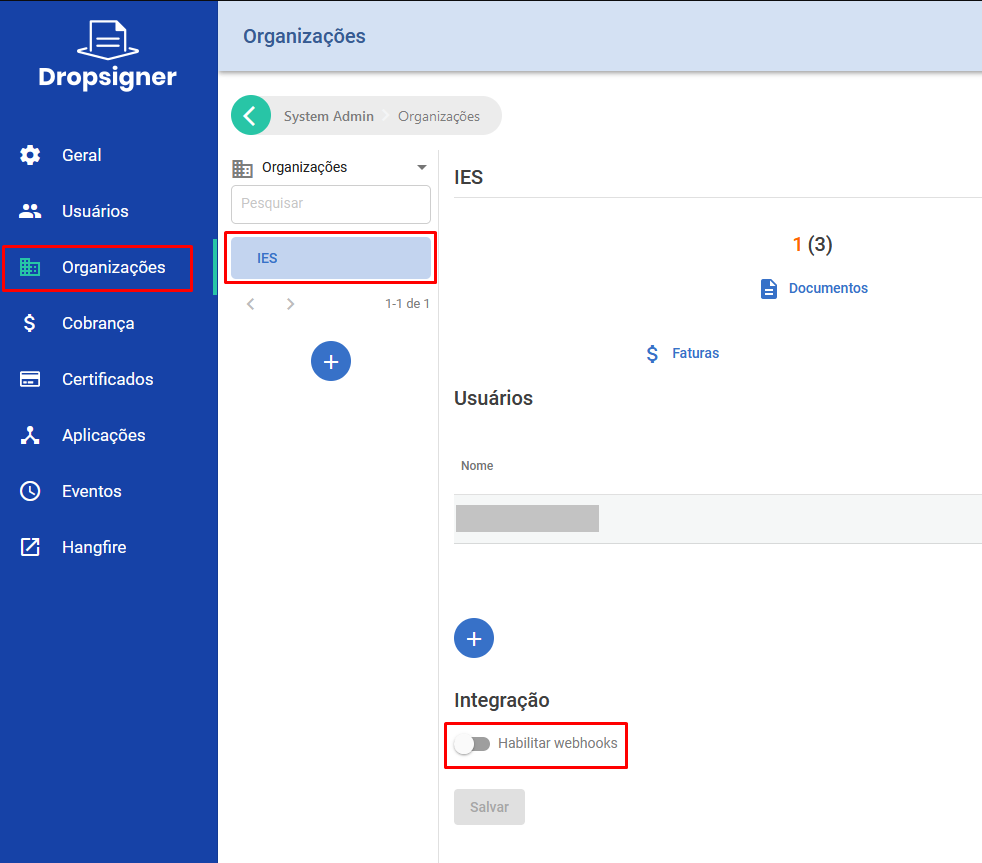
- In Signer, enable the organization's webhooks, authenticated with that key.
Digiploma acts only on concluded documents, and reads each one back from Signer with its own key before it does. For what happens next, see Signatures and Lacuna Signer.
The Digiploma interface is in Portuguese. The steps below show each label as it appears on screen, followed by its translation.
Create the organizations
To create an organization, open the system administration area from the user menu: Sys Admin in Digiploma, Administration in Signer (pictured below).
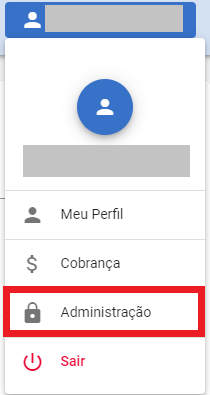
Select Organizações (Organizations).

Digiploma
Click Adicionar (Add).

Fill in the information, choose the organization type and click Criar (Create). The nickname is optional.
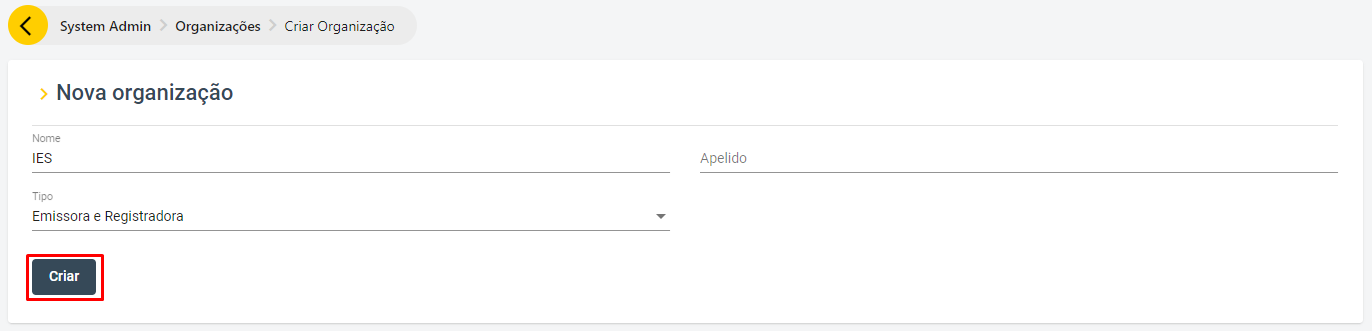
The organization type decides what the organization can do:
- Emissora e Registradora (issuer and registrar): issues and registers diplomas;
- Emissora (issuer): only issues diplomas;
- Registradora (registrar): only registers diplomas.
Signer
- If there is no organization yet, click New organization:

- If there is already an organization, click the + icon:

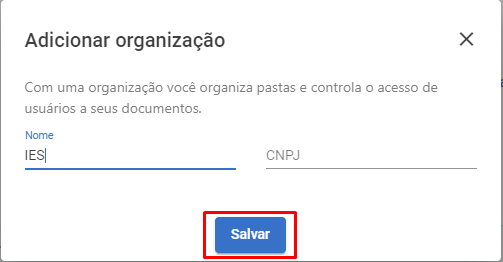
Fill in the information and click Save. The CNPJ is optional.
Configure Digiploma
Digiploma needs a Signer API key to create documents in Signer.
Signer
To generate the API key, create an application in the organization you created earlier:
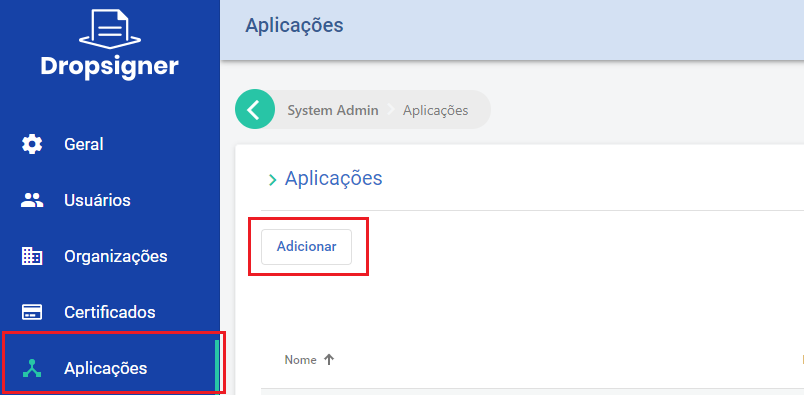
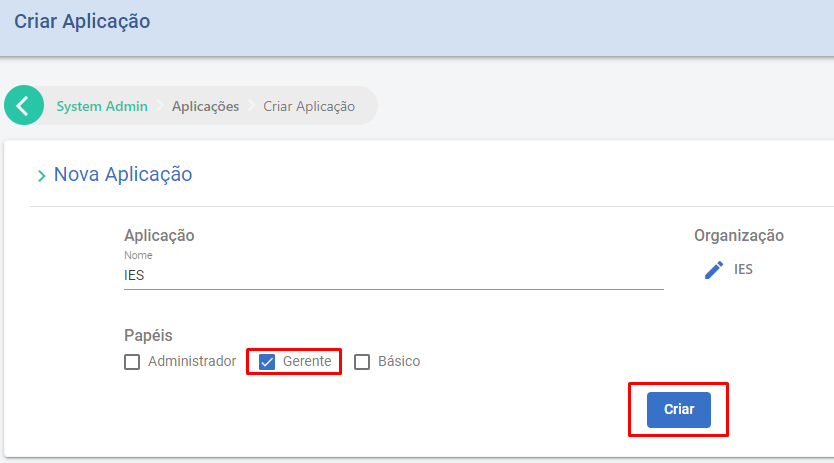
Then generate the key with the Keys option:
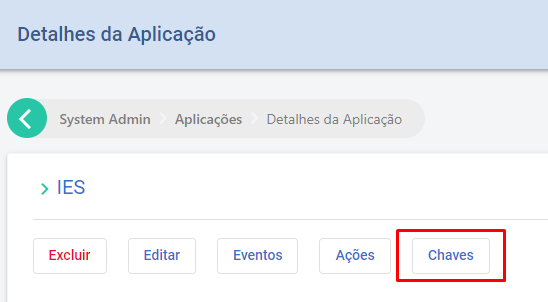
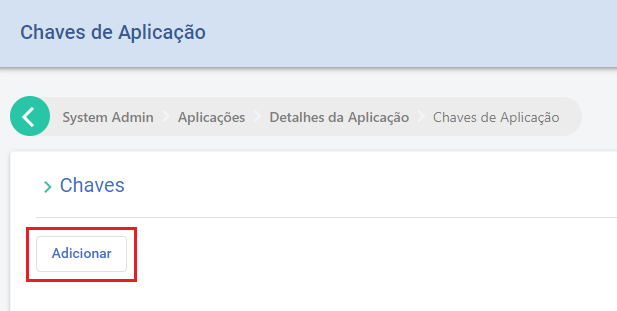
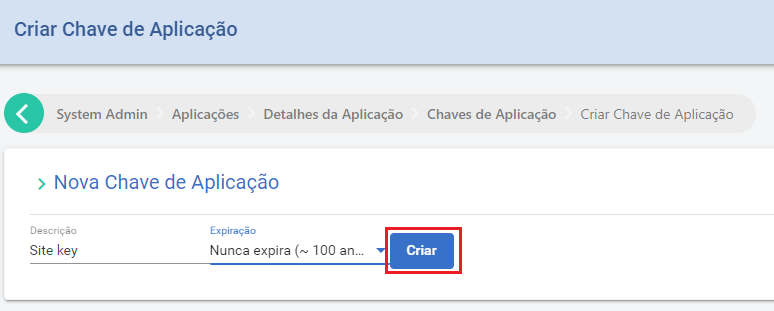
Copy the generated API key. It is shown only once and cannot be retrieved later.
Digiploma
On the Digiploma home page, with the organization selected, choose Configurações (Settings).

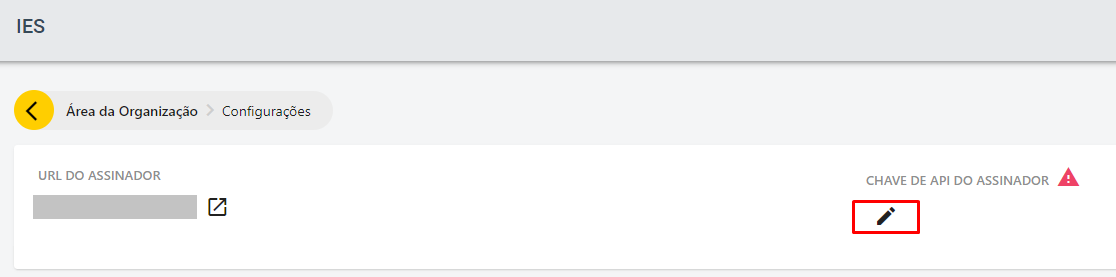
Paste the API key you copied from Signer.
Configure Signer
Signer needs a Digiploma API key to send its webhook notifications to Digiploma.
Digiploma
To generate the API key, create an application in the organization you created earlier:
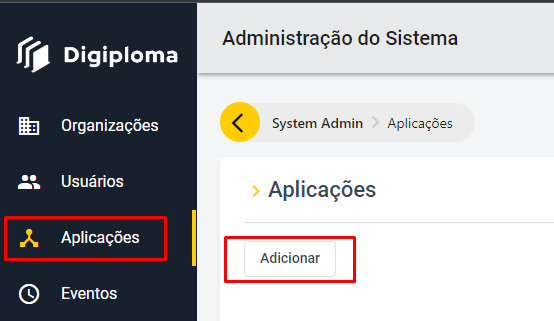
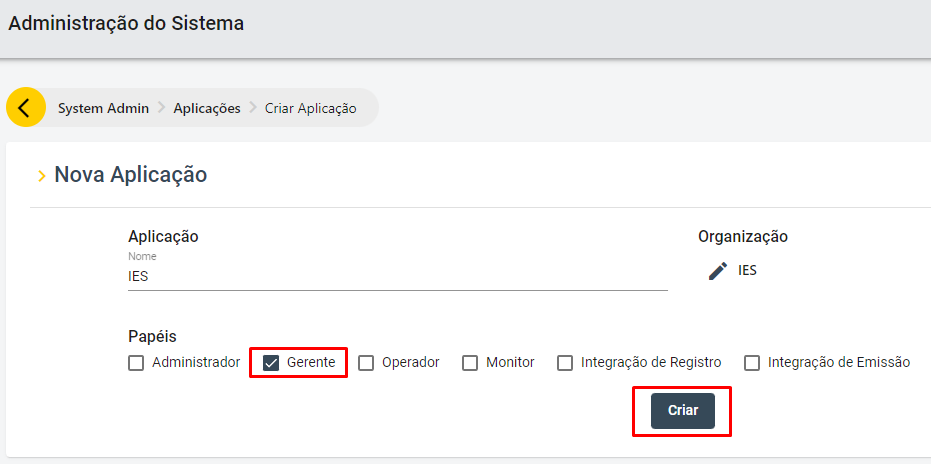
Copy the generated API key. It is shown only once and cannot be retrieved later.
Signer
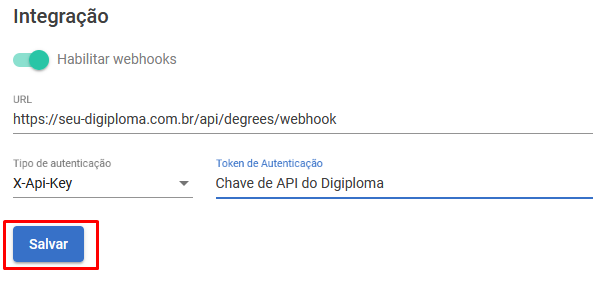
Go to the Administration page, select Organization, select the organization you created earlier and enable webhooks.
-
Fill in the URL field with the address of your Digiploma instance followed by the webhook path, as in the example below:
https://your-digiploma.example.com/api/degrees/webhook -
In the Authentication type field, select X-Api-Key.
-
In the Authentication token field, paste the API key you copied from Digiploma.