How it works
This page follows one signature through CloudHub and explains the pieces you choose along the way: the session type, how CloudHub discovers providers, which redirect URIs it accepts and how to carry your own data through the round trip. Get started turns it into code.
Providers and cloud certificates
A trust service provider (a PSC, Prestador de Serviço de Confiança) keeps certificates and their private keys in an HSM and lets the holder use them remotely. Its interface follows ITI's DOC-ICP-17.01, which is OAuth 2.0: an application sends the user to the provider's authorization page, the user signs in and approves, and the application receives a token that allows signatures with that user's key.
A person can hold certificates at several providers, and more than one certificate at the same provider. CloudHub hides the protocol, but not that choice: the user decides which provider to use.
The flow, step by step
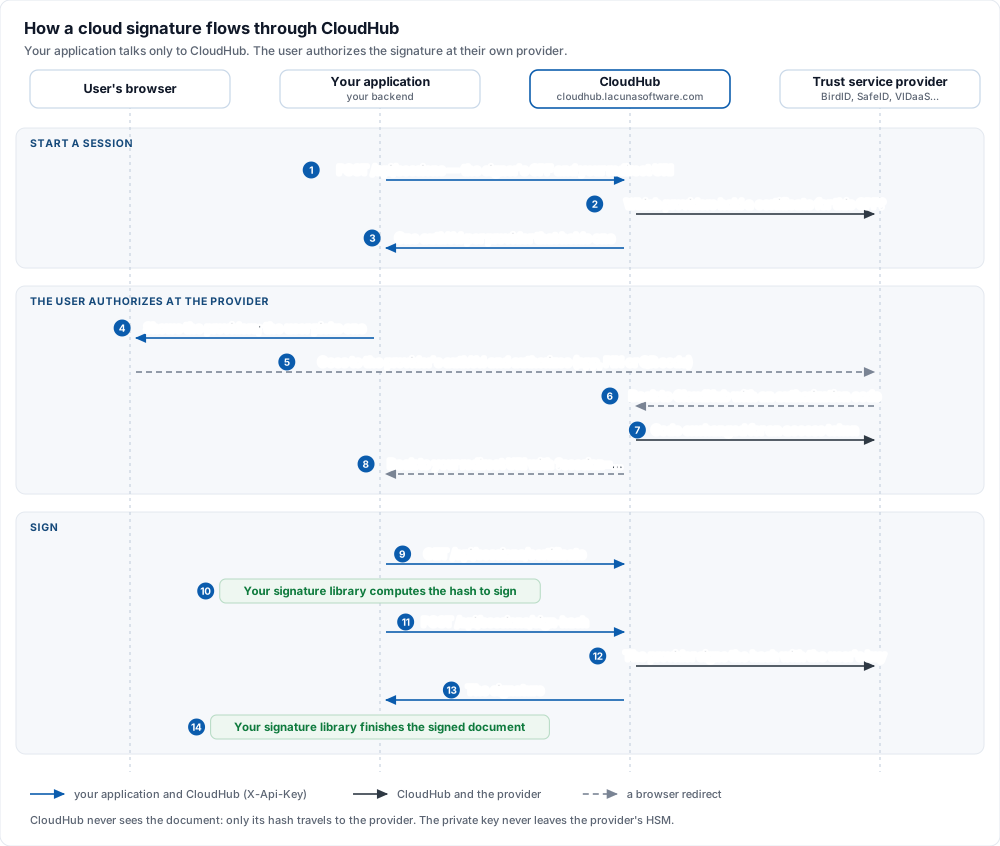
1. Create a session
Your backend calls POST /api/sessions with the signer's CPF (or CNPJ), the redirect URI CloudHub
should send the user back to, and the session type. CloudHub asks every provider
whether it holds a certificate for that identifier and answers with one entry per provider that
does:
{
  "services": [
    {
      "serviceInfo": {
        "serviceName": "BirdID",
        "provider": "SOLUTI",
        "endpoint": "https://api.birdid.com.br/",
        "badgeUrl": "https://cdn.lacunasoftware.com/img/psc/birdid.png"
      },
      "authUrl": "https://api.birdid.com.br/oauth/authorize?client_id=…"
    }
  ]
}
Nothing has been authorized yet. An empty services list means no provider holds a certificate for
that identifier, or none of those that do answered in time.
2. Send the user to a provider
Show the providers, for example with badgeUrl as the logo and provider as the caption, and
navigate the browser to the chosen entry's authUrl. The user signs in at the provider and approves
the request, typically in the provider's mobile app, with a PIN or by scanning a QR code.
3. The user comes back with a session
The provider redirects the browser to CloudHub, CloudHub exchanges the authorization code for the
provider's token and stores it, and then redirects the browser to your redirect URI with a
session query parameter appended. Query parameters you put in the redirect URI are kept:
https://app.example.com/sign/complete?fileId=42&session=9f2c…e81a
If the user cancels, the provider refuses, or the exchange fails, CloudHub still redirects to your
redirect URI, but without the session parameter. CloudHub does not say why. Treat a missing
session as "not authorized" and let the user try again.
4. Read the certificate
With the session, GET /api/sessions/certificate returns the signer's certificate, base64-encoded.
GET /api/v2/sessions/certificate returns the same certificate together with its alias and the
serviceName of the provider.
When the provider holds more than one certificate for the user, CloudHub picks one: a certificate
that is currently valid wins over one that is not, and among those, the one whose validity started
most recently. To make sure the hash is signed with exactly the certificate you read, pass its
alias to the next call.
5. Sign the hash
Your signature library computes the hash to sign from the document and the certificate. Your backend
sends it to POST /api/sessions/sign-hash with the session and the digest algorithm, and CloudHub
returns the signature value, base64-encoded. Your signature library then embeds the signature and
the certificate in the signed document.
Sessions
The session value
The session value your redirect URI receives is a 64-character hexadecimal string. CloudHub keeps
the provider's token; your application keeps only this value and passes it to every call that uses
the session.
A session is useless without your API key, but together they allow signing with the user's key, so treat the session value as a credential: use it right away, keep it out of your logs, and don't store it for longer than you need. It arrives in a query string, so it can reach the browser history and your web server's access log; use HTTPS and configure access logs accordingly.
Session types
The session type, sent in type when you create the session, says what the user authorizes.
| Type | The user authorizes | Use it for |
|---|---|---|
SingleSignature | One signature. This is the default. | Signing one document. Signing a challenge to sign the user in. |
SignatureSession | Any number of signatures until the session expires. | Signing several documents with a single authorization. |
MultiSignature | One signature operation covering one or more hashes. | Provider-dependent. CloudHub signs one hash per sign-hash call, so for several documents prefer SignatureSession. |
AuthenticationSession | No signature: only reading the certificate. | Not recommended. Most providers don't support it; to sign users in, use SingleSignature. |
Reading the certificate doesn't count as a signature: a SingleSignature session can read the
certificate and then sign once.
Lifetime
lifetimeInSeconds asks the provider for a session that lasts that long. The provider decides: it
may grant less, and when you omit the value it applies its own default. Ask for what the operation
needs: a few minutes for one signature, longer for a SignatureSession that signs a batch.
Once a session has expired, CloudHub answers a call that reads its certificate or signs with it with
a SessionExpired error. This can happen on the very first call if the user took long to authorize. Create a new session and
send the user through the provider again.
Discovery
Discovery is how CloudHub finds the providers that hold a certificate for a signer. When you create a session:
- With an identifier, CloudHub queries every provider in parallel and returns only those that hold a certificate for it. A provider that fails to answer is left out rather than failing the call. Send the CPF or CNPJ as digits only.
identifierTypesays whether the identifier is aCPFor aCNPJ. When you omit it, an identifier with more than 11 digits is treated as a CNPJ.discover: falseskips the queries and returns every provider, passing the identifier to each as a login hint.- Without an identifier, CloudHub returns every provider and the user identifies themselves at
the provider, for example by scanning a QR code.
discover: truewithout an identifier is refused withIdentifierRequiredToDiscover.
Three more operations help when you need finer control:
GET /api/sessions/services?identifier=…runs discovery without creating a session. It returns the providers, but noauthUrl.GET /api/sessions/services/{name}/availability?identifier=…asks a single provider.discoveryAvailable: falsemeans the provider could not answer; otherwisecertificateFoundsays whether it holds a certificate for the identifier.POST /api/sessions/services/{name}creates a session at one provider only, when the user has already chosen it.nameis theserviceNameCloudHub returned, such asBirdID.
The REST API page details each one.
Redirect URIs
CloudHub only sends users back to redirect URIs registered for your API key. It checks the URI when
you create the session and refuses an unregistered one with UnauthorizedRedirectUri. Lacuna
registers the URIs when it issues the key; a key can have several. Each entry takes one of these
forms:
| Registered entry | Accepts |
|---|---|
https://app.example.com/sign/complete | That exact URI, compared without regard to case. Its query string is part of the comparison. |
https://app.example.com | Any path and query string on exactly that scheme, host and port, with the host compared without regard to case. A URI on another port (such as https://app.example.com:8443), another scheme or another host (including a subdomain) is refused; to use a non-default port, register it in the entry: https://app.example.com:8443. |
https://*.example.com | Any subdomain of example.com (but not example.com itself), with the same scheme. Add the port when it is not the default: https://*.example.com:8443. |
https://*.example.com/callback | Any subdomain, but only when the path is exactly /callback. |
If you add your own parameters to the redirect URI (see the next section), register a host or wildcard entry: an exact entry stops matching as soon as the query string changes.
Entries never match by string prefix: https://app.example.com does not accept
https://app.example.com.other.test. A redirect URI that contains user info
(https://user@app.example.com/...) is always refused with UnauthorizedRedirectUri. A redirect URI
that is empty or is not an absolute URI is refused with HTTP 422 and InvalidRedirectUri.
For local development, ask for an entry such as https://localhost:5001 beside your production
ones.
Carrying your own data through the round trip
The user leaves your application to authorize, so the request that comes back to your redirect URI needs to know what it was for: which document to sign, which order to approve. There are two ways to carry that:
- Query parameters in the redirect URI, such as
?fileId=42. They come back unchanged, next tosession, and every client library supports them. The user can see and edit them. customState, a string you send when you create the session. CloudHub keeps it inside its encrypted OAuth state, so the user can neither read nor alter it, and returns it fromGET /api/sessions/custom-state?session=…. The REST API, the PHP client and the Node.js client send it; the .NET and Java clients published today don't have the field.
Either way, check that what comes back refers to something the current user is allowed to sign.
Security checklist
- Keep the API key on your server. Never send it to a browser or ship it in a mobile app. If it leaks, ask Lacuna support for a new one.
- Check who signed. The user may sign in at the provider with an account other than the one you expected. After reading the certificate, compare its CPF (or CNPJ) with the one you asked for.
- Validate the certificate with your signature library. CloudHub returns whatever the provider returns. The trust arbitrator (PKI SDK) or security context (Rest PKI) of your signature library decides whether the certificate is trusted.
- Treat the session value as a credential, and only accept it on the redirect URI you created the session with.
- Use HTTPS for every redirect URI outside local development.