How certificate issuance works - Amplia Reg
This article explains the path a certificate takes from the moment it is ordered until it is installed on the holder's computer: who takes part, which statuses the order goes through, and how Amplia Reg and Amplia work together.
In short, Amplia Reg is the Registration Authority (RA): it confirms the holder's identity and approves the order. Amplia is the Certification Authority (CA): it issues and revokes the certificate. Amplia only takes part at the end, when the holder issues the certificate. Until then, the order exists only in Amplia Reg.
Who takes part
| Participant | Role in Amplia Reg | What they do |
|---|---|---|
| Your application | Application with the Sales app role | Creates orders through the API and receives webhooks |
| Validation agent | Validation agent | Validates the holder's identity and signs the dossier and the agreement |
| Confirmation agent | Confirmation Agent | Reviews the validated order and approves, sends back or declines it |
| Holder | (none, uses the public issue page) | Provides documents and biometrics, then issues the certificate |
| Amplia Reg | Runs the workflow, stores the evidence and calls Amplia | |
| Amplia | Issues and revokes the certificate, using the CA set on the certificate type |
Coordinators and supervisors manage agents, service places and orders, and can also cancel orders and revoke certificates.
The flow, end to end
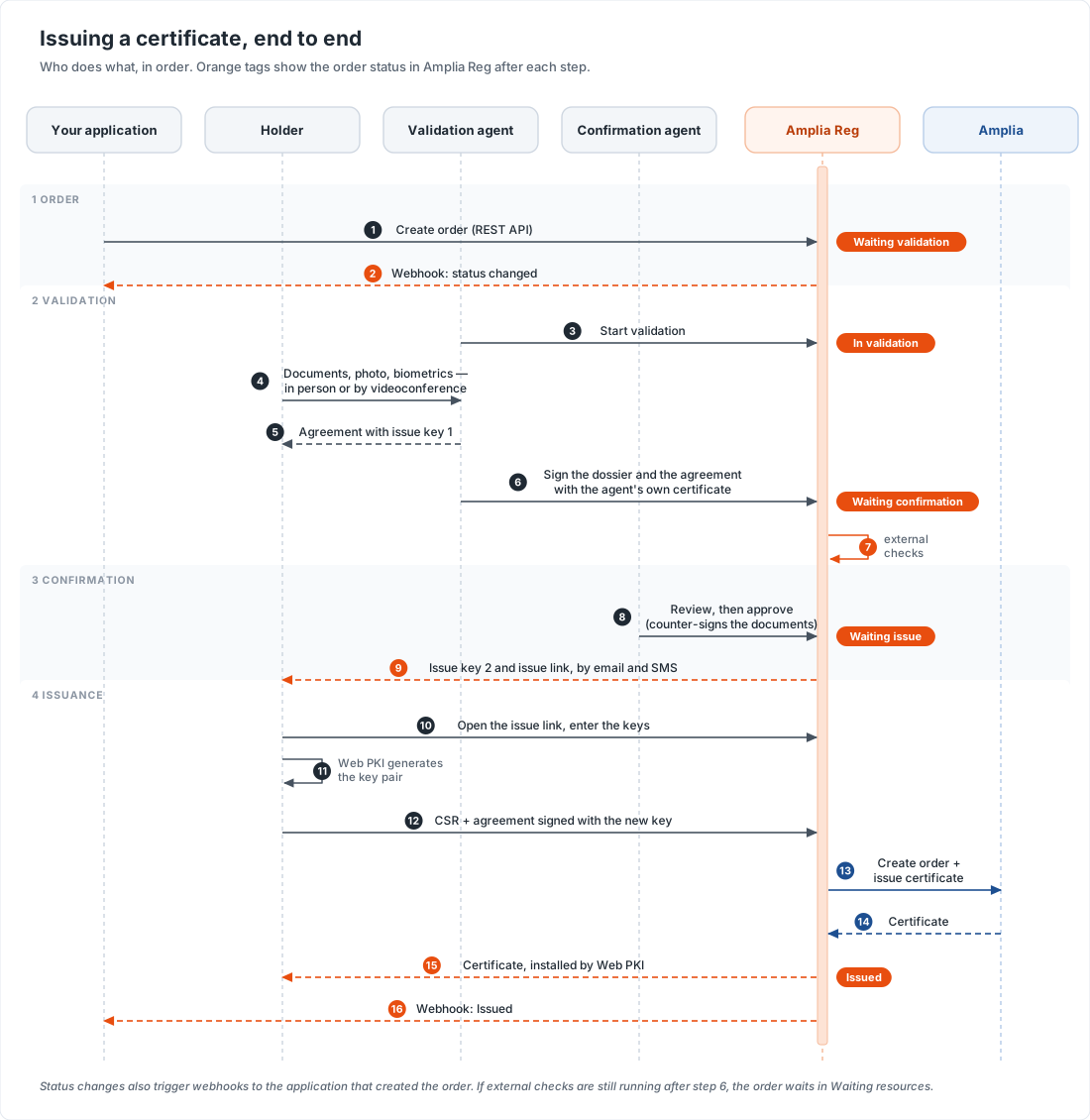
The diagram below shows a typical in-person or videoconference order, from creation to the installed certificate. The orange tags show the order status in Amplia Reg after each step.
1. Order
The order is created with the certificate type and the holder's data, either by your application through the order creation API or by an agent in the control panel. The certificate type defines the certificate format, the key media, the validity options and which validation steps apply.
A new order starts at Waiting validation. If the API call asks to start validation right away, the order starts at In validation. Orders of the video identification type start at Waiting video identification instead: the holder records a self-service identification video first, and the order then moves to Waiting validation.
2. Identity validation
A validation agent starts the validation (In validation) and works through the steps that the certificate type requires:
- the holder's information and, when enabled, the holder's documents
- the holder's photo and biometrics, with liveness detection, or a videoconference with the holder
- checks against external sources, when enabled, such as biometric databases and government data (in Brazil, for example, Serpro)
- the agreement, which contains issue key 1, handed to the holder
To finish, the agent signs the order's dossier and the holder's agreement with their own certificate. If an external check is still running (a biometric result, an automatic document validation or the upload of the videoconference recording), the order waits at Waiting resources and moves on by itself when the results arrive.
3. Confirmation
The order goes to Waiting confirmation until a confirmation agent picks it up (In confirmation). The confirmation agent is normally a different person from the validation agent. They review the evidence and then:
- approve the order, signing the dossier and the agreement as well. The order moves to Waiting issue.
- send it back for correction, for example because of a data mismatch, a typing error or unreadable files. The order moves to Pending and the holder is notified. After the validation agent corrects the order and signs it again, it returns to confirmation.
- decline the order (Declined).
Whether confirmation is required depends on the instance settings and on the order. It can be required for every order, which is the default, or only when something calls for a second look, for example when a check failed or the holder is a politically exposed person. When it is not required, the order goes straight from validation to Waiting issue.
When the order is approved, Amplia Reg sends the holder issue key 2 and the issue link by email and SMS.
If the instance is configured to use a single issue key, the agreement has no key and the holder receives the only key upon approval.
4. Issuance
The holder opens the issue link and issues the certificate. This is the only step in which Amplia takes part:
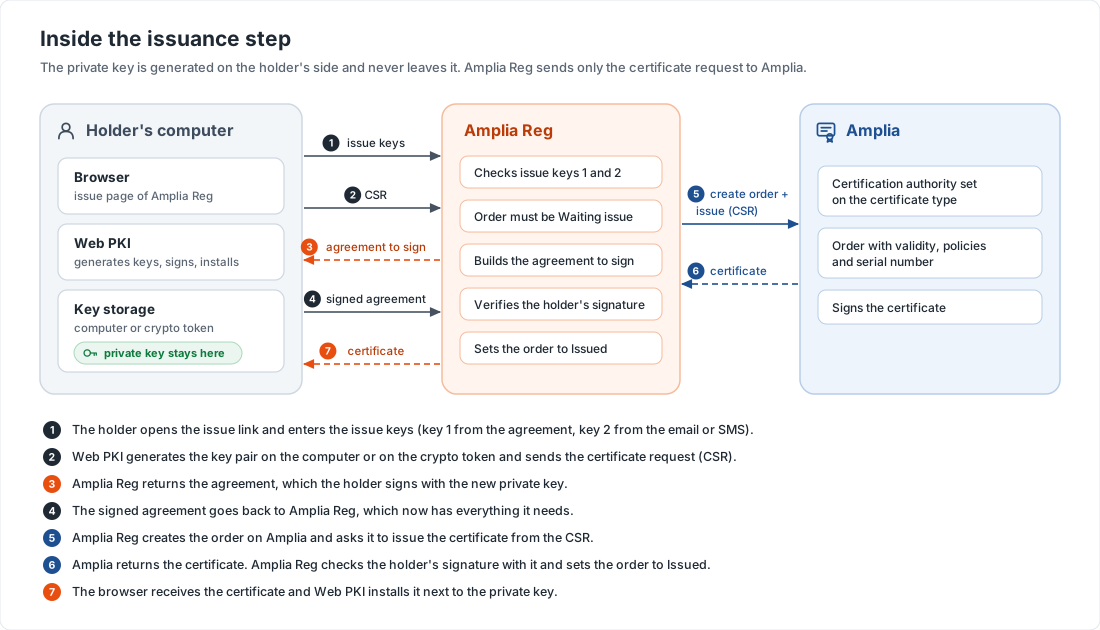
- The holder enters the issue keys. Amplia Reg checks them and checks that the order is at Waiting issue. Too many wrong attempts lock the order.
- Web PKI generates the key pair on the holder's computer or crypto device and sends the certificate request (CSR) to Amplia Reg.
- Amplia Reg returns the agreement, which the holder signs with the new private key.
- The signed agreement is sent back to Amplia Reg.
- Amplia Reg creates the order on Amplia, on the CA set on the certificate type, with the validity, policies and serial number of the order, and asks Amplia to issue the certificate from the CSR.
- Amplia returns the certificate. Amplia Reg checks the holder's signature on the agreement against it, sets the order to Issued and emails the holder.
- The browser receives the certificate and Web PKI installs it next to the private key.
With computer or cryptographic device key media, the private key never leaves the holder's side: Amplia receives only the CSR.
Where the key pair is generated depends on the key media of the certificate type:
| Key media | Where the key pair is generated |
|---|---|
| Computer | On the holder's computer |
| Cryptographic device | On the holder's token or smart card |
| Cloud | In a cloud HSM; the holder receives a cloud issue link instead of the regular one |
| Ascertia ADSS | On the Ascertia ADSS server, not on the holder's computer |
Order statuses
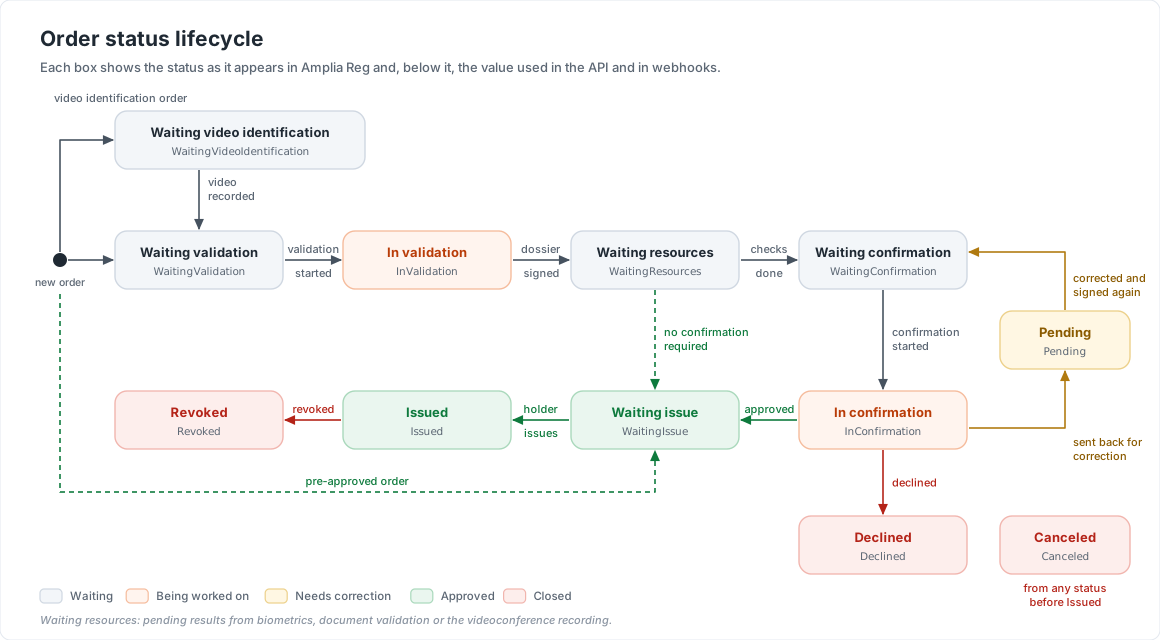
The diagram below shows every order status and the transitions between them. Each box shows the status as it appears in the control panel and the value used in the API and in webhooks.
| Status | API value | Meaning |
|---|---|---|
| Waiting video identification | WaitingVideoIdentification | Waiting for the holder to record the identification video |
| Waiting validation | WaitingValidation | Created and waiting for a validation agent |
| In validation | InValidation | A validation agent is working on the order |
| Waiting resources | WaitingResources | Validated, but waiting for the results of external checks |
| Waiting confirmation | WaitingConfirmation | Waiting for a confirmation agent |
| In confirmation | InConfirmation | A confirmation agent is reviewing the order |
| Pending | Pending | Sent back for correction |
| Waiting issue | WaitingIssue | Approved; the holder can issue the certificate |
| Issued | Issued | The certificate was issued |
| Revoked | Revoked | The certificate was revoked |
| Declined | Declined | The order was declined |
| Canceled | Canceled | The order was canceled |
An order can be canceled at any status until the certificate is issued, through the control panel or the cancellation API. Once the order reaches Waiting issue, its data can no longer be changed.
Other paths
Pre-approved orders
An electronic registration authority, which has already validated the holder in its own system, can create a pre-approved order. Pre-approved orders skip validation and confirmation: they start at Waiting issue, and the API response contains the issue link for the holder.
Issuance by the agent before approval
For certificates on crypto devices, the certificate type can allow the agent to issue the certificate during the in-person service, before the order is approved. Amplia issues the certificate pending approval. When the order is approved, Amplia Reg asks Amplia to approve the certificate and the order goes straight to Issued. If the order is declined instead, the certificate is revoked.
Revocation
An issued certificate can be revoked by a coordinator or supervisor, who must provide a signed revocation letter, or by the holder, who uses the issue keys. Amplia Reg sets the order to Revoked and asks Amplia to revoke the certificate. Amplia then publishes the revocation in its CRLs and OCSP responses.
Following the order from your application
Every status change of an order created by your application can be sent to a URL of your choice. See Webhooks for the payloads.